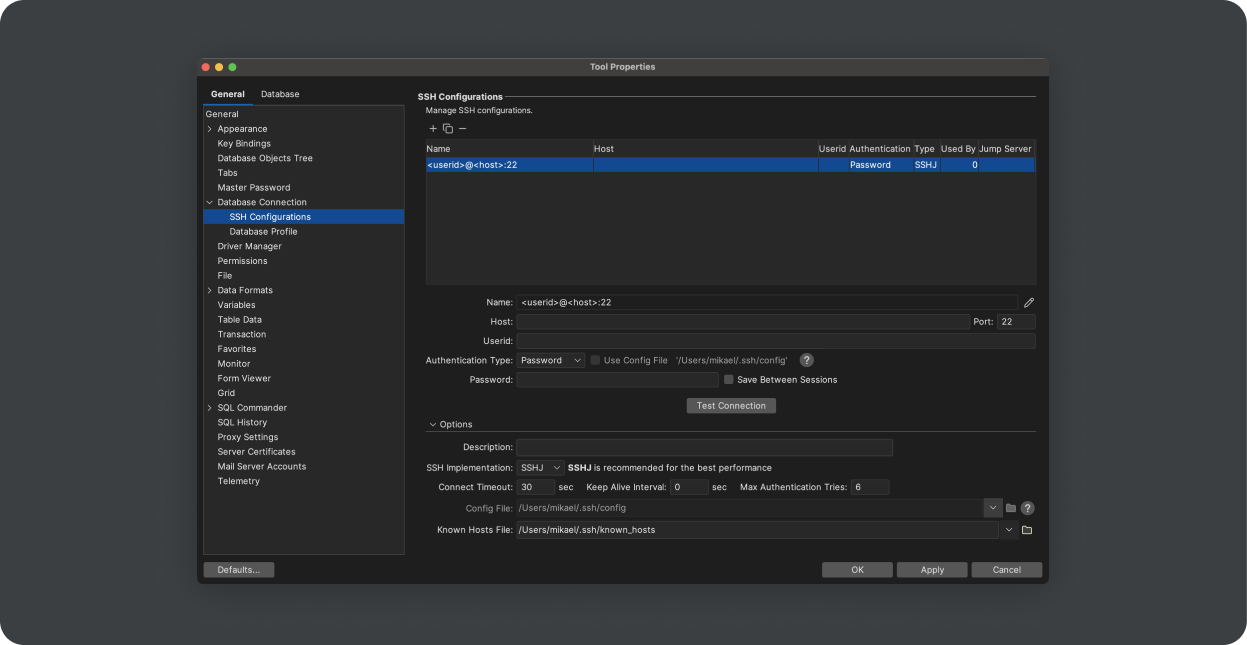
Database Connection


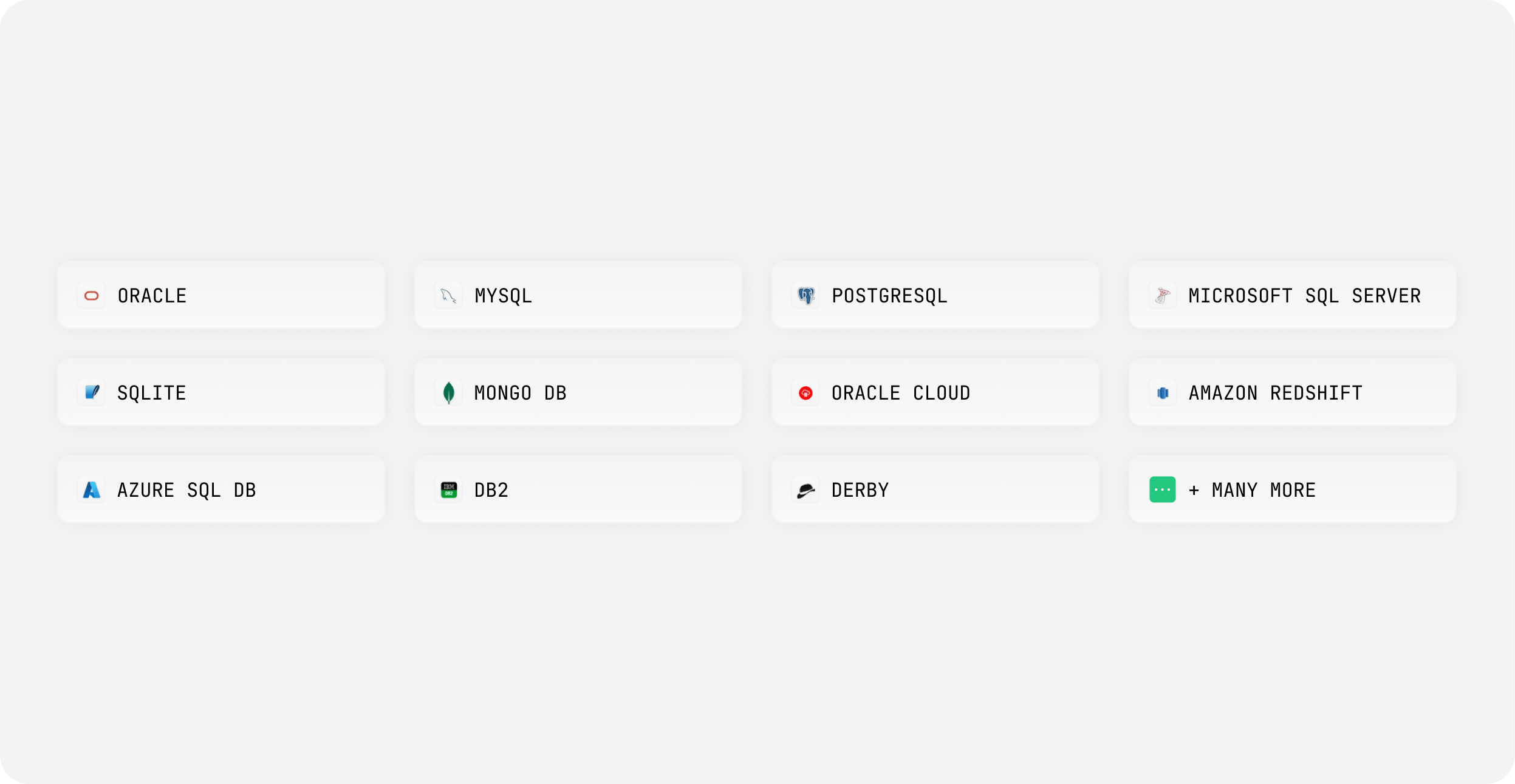
Defining a database connection is a simple task using the Connection Wizard in
DbVisualizer. In the wizard, choose what database you are connecting to,
information about the JDBC driver and finally the details about the database
server and user credentials. An alternative to the wizard is to setup the
connection manually via conventional JDBC steps, such as defining the JDBC URL.
Connection Wizard

JDBC Driver Manager

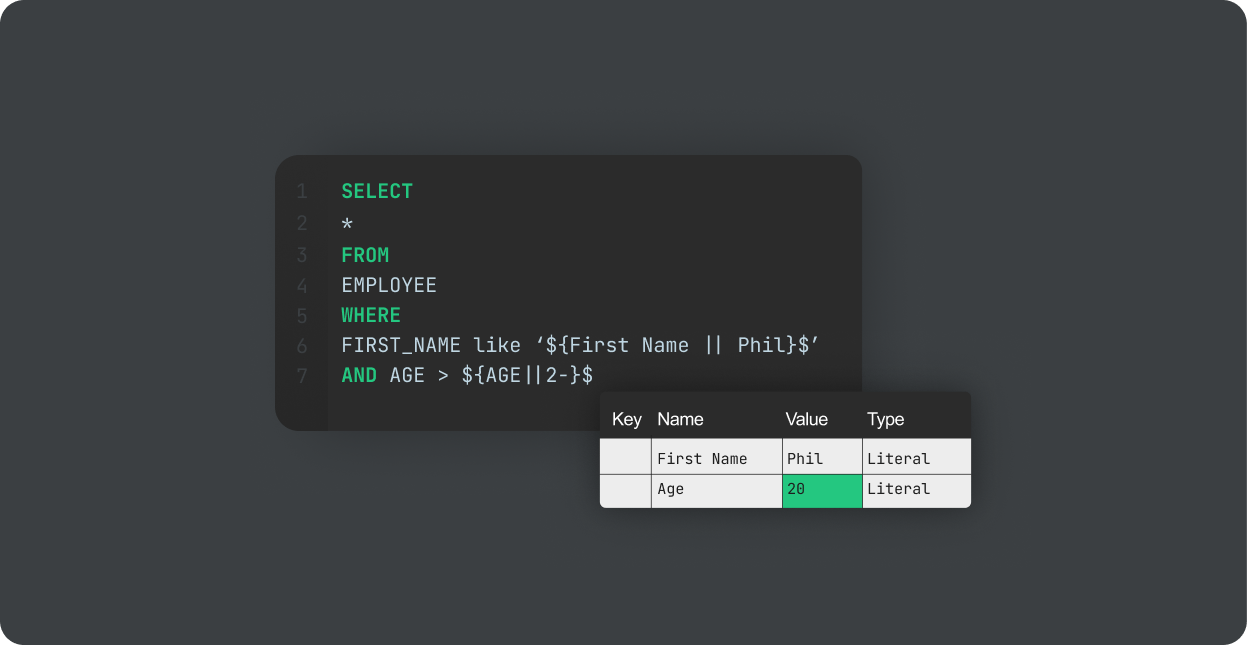
Connection Details

Connection Details with Variables
 

Extra JDBC Driver Properties

Qualify Object Names properties


Database Browser


The database browser in DbVisualizer is the place where you navigate the structure
of objects available in the database server. The information in the tree
depends on what database is being accessed.
Database Browser when connected to a Oracle DB

                  
Every object (node) in the tree has an accompanying right-click menu with
actions specifically for that object. What actions are available depends
on the object type but are typically used to create, alter, rename and remove
objects of that type.
Right click menu actions for a table in Oracle

                  
You may search the database based on object names
Database Search

                  
When you select an object in the Database Browser, you see a number of tabs
in the Object Details pane to the right. What is displayed here depends on what database
you are accessing and the type of object you select.
Table Object Details


Table


The Create Table feature is used to specify the definition of a database table in
terms of columns, keys, indexes, foreign keys, constraints, etc. This screenshot
show the Columns information.
Create Table

                  
Specify foreign keys to other tables
Define Foreign Keys

                  
The alter table feature enables visual editing of the table structure. This
screenshot also shows the SQL Preview area. This is the SQL that DbVisulizer 
will run when Execute is pressed.
Alter Table with SQL Preview

Create Index


Procedure, Function, Package and Trigger


This screenshot show the action used to create a
stored procedure in a SQL Server database.
Create Procedure

                  
Click a procedure in the database browser and the Procedure Editor is
activated in the object details pane.
Edit Procedure

                  
Clicking Execute in the Procedure Editor executes the procedure in the 
SQL Commander and prompts for IN/INOUT parameters. The return value and 
OUT/INOUT parameter values are written to the log.
Execute Procedure

                  
The Create Trigger action dialog lets you visually define a new trigger
Create Trigger


Export Database/Schema


The target destination can be any of file, clipboard or a SQL Commander editor.
You can export all objects or just a selection.
Export Database


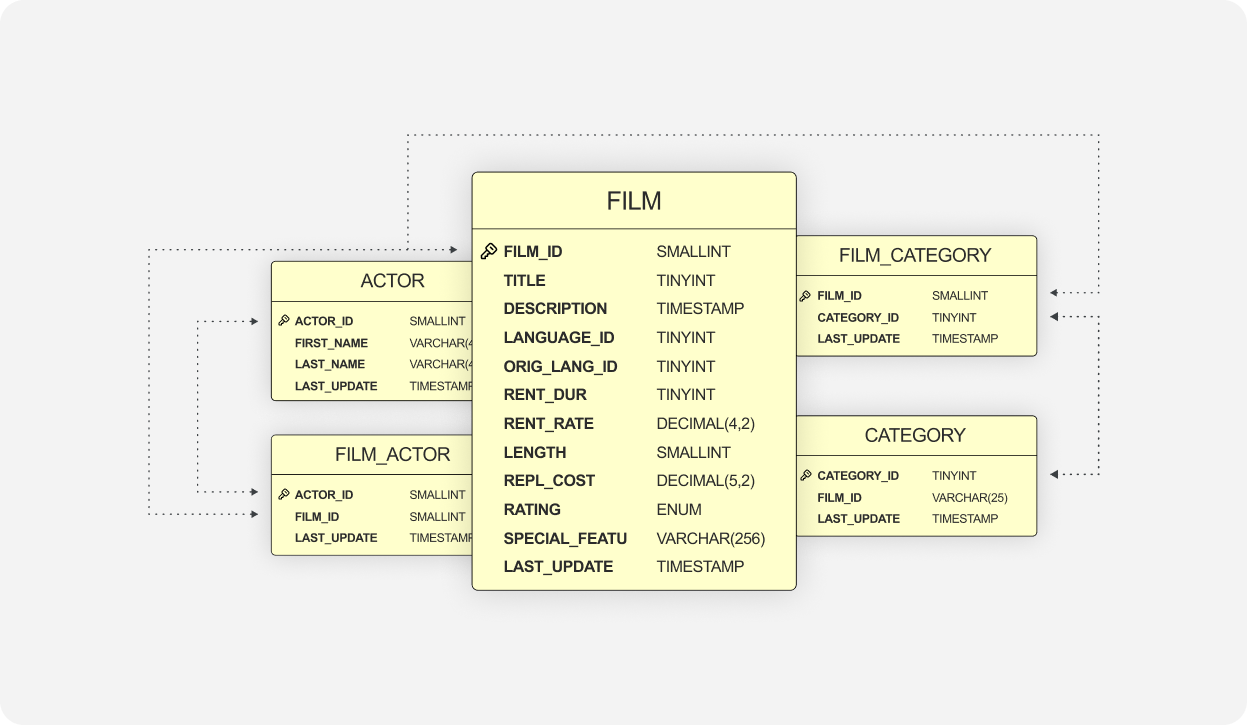
References Graphs


The references graph is a great feature as it automatically renders all
primary/foreign key mappings (also called referential integrity constraints)
in a graph style. The table nodes and relations are layed out automatically,
with a number of the layout modes available. The resulting graph is unique
as it displays all information in an optimal and readable layout. This screenshot shows
the references for a specific table.
References for a single Table

                  
The references graph is a great feature as it automatically renders all
primary/foreign key mappings (also called referential integrity constraints)
in a graph style. The table nodes and relations are layed out automatically,
with a number of the layout modes available. The resulting graph is unique
as it displays all information in an optimal and readable layout. This screenshot shows the references for all tables in an Oracle schema.
References for Multiple Tables


Table Data Editor


Table objects are the core of any database and DbVisualizer have great support
for managing table definitions and table data. Table data can be edited via the
spreadsheet-like editor or via the form editor, it supports management of
binary/BLOB and CLOB data as well as saving and loading data to/from files in 
the file system.
Table Data

                  
The inline data editor is a spreadsheet-like editor. Just open a table and modify
the data you want. Modified cells are indicated to represent the type of edit.
You may paste information into a multi row/cell selection and the pasted data
will update the corresponding cells. Once you're ready, all changes are propagated
to the database table in a single transaction. In addition you may sort one
or several columns, filter the data being presented and a lot more.
Inline Data Editor

                  
The form data editor is useful when editing a row that is either
composed of many columns and/or some fields contain much data. The data for a
row is presented in a form with the column name to the left and the actual data
in the right area.
To launch the form editor, either select Edit in Form or double click
the row header. The form editor is also used to visualize binary data
such as images, XML, etc.
Form Data Editor


Table Data Export


There are a number of options to control data formats and other details of the
export result.
Export Table


Table Data Import


There are a number of options to control what
data should be imported.
Data Delimiters

                  
Data types are automatically recognized when the file is loaded. To change this
click the first row cell and choose the appropriate type from the list.
Data Type Setup

                  
Columns in the file are automatically mapped to columns in the table, based on
either the name or the index. You can also map the columns manually.
Import Column Mapping

                  
A new table can be created for the imported data. The data type for each column
is determined automatically from the data and the specific types supported by
the database. You can adjust the types manually.
Import to a new table


Data Navigator


The navigator starts at the current table. The diagram at the top shows the
checked tables and their relationships. The lower grid shows the actual data
that is referenced by the primary/foreign key mappings. Select the data in the
grid and what constraint to follow in the "Related Table" drop down and
the navigator will render the referenced table in the diagram. The linked
data is displayed in the grid. You may jump back and forth by selecting
table nodes in the diagram. Nodes may be tagged with information from the
table data to make it easier to recognize them.
The Table Data Navigator


SQL Editor


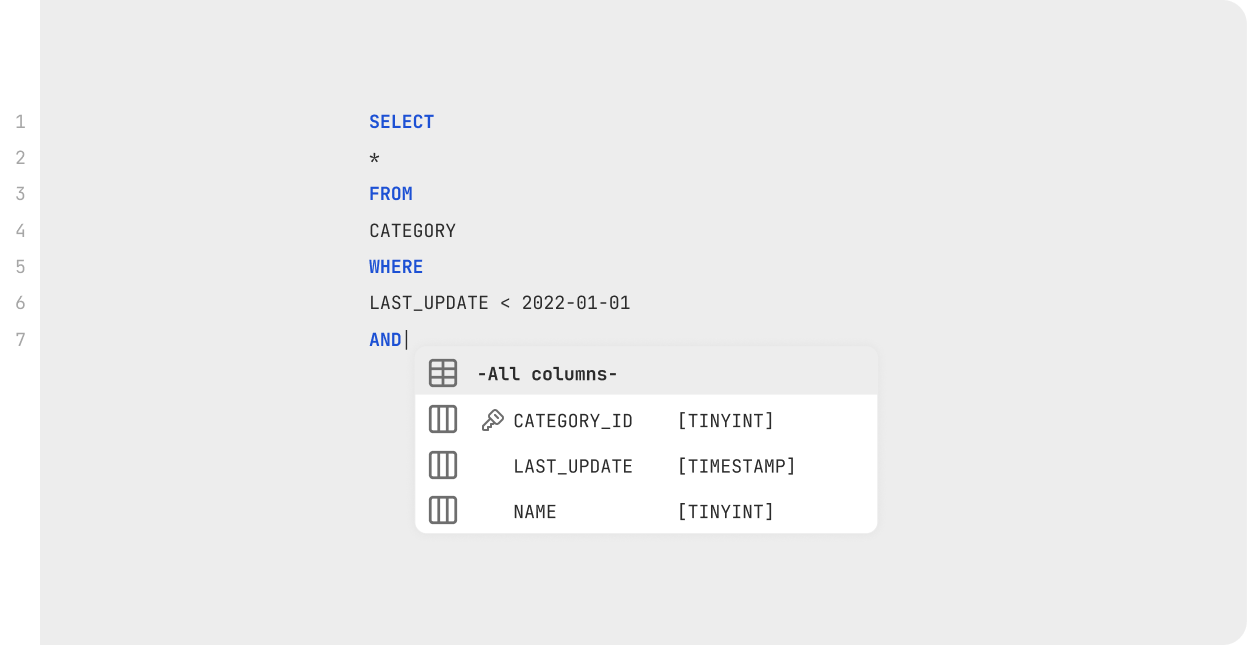
The SQL Editor supports auto completion which is an aid used to complete
sentences with either table or column names. Specify the beginning of a table
name and then press Ctrl+SPACE to show a list of matching names. The screenshot
show 3 select statements and their respective result as grid tabs in the lower part.
SQL Editor with Auto Completion and result sets in Grid format

                  
A result set displayed with the Text output format.
Execution of selected SQL with result set in fixed width Text format

                  
Any result set may be presented as a chart. There are numerous options
to control the appearance.
Result set in Chart format

                  
The data in a result set may be edited via the inline or form editors, as long as certain conditions are fulfilled.
Edit result set either inline or in the form editor


Query Builder


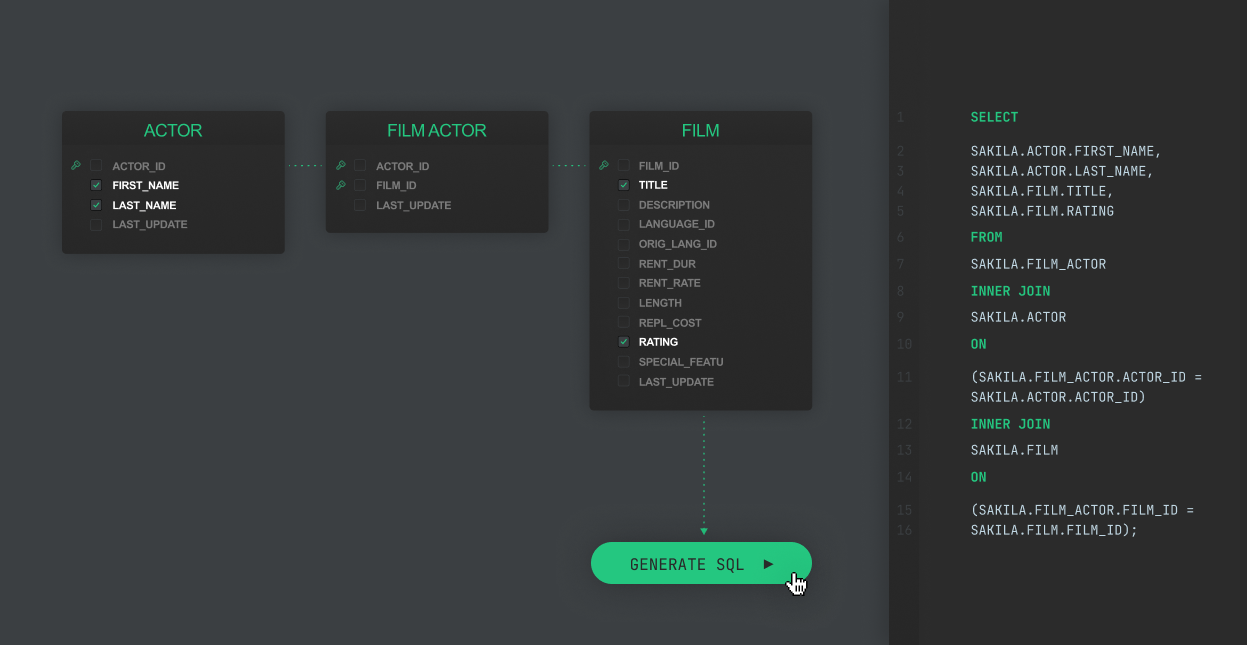
The query builder is a very useful feature used to build SQL select statements
graphically. Pick tables in the database browser and drag them into the
query builder diagram area. Then draw lines between columns in one table node
and attach to columns in another table node. These lines represent the joins
in the generated SQL. The tabs below the diagram area are used to specify any
COLUMNS, WHERE, ORDER BY and GROUP BY clauses.
Table Diagram and Join Properties

                  
In addition to the previous screenshot the query builder supports loading an
existing SQL statement so that it can be edited in the query builder.
Column Select list

                  
Once you are satisfied with the query, just pass it on to the SQL Commander
for test execution. If you need to make any refinements just
switch to the query builder and continue editing the query.
Generated and test SQL


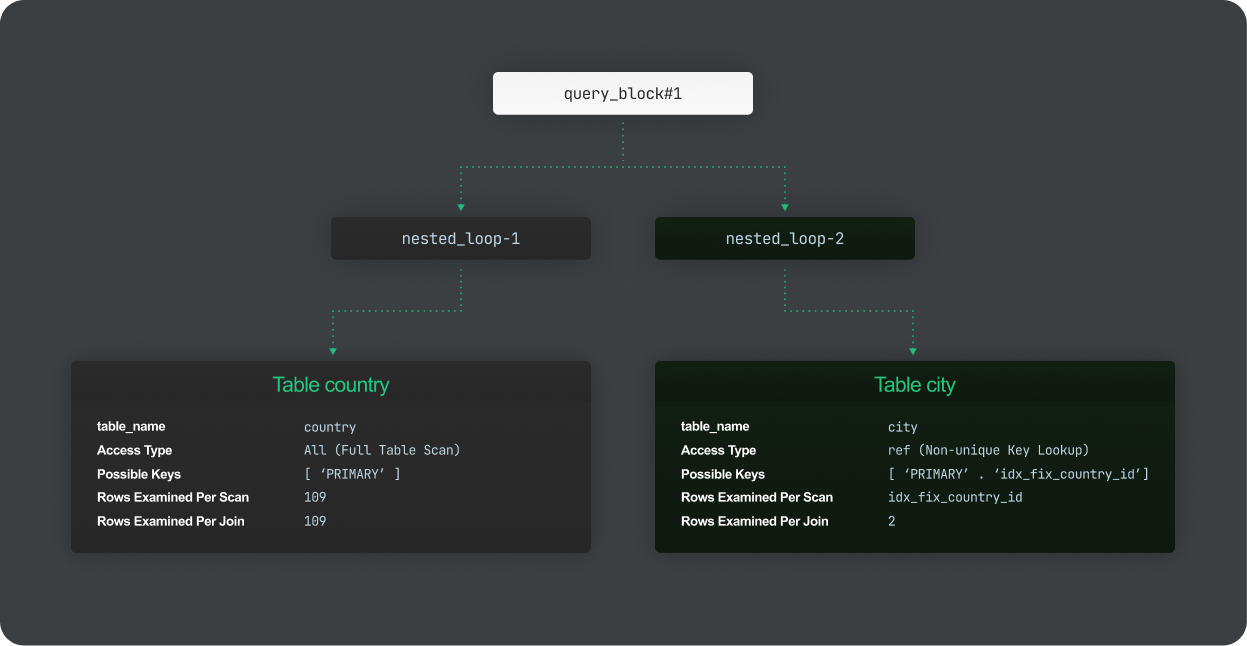
Explain Plan


The explain plan feature presents detailed information about how a specific
SELECT statement will be processed by the database. The plan data gives a lot
of information and is a great tool for improving select statement performance. This screenshot show the plan data in a multi-column list.
The explain plan feature is supported for Oracle, DB2 for LUW and SQL Server.
Explain Plan result as list

                  
The explain plan feature presents detailed information about how a specific
SELECT statement will be processed by the database. The plan data gives a lot
of information and is a great tool for improving select statement performance. This screenshot show the plan data as a tree.
The explain plan feature is supported for Oracle, DB2 for LUW and SQL Server.
Explain Plan result as tree


SQL Bookmarks and History


Frequently used SQL queries or scripts can be saved as SQL Bookmark files, making them easy to access and execute.
Bookmarks in the Scripts tab

                  
Previously executed statements and scripts can be located and executed again
from the SQL History window.
SQL History window


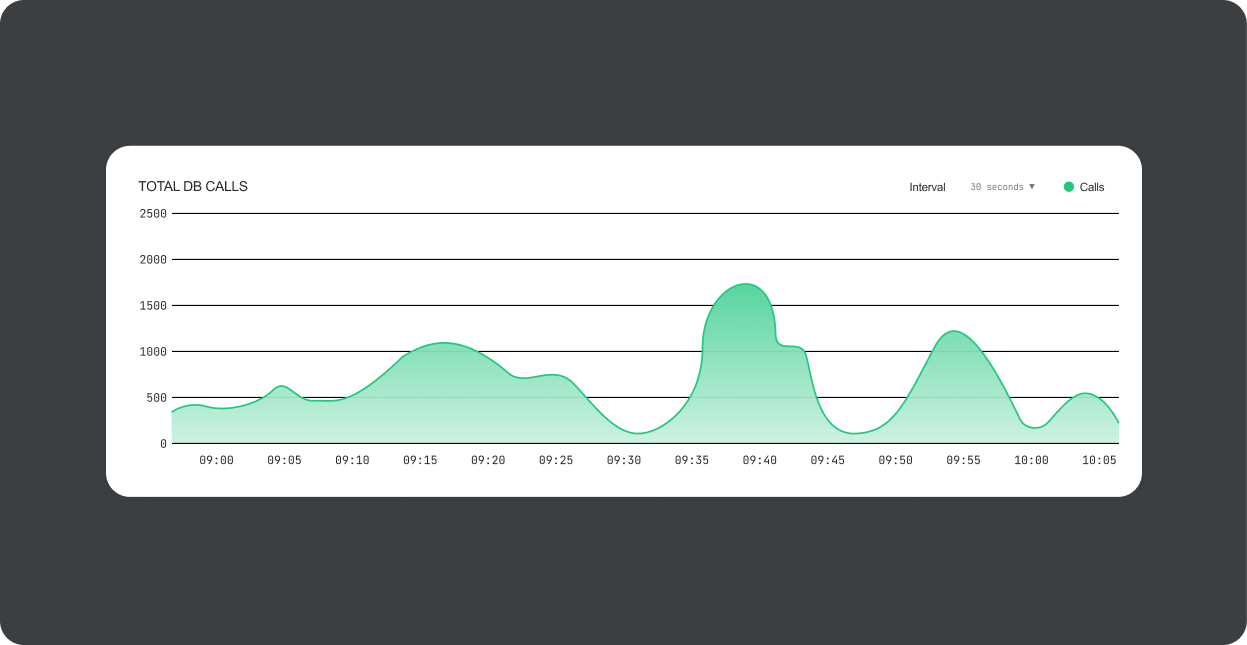
Monitor & Charts


The monitor tool is used to periodically execute select statements and present
the result in various formats. The chart format is really useful as it,
in combination with the monitor feature, can present a number of live charts
based on actual data.
The Monitor Tool


Favorites


Clicking an item in the Favorites Toolbar opens the corresponding
Database Object node in the tree or loads the correspondning Bookmark in
the SQL Commander.
Favorites Toolbar

               
The Favorites editor is used to organize and open your favorite objects.
Favorites Editor


Grid Component


Here are two columns, "Type (DB)" and "Size" sorted in ascending order.
To sort one column, just click the column header. One click will sort the
column in ascending order. Click again and it will be sorted in the reverse 
order,
and a third click will reset to the original ordering. To sort the grid based on more than one column,
keep the Ctrl key (Command on Mac OS X) pressed while clicking the
column headers.
<br>
The screenshot also shows filtering of the "Name" column. All matches in the grid
are highlighted with yellow color.
Grid with multi-column sorting and filtering

                  
The right click menu lists all actions that may be performed on the
grid and its data. Note that some actions are context sensitive and may
be disabled.
Grid right-click menu choices

                  
The "Browse Row in Window" action shows the selected row in a separate window.
The data is presented in a form with the leftmost column in the original
grid being presented at the top.
<br>
The form window is also a grid with the same capabilities as the grid component.
Row Form Window

                  
Sometimes it is convenient to select some data and show various statistics
such as telling max, min, avg, sum, etc. The right-click menu choice
"Aggregate Data for Selection" is used for this.
Aggregation Data for Selection


The export functionality is used to export the content of any grid to
a file. The output can be written in CSV, HTML, SQL, XML, MS Excel 
format. Data formats can be specified and test data can be generated
with the builtin data generators. The export functionality can also be
used in the SQL Commander, which is very useful when exporting large
result sets directly to file without first presenting them in DbVisualizer.
The Export feature


Command Line


Using the command line interface, you can connect to a database and execute a single SQL statement or a script, with various options.
Command Line options


OS Integration


DbVisualizer runs smoothly on the Windows platform, here with the
Windows look and feel
DbVisualizer on Windows

               
DbVisualizer on Mac OS X with the Aqua look and feel
DbVisualizer on Mac OS X

               
DbVisualizer on Linux with the Alloy cross platform look and feel
Cross Platform Look and Feel

               
DbVisualizer on Linux with the Java cross platform look and feel
Cross Platform Look and Feel


Configurable


The key binding support in DbVisualizer is extensive as it supports
setting key bindings for lots of operations. There are pre-defined key maps
specifically for Windows, Linux/UNIX and Mac OS X users. This is really
important for key bindings such as those used for editing since these key strokes
are different in each OS. In addition there
are key maps for users coming from other database tools such as TOAD and
SQL Server's Query Analyzer.
Key Binding setup

               
There are many settings used to control the appearance and behavior of
DbVisualizer. One great feature is to set connection mode for a database
connection. It can be set to one of Development (default), Test or Production.
A border indicates the current mode for the connection. The connection mode is 
also used in combination with the permission subsystem to control what 
commands need attention, are accepted or are denied for execution.
Connection mode

               
The grid colors can be defined so that every second row is presented
in an alternate color.
Grid colors

               
The permission feature simply controls every
action and SQL that are about to be executed. The permission is set per 
individual SQL statements executed in the SQL Commander, such as DELETE, DROP, 
UPDATE, etc. The response can be any of "Allow", "Ask" or "Deny".
Permissions are also available when editing in the table data editor. Permissions
can be defined for Insert, Update or Delete operations. The response for each
command is any of "Confirm" or "No Confirm". Permissions are grouped based
on the connection modes, "Development", "Test" and "Production".
Permission control setup

Recent NewsRecent News

2010-06-23

DbVisualizer 7.1.1
The latest maintenance version

2010-06-16

DbVisualizer 7.1 available. This version focus on more than 50 enhancements and improvements

2010-01-15

DbVisualizer 7.0 - major version is finally out. Reworked bookmark, SQL history and monitor management. Execution of stored procedures, table export and more


Who Uses DbVisualizer

We're lucky to have more than 9,000 customers in 90 countries using our software.
Customers...

Siemens


What Users Say

Subject: DBVisualizer...wow!
I downloaded DBVisualizer v2.1 a little while ago and have been playing with it...I am VERY impressed! Nice work!! My platform is a Sun UltraSPARC running 'Solaris8 with MySQL, and J2SE 1.3.1 with the mm.mysql jdbc driver. All functions work and appear stable....

Dave McGuire

Testimonials...