Using the AI Assistant
Only in DbVisualizer Pro
This feature is only available in the DbVisualizer Pro edition.
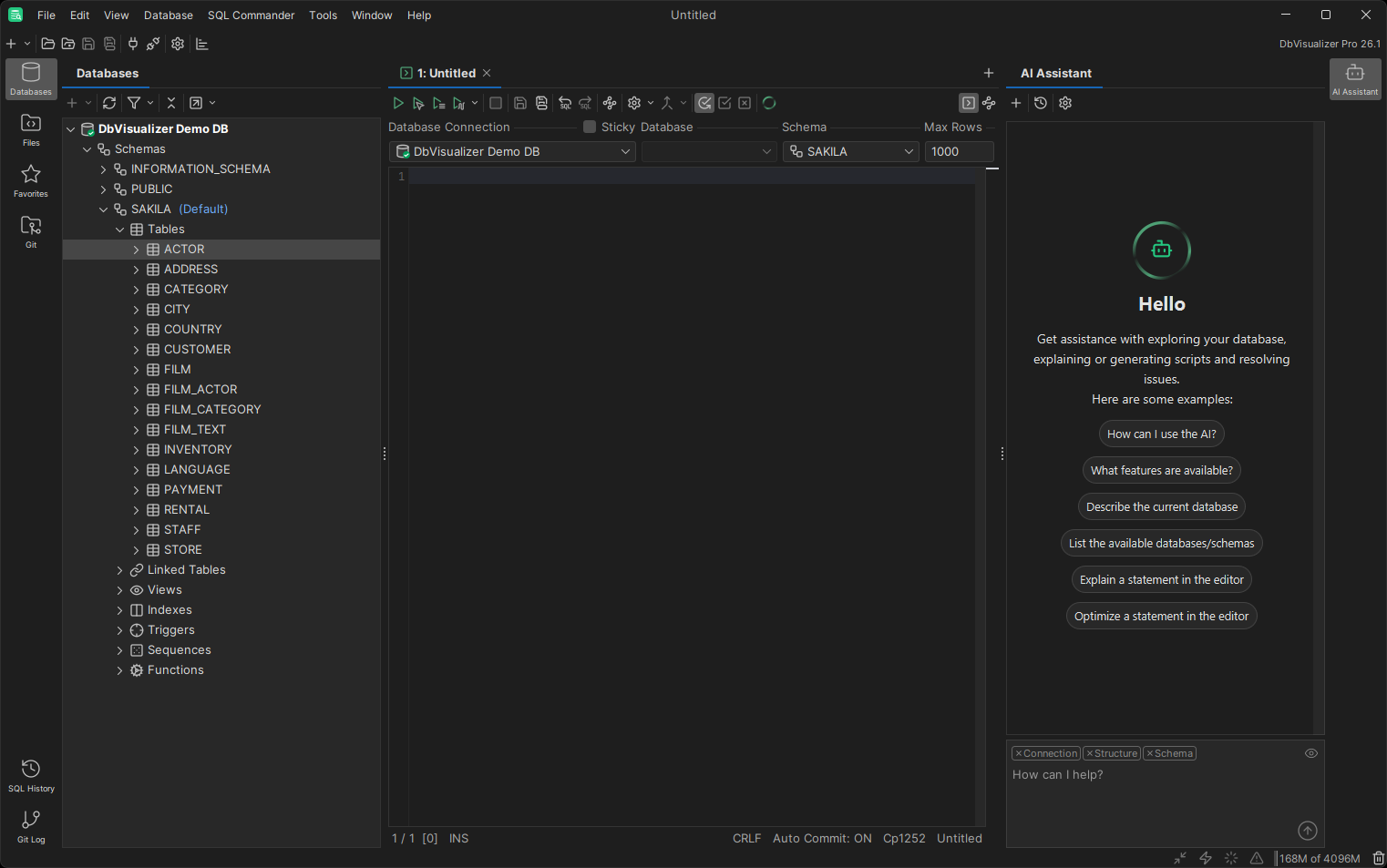
DbVisualizer has a built-in AI Assistant that helps you work faster and more confidently with your databases and scripts. It supports everyday tasks like writing and improving SQL, understanding and developing schemas, and troubleshooting errors, with explanations and suggestions tailored to what you are working on. You can use it to reason about most aspects of your database or query, from explaining database features to modelling, writing queries and much more.
Activating AI features
The first time you open the AI Assistant, you will be asked to log in and accept the AI EULA addendum. If you haven't logged in before, you will need to create an account. Once this has been done, you are ready to put AI to work.
Opting out
AI features in DbVisualizer are strictly opt-in. If you want everything to stay local and avoid any server-side AI processing, simply do not enable the assistant. To disable AI at a later stage, open Tool Properties → AI Assistant and uncheck the Enable AI Assistant setting. This will turn AI features off completely.
Working with the AI Assistant panel
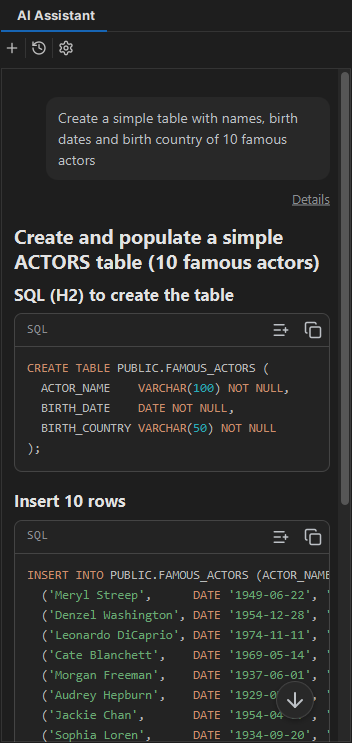
To open the AI Assistant, use the button in the top-right corner of the main window. This opens the AI Assistant panel consisting of a large output area and a smaller input area. The basic workflow is to submit a question using the input area, read the response generated by the AI, ask a follow-up question, read the new response, and so on.
If the AI response includes code, it will be presented as a code block that can be executed, copied to the clipboard, or inserted into the active editor tab using context actions.
Permissions
Generated queries and suggested code changes can be executed directly from the AI Assistant panel. This lets you test an idea, inspect the results, and iterate on your queries.
Queries executed this way are checked against a separate set of permissions, which you can adjust in Tool Properties → AI Assistant → Permissions. To prevent unintended data modifications, the default settings are restrictive.
The queries are also checked against the SQL Commander permissions for the current connection's permission mode, and the stricter setting applies.
Context information
When connected to a database, you can optionally allow DbVisualizer to include relevant context together with your prompt. This helps the assistant provide more accurate, environment-specific responses. The context includes information about the current database connection (such as database type and driver version), structure (existing databases and schemas), and details about the selected schema (tables and columns). You can include or exclude this information by clicking on the corresponding item in the input area. To see which context data will be included, click the icon in the input area.
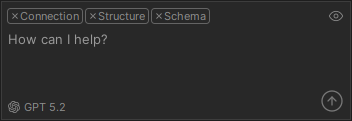
The context will be updated automatically when you switch between editor and object tabs, and you can use different context details for each question in your conversation with the AI. To see which context was included with a specific question, click the Details link under the question in the output area.
You will be asked to choose whether the database context should be included by default before you ask your first AI question. You can alter this setting later in Tool Properties → AI Assistant.
Choosing the AI model
The quality of AI-generated answers may vary greatly depending on how you formulate your question, how much context you include, and which AI model is being used. The active model is displayed in the bottom left corner of the input area.
To select a different AI model, click the model indicator and choose a model from the list. This lets you align the AI Assistant with your organization's compliance requirements, or switch between models based on the complexity of the task.
You can also select the model in Tool Properties → AI Assistant → Model, where the Cost column shows the relative credit cost per request.
Chat history
To start a new chat, press the button in the toolbar at the top of the AI Assistant panel. When you do so, your current conversation will be archived. To open an archived conversation, press the button in the toolbar. When you select an earlier conversation from the list, your current conversation will be archived and the selected conversation will be loaded instead. You will be able to see earlier prompts and responses, and continue the conversation.
Adjusting font size
By default, the font in the AI chat is a little larger than the application font to make it easier to read long responses. If you prefer a different font size, see the Font Scale setting in Tool Properties → AI Assistant. For quicker access, AI Assistant settings can also be opened by pressing the button in the toolbar.
AI in the editor
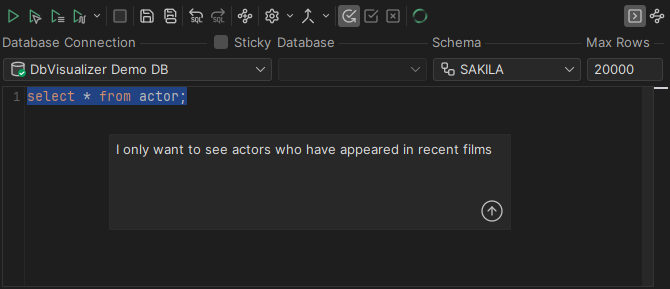
To ask about your query directly from the editor, click Ask AI in the SQL Commander toolbar or press Ctrl+Shift+H. If text is selected, or the cursor is inside a statement, a popup opens where you can ask a question about that code. Otherwise, describe what you want and the AI Assistant generates the SQL. You can accept the suggestion, ask follow-up questions, or continue the conversation in the AI Assistant panel.
The lightbulb menu
When the cursor is inside an SQL statement, a lightbulb icon appears in the left editor margin. Clicking it opens a menu where you can Optimize the statement, Chat About it, or Execute Statement. If the statement failed, it also offers Analyze Error.
To control when the lightbulb is shown, use the Display for the Current Statement and Display on Statement Execution Errors settings in the Inline AI Actions section of Tool Properties → AI Assistant.
Explain and fix errors
If a query fails, the error is marked in the editor and a lightbulb icon appears next to the failed statement. To get an AI-generated explanation, click the lightbulb icon and select Analyze Error.
This opens a popup where the AI Assistant explains the issue and suggests a resolution. From this popup, you can accept the fix, ask follow-up questions, or continue the conversation in the AI Assistant panel.
Fix errors from the Log tab
Execution errors are also listed in the Log tab. To get help with an error, select it in the log grid and click Explain Error Using AI Assistant in the Log tab toolbar. This opens a new chat in the AI Assistant panel that explains the error and proposes a fix.
AI credit balance
Each question to the AI has an associated cost that depends on the size of the input and the generated output, as well as the selected AI model. Note also that every follow-up question in an AI conversation will increase the size of the input, and consequently also its cost.
To see your current AI credit balance, check Tool Properties → AI Assistant. When you have reached zero credits, you will need to refill to be able to ask more AI questions.