Starting DbVisualizer
How to start DbVisualizer depends on the operating system you are using.
- Windows In the Start menu, select the DbVisualizer menu item.
- Linux/Unix Open a shell and change directory to the DbVisualizer installation directory. Execute the dbvis program. If DbVisualizer was installed using the setup installer an optional desktop icon can be used to launch the app.
- macOS Double click on the DbVisualizer application or the DbVisualizer.app application bundle.
You can also start DbVisualizer with the bundled script files, please see the GUI Command Line Arguments page for details. For tasks that do not require a GUI, such as tasks scheduled via the operating system's scheduling tool, you can also use the pure command-line interface.
EULA (End User License Agreement)
When you start DbVisualizer for the first time, or after upgrading to a more recent version, you are prompted to accept the End User License Agreement.
Free or Pro Version
Next, you choose how you want to start: with DbVisualizer Pro or DbVisualizer Free. This step is skipped if you already have a Pro or evaluation license installed.

If you choose DbVisualizer Pro, you can either:
- Install License: locate your license key file to activate DbVisualizer Pro (see Installing a Pro Edition License).
- Free trial: start a free evaluation of DbVisualizer Pro. In the browser window that opens, sign up or log in. The evaluation then starts automatically.
You can also choose Free now and evaluate or install a license later from the Help menu (see Evaluating the Pro Edition).
By default, DbVisualizer follows the light or dark mode of your operating system. You can change this later (see Changing the GUI Appearance).
Master Password
A master password option comes next. It is not required to set a master password, but it can be useful to prevent unauthorized access to your work. This is another setting that can be changed later (see Setting a Master Password)

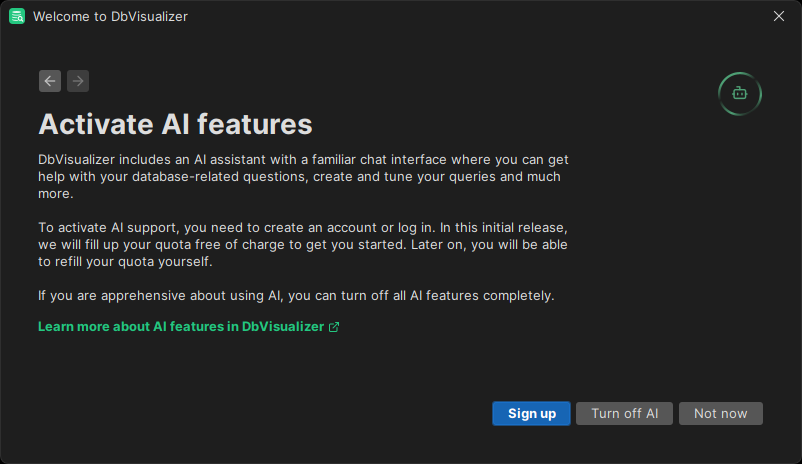
AI Features
Next, if your organization allows it, you can choose to activate AI features in DbVisualizer. This can be useful in many contexts, such as creating and optimizing queries, learning database syntax, etc.
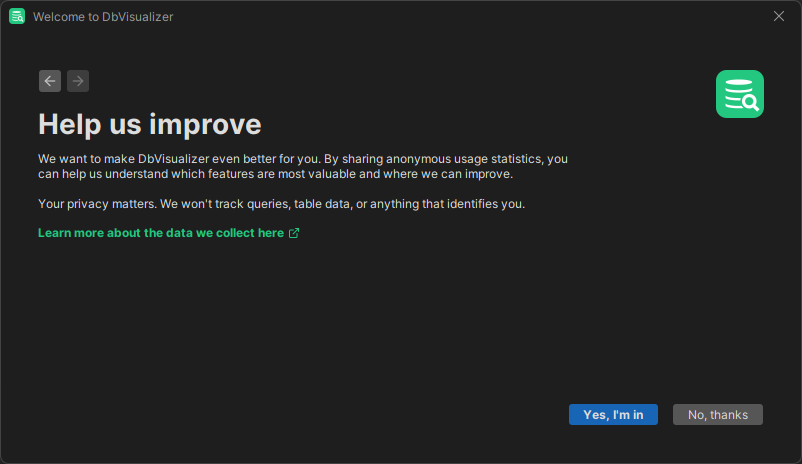
Anonymous Statistics
Lastly, we ask you to help us improve, by collecting anonymous user data to help us analyze which features are valuable. This is yet again something that can be reconfigured later (see Telemetry).
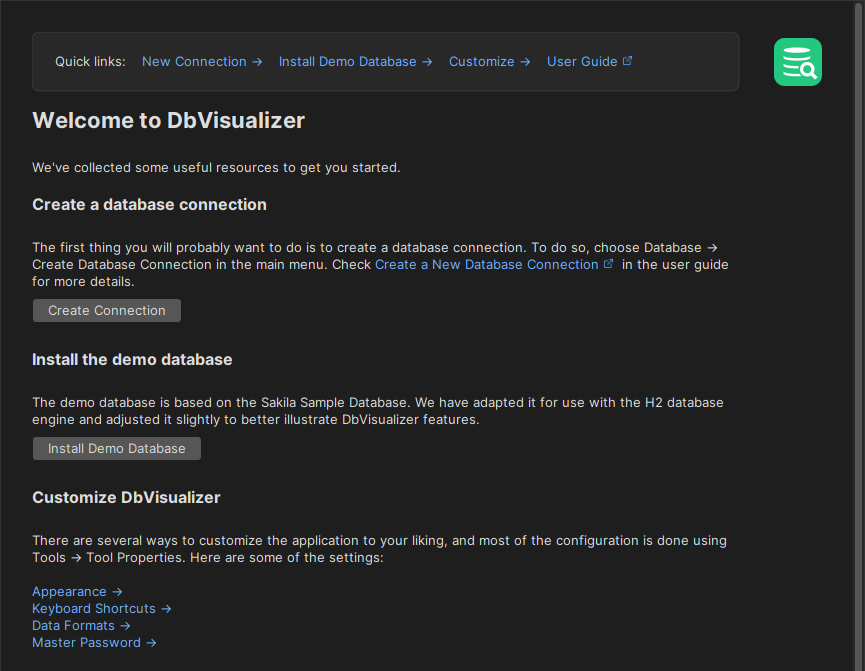
Welcome Panel
When you first open DbVisualizer, or if you close all tabs at any time later, the welcome panel becomes visible. It holds a few useful shortcuts and links. You can also open it using Help → Welcome.