Notifications
DbVisualizer uses notifications to tell you about things that happen while you work, for example:
- A script has finished executing in a tab that is not currently selected.
- A Git operation, such as a pull or a push, has completed.
- Database drivers have been updated, or can be updated.
- An SSH tunnel has been lost.
- A script has raised a notification with the
@notifycommand.
A notification is shown in the bottom right corner of the main window, and is also added to the Notifications view, where you can find it later.
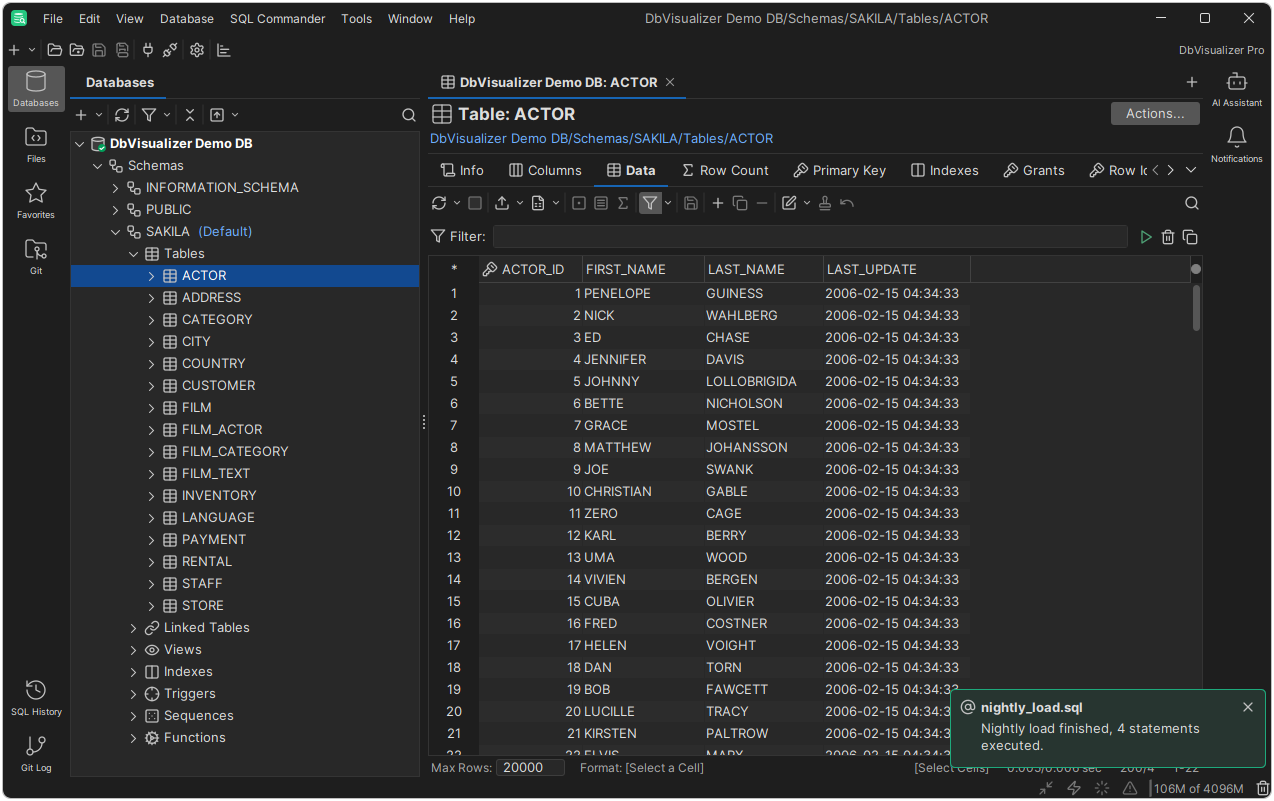
Each notification has one of four statuses: Success, Info, Warning or Error. The status is shown by the color of the notification and, for most notifications, by its icon. Some notifications also contain a link, such as Switch to tab for a script that has finished in another tab.
If several similar notifications arrive in a row, for example from the same script tab, they are collected into the notification that is already shown. It shows the most recent notification, and a line saying how many more there are. Click the link in that line to see them in the Notifications view.
Notifications view
To open the Notifications view, click Notifications in the sidebar on the right-hand side of the main window, or select View → Sidebar Tools → Notifications.
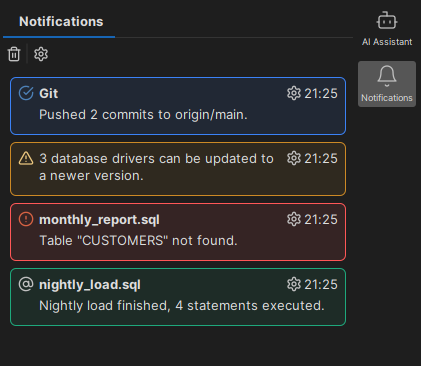
The view lists all notifications since DbVisualizer was started, with the most recent first. This includes notifications that were not shown in the main window because of your settings (see below). Each entry shows the time the notification arrived and a button that opens the settings for that type of notification.
Use the buttons in the toolbar to:
- Clear notifications: empty the list, and close any notifications shown in the main window.
- Open notification settings: open the settings described below.
The list is cleared when you restart DbVisualizer.
Choosing which notifications are shown
To choose how each type of notification is shown, open Tools → Tool Properties, and select the Notifications category under the General tab. The grid lists the notification types by category. Select a notification type to see its description and change its settings.
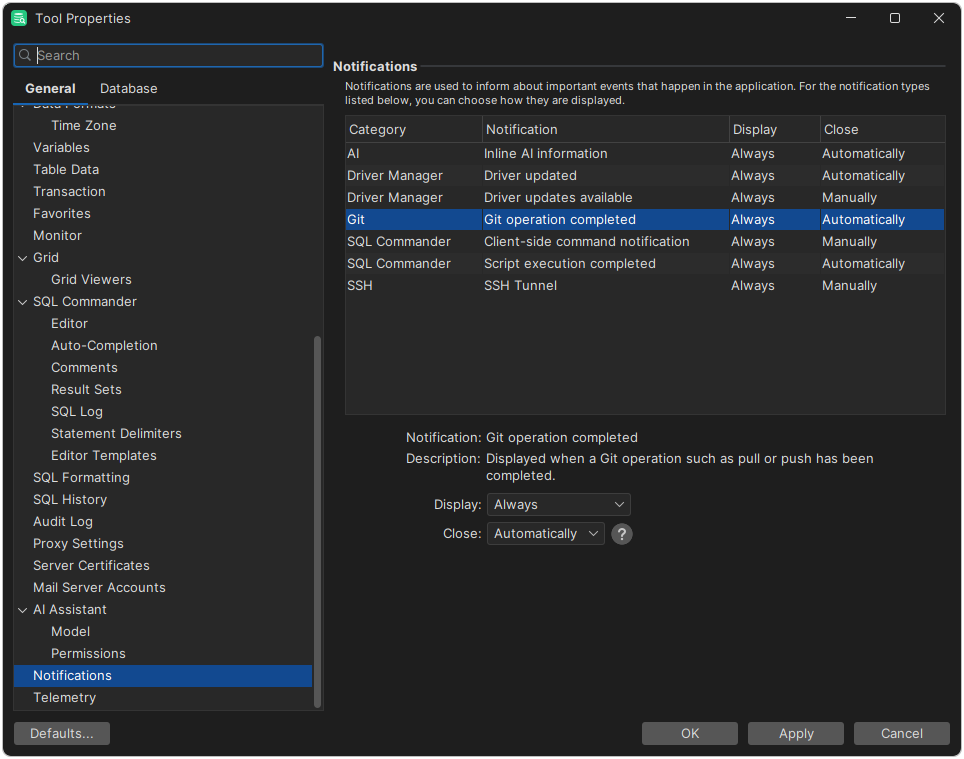
Display controls when the notification is shown in the main window:
| Setting | Effect |
|---|---|
| Always | The notification is always shown. This is the default. |
| On Error/Warning | The notification is only shown if its status is Error or Warning. |
| Never | The notification is never shown. |
Notifications that are not shown in the main window are still added to the Notifications view.
Close controls how the notification is closed:
| Setting | Effect |
|---|---|
| Automatically | Success and Info notifications are closed automatically after a few seconds. Warning and Error notifications must be closed manually. |
| Manually | All notifications of this type must be closed manually. |
The default value for Close depends on the type of notification.
A few notifications, such as notifications about application errors, are not listed and can't be configured.
Raising a notification from a script
You can use the @notifyclient-side command to raise a notification from a script, for example to let you know when a long-running script has finished:
@notify level="success" message="Nightly load finished";
The level parameter sets the status: success, info, warning or error. The default is info. The message parameter sets the text of the notification.
The notification shows the name of the tab where the script was executed, and contains a Switch to tab link. In the notification settings, it is listed as Client-side command notification in the SQL Commander category.
The @notify command has no effect when the script is executed with the command line interface.