Locating an Object in the Tree
To find the node of an object in the Databases tab, you can search the tree by name, go to the node from a tab or a favorite, or let DbVisualizer select the node when you select an Object View tab. You can also open an object that is named in a script.
Searching the tree
To search the tree, use quick search: click the Find button (the magnifying glass) in the Databases tab toolbar, press Ctrl+F, or start typing when the tree has focus. Then type the name of the object.
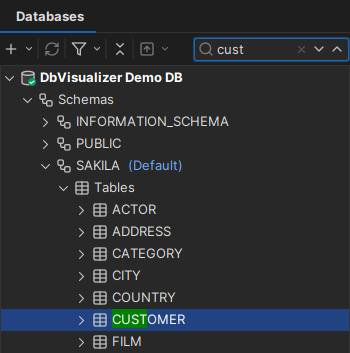
The matching text is highlighted in the tree, and the first match is selected. To move between the matches, use the Up and Down arrow keys, or press F3 and Shift+F3. Press Enter to go to the selected object, or Esc to clear the search field.
For more about quick search, see Using Quick Search.
Only the objects that have already been loaded in the tree, such as the contents of nodes you have expanded, are searched. To search among all objects for a connection, see Searching Database Objects.
Going from a tab or a favorite to its node
- Object View tab: click the object path at the top of the tab, or right-click the tab header and select Select in Databases Tab.
- SQL Commander tab: right-click the tab header and select Select in Databases Tab to select the connection of the tab.
- Favorite: right-click it and select Select Target Object. The object is selected in the Databases or Files tab, depending on the kind of favorite.
Keeping the tree and the tabs in sync
Two options keep the selection in the Databases tab and the Object View tabs in sync:
- Autoscroll FROM Object View tab: when you click the header of an Object View tab, its node is selected in the tree.
- Autoscroll TO Object View tab: when you select a node in the tree, the object opens in an Object View tab.
To turn them on or off, click the arrow of the Open Object button in the Databases tab toolbar. Both are off by default.
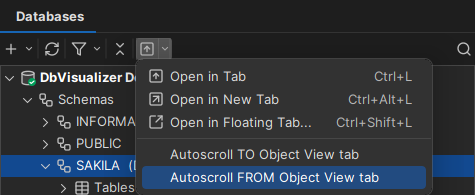
You can also set them in the General / Database Objects Tree category in Tools → Tool Properties.
Going from a name in a script to the object
To open the Object View tab of an object named in a script in SQL Commander, for example a table in a SELECT statement, place the caret in or next to the name, right-click and select Show Object at Cursor.