Exporting and Importing Settings
You can export your DbVisualizer settings, such as your connections, drivers and favorites, to a file, and import them in another installation. Use it to move to a new computer, to set up the same connections at home or for a colleague, or to back up your settings.
To import connections from other database tools, see Importing Connections from Other Tools.
Exporting settings
- Select File → Export Settings.
- Choose what to export. By default, all settings are exported, including saved passwords. To leave the passwords out, select Exclude Passwords. The drivers of the exported connections are always included.
- Choose the file. The export is a JAR file with the same content as your DbVisualizer settings folder.
- Click OK.
- Enter an export password. It protects the passwords in the file, and you need it to import them. Don't use your master password. If the export includes saved passwords and the password vault is locked, you are first asked to unlock it.
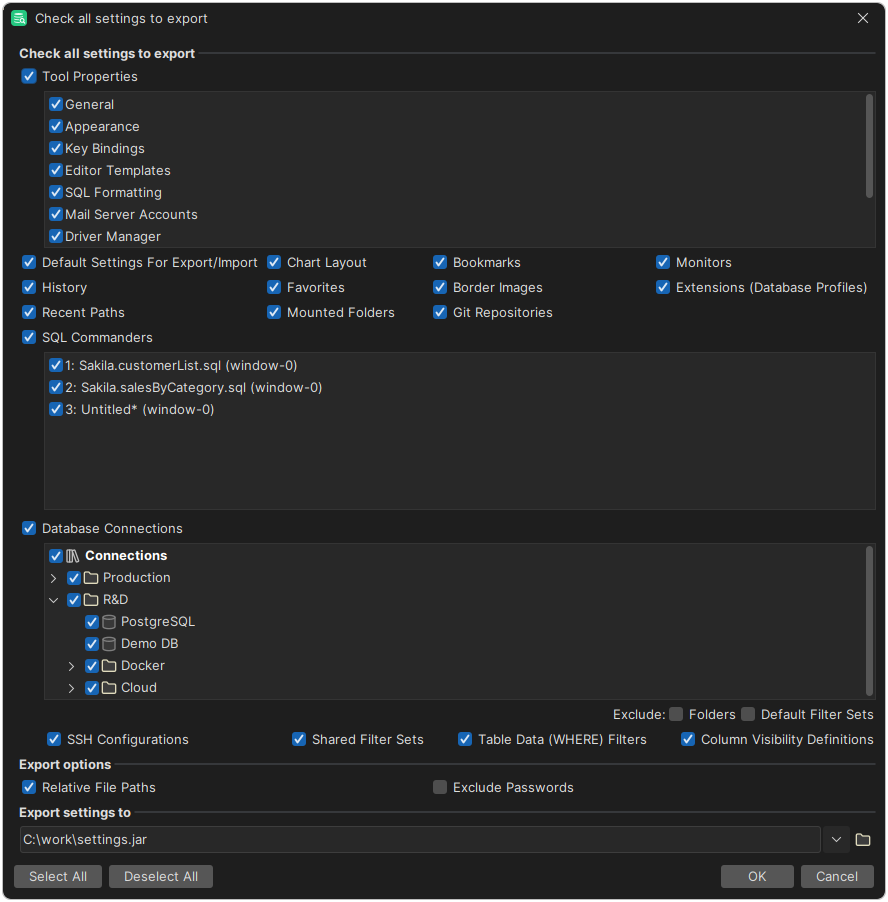
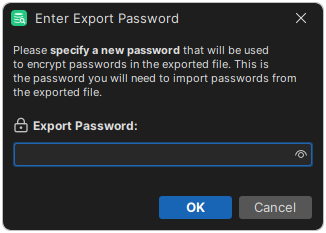
With Relative File Paths, which is selected by default, paths such as those of drivers are saved relative to the DbVisualizer installation folder and the settings folder. This makes the file work on other computers.
Importing settings
You can import settings into the same version of DbVisualizer as the one you exported them from, or into a newer version, but not into an older version. If the file is from a newer version, the import stops with a message that the file isn't compatible.
- Select File → Import Settings, and choose the file.
- Choose what to import, and in Import To, where to put the imported connections in the Databases tab.
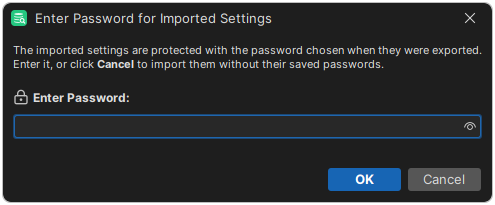
- Enter the export password when you are asked. If your password vault is locked, you are also asked to unlock it.
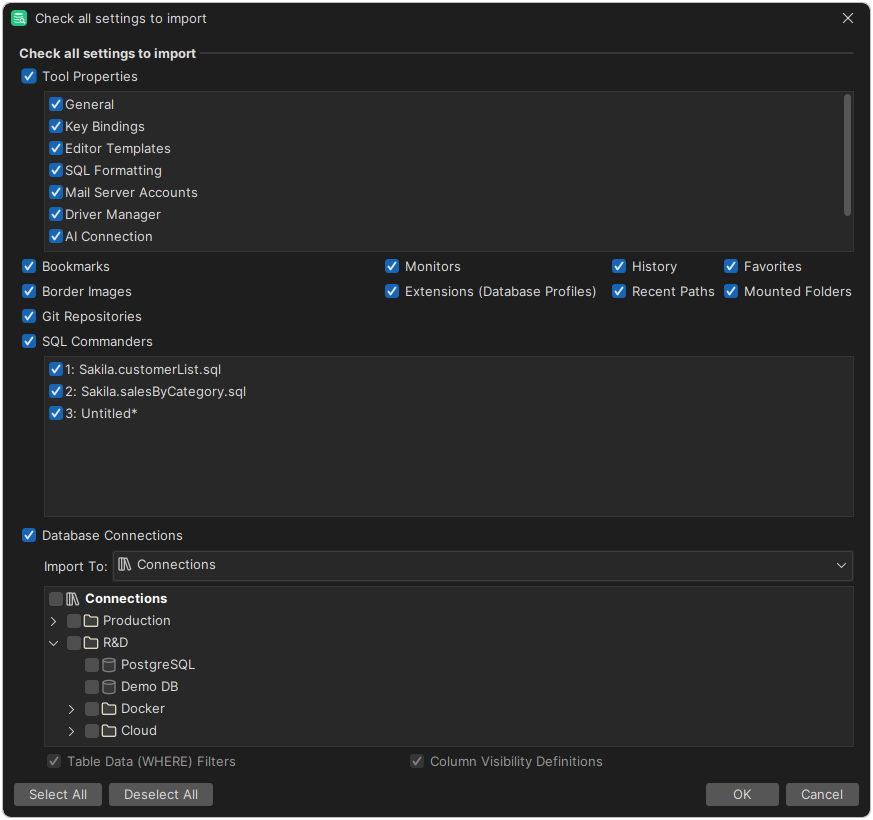
DbVisualizer preselects the connections and folders that are new or differ from yours, and marks them with icons. In the example, the Oracle connection exists with other settings, and DbVisualizer Demo DB and MySQL 8 are new.
The drivers of the imported connections are also imported. If you already have a driver that works the same way, with the same driver class, settings and files, the connections use it, and the imported driver is skipped.
Moving to a new computer
- Install the same or a newer version of DbVisualizer on the new computer.
- On the old computer, export your settings.
- Copy the file to the new computer, import it, and restart DbVisualizer.
To move your Pro license:
- On the old computer, find the
dbvis.licensefile. See License file location. - Copy it to the new computer.
- On the new computer, select Help → License Key, and install the file. Restart DbVisualizer when you are asked to.
- Remove the license file from the old computer.