Importing Connections from Other Tools
You can import the connections you have in other database tools, so that you don't have to create them again in DbVisualizer. Currently, you can import connections from Oracle SQL Developer.
Importing connections
- Export the connections from the other tool. How to do this depends on the tool, see the section for the tool below.
- Select File → Import Connections and choose the tool. You can also find Import Connections in the Create Database Connection menu in the Databases tab toolbar, and in the Create submenu of the right-click menu.
Choose the exported file. The dialog also explains how to export the connections from the tool.
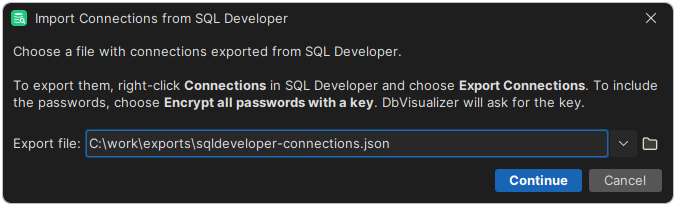
If the passwords are encrypted, enter the key. To import the connections without their passwords, click Import Without Passwords. DbVisualizer then asks for the password when you connect.
In the preview, Import to shows the folder that is selected in the Databases tab, or the top level. You can choose another folder. Select In a folder named followed by the tool name to keep the imported connections apart from your own.
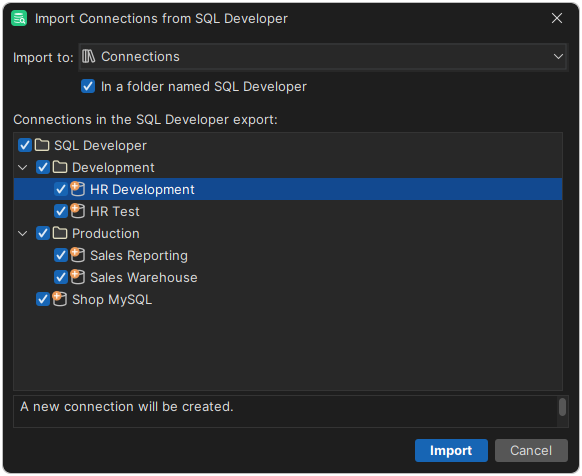
Select the connections to import. Select a connection to see what the import does with it. Connections with warnings, for settings that can't be imported, list them in their tooltip.
- Click Import.
When the import is done, a summary is shown, and the imported connections are selected in the Databases tab.
Importing again
If you import the same file again, connections that are identical to existing ones are not imported again. Passwords are not added to existing connections. If a connection or a folder already exists with the same name but different settings, the imported connection gets a numbered name, such as Prod (1).
Oracle SQL Developer
Exporting the connections
In SQL Developer, right-click Connections and choose Export Connections. To include the passwords, choose Encrypt all passwords with a key, and remember the key. You need it when you import the connections.
What is imported
- The connection settings, such as host, port, SID or service name, TNS alias, custom JDBC URL and SYS role.
- The folders that the connections are in.
- The passwords, if you entered the key.
- The properties in the Advanced tab, as driver properties.
- SSH tunnels, if SQL Developer is installed on the same computer. The exported file only has the name of the SSH host, so the SSH settings are read from SQL Developer's own settings. If they are not found, set up SSH for the connection yourself.
- Connections to other databases than Oracle, such as MySQL. The driver is selected based on the URL.
Some settings can't be imported:
- Oracle connections always use the Oracle Thin driver.
- OS authentication and Kerberos authentication settings are not imported.
- Proxy authentication is not supported, so the connection logs in as the proxy user.
TNS aliases
If the imported connections use TNS aliases, DbVisualizer must find the same tnsnames.ora file as SQL Developer. If it can't, a dialog lets you choose to use SQL Developer's folder for the imported connections, or to set TNS_ADMIN and restart DbVisualizer. For more information, see Using Oracle TNS Names.