Organizing Connections
Copying a connection
To use an existing connection as the starting point for a new one:
- Select the connection in the Databases tab.
- Select Database → Create → Duplicate Database Connection, or right-click the connection and select Create → Duplicate Database Connection.
The copy is added after the original connection, and opens in an Object View tab where you can change it.
Removing connections
To remove connections:
- Select one or more connections in the Databases tab.
- Select Database → Remove → Remove Database Connection, or right-click and select Remove → Remove Database Connection.
- Confirm that you want to remove the connections. You can't undo this.
Connected connections are disconnected first. If a connection is in a mounted connection folder, it is removed from the shared folder, so it is removed for the other users too.
Organizing connections in folders
If you work with many database connections, you can group them in folders in the Databases tab. Folders can contain other folders.
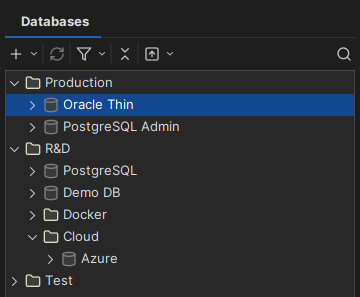
- To create a folder, select Database → Create → Create Folder, or right-click and select Create → Create Folder.
- To rename a folder, select it and select Database → Rename Folder.
- To move connections and folders, drag them to the new location. See Sorting and moving connections.
- To remove a folder, select it and select Database → Remove → Remove Folder. This also removes all connections in the folder, and you can't undo it.
To share connections with your team, use a mounted connection folder instead. See Sharing Connections.
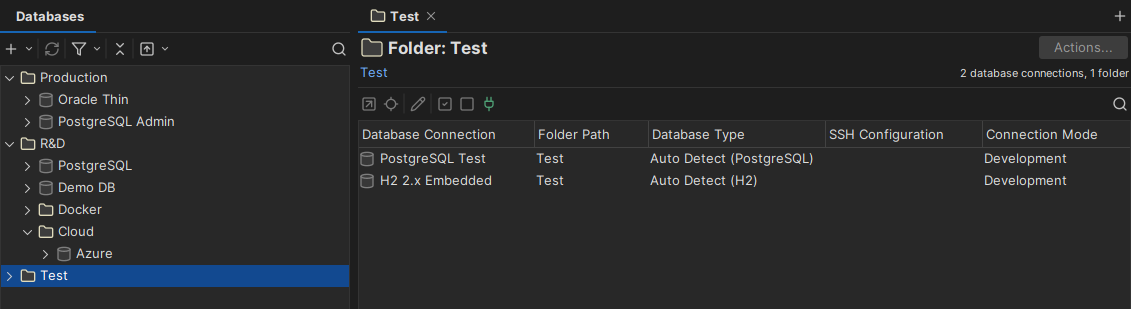
When you double-click a folder, a tab opens with all connections in the folder and its subfolders. There, you can edit several connections at once, see Editing Multiple Connections.
Sorting and moving connections
To sort the connections and folders in the Databases tab:
- Select the folder whose contents you want to sort. To sort the top level, select a connection at the top level.
- Right-click and select View → Sort.
- Select the Sort Order, and where to place the folders in Folder(s) at.
- Click OK.
Only the connections and folders directly under the folder are sorted, not those in its subfolders.
To move connections and folders, select them and drag them to the new location. You can't move a connection to a folder that already has a connection with the same name. If you move a connection into or out of a mounted connection folder, it is moved between your local settings and the shared folder.