SSL/TLS and Certificates
Unless the connection to a database server is encrypted, the data sent between DbVisualizer and the server can be read, and even modified, by anyone who can intercept the traffic. To protect it, you can encrypt the connection using TLS (Transport Layer Security), the successor of SSL (Secure Sockets Layer). Many JDBC drivers still use the name SSL in their settings.
You find additional information on security related to specific databases in our support portal.
Encrypting database connections
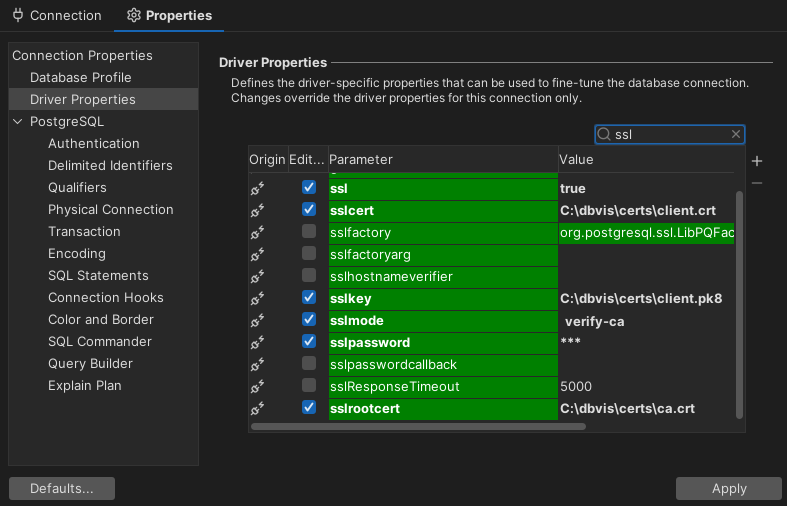
Whether you can use TLS depends on the database and the JDBC driver. If the driver supports it, you usually configure it as Driver Properties for the connection, as described in the documentation for the driver. The exact details depend on the versions of the database and the driver. Using PostgreSQL as an example, the settings can look like this:
Trusting the server certificate
When an encrypted connection is set up, the client verifies the server's certificate to make sure that it is talking to the intended server.
A server certificate signed by a well-known certificate authority (CA) will work without any extra configuration. If the server uses a self-signed certificate, or a certificate signed by your organization's own CA, you need to add the certificate to a truststore that the driver uses:
- Many drivers let you specify a truststore for each connection, using driver properties. If the driver supports this, it is the preferred option.
- Otherwise, you can set a truststore for the whole Java VM, as described below.
Using a truststore for the whole Java VM
A truststore set for the whole Java VM is used by all database connections, and by DbVisualizer itself, for example when checking for updates. It should therefore contain the commonly trusted certificates as well as your own. Start with a copy of the Java default truststore and import your certificate to the copy.
Keep the truststore outside the Java installation. If you import the certificate into the default truststore of the Java VM bundled with DbVisualizer, it is lost when you upgrade DbVisualizer.
- Copy the Java default truststore to a location of your choice, for example
/Users/me/MyTrustStore. The default truststore is usually located in<Java Home>/lib/security/cacerts. Import the server certificate to the copy using the Java keytool. The password of the Java default truststore is usually
changeit. For example:keytool -importcert -alias mycert -file ca.pem -keystore /Users/me/MyTrustStore -storepass changeitIn DbVisualizer, open Tools → Tool Properties, and select the General category.
In the Java VM Properties section, add the following properties in the Specify overridden Java VM Properties here field, replacing the path and password with your own:
-Djavax.net.ssl.trustStore=/Users/me/MyTrustStore
-Djavax.net.ssl.trustStorePassword=changeit
Restart DbVisualizer.
If DbVisualizer can't verify a certificate when using the truststore, for example the certificate of dbvis.com, you are asked whether to trust it (see Accepting untrusted certificates).
Client certificates (mutual authentication)
Some database servers require that the clients also authenticate using a certificate. In this case, DbVisualizer needs a keystore containing your private key and certificate.
As with truststores, some drivers let you specify a keystore for each connection, using driver properties. If the driver supports this, it is the preferred option. Otherwise, you can set a keystore for the whole Java VM:
- Open Tools → Tool Properties, and select the General category.
In the Java VM Properties section, add the following properties in the Specify overridden Java VM Properties here field, replacing the path and password with your own:
-Djavax.net.ssl.keyStore=/Users/me/client.keystore
-Djavax.net.ssl.keyStorePassword=mykeystore_password
Restart DbVisualizer.
Unlike a truststore, a keystore set for the whole Java VM does not affect other DbVisualizer functionality.
Example: creating a client certificate
If you don't have a client certificate, you can create one with the Java keytool. The commands below are only examples; check with your database administrator which requirements the server has.
Create a keystore with a new key pair. When prompted, enter a password for the keystore and answer the questions about your identity.
keytool -genkeypair -alias dbvisuser -keyalg RSA -validity 365 -keystore /Users/me/client.keystore -storetype pkcs12Optionally, check the contents of the keystore:
keytool -list -v -keystore /Users/me/client.keystoreExport the certificate in PEM format:
keytool -exportcert -rfc -alias dbvisuser -file client.crt -keystore /Users/me/client.keystoreGive the certificate file (
client.crt) to the administrator of the database server.
Troubleshooting
If you run into problems, you can get detailed logging of the TLS handshake by adding the following property in the Specify overridden Java VM Properties here field (see Using a truststore for the whole Java VM), and restarting DbVisualizer:
-Djavax.net.debug=ssl:handshake
The output is displayed in Tools → Debug Window. To log everything, use -Djavax.net.debug=all instead; note that the output is very large.
Accepting untrusted certificates
DbVisualizer shows the Certificate is not trusted dialog when it can't verify the certificate of a server it connects to, for example when checking for updates or downloading drivers.
The dialog may also be shown when you connect to a database, depending on the driver. If you have set a truststore for the connection in the driver properties, the driver checks the certificate itself and the dialog is not shown. In that case, add the certificate to that truststore instead (see Trusting the server certificate).
A server's certificate is usually not signed directly by a trusted certificate authority (CA). Instead, it is part of a certificate chain: the server's certificate is signed by an intermediate certificate, which in turn is signed by a root certificate. The dialog shows this chain, with the root certificate at the top and the server's own certificate at the bottom.
Which certificate to accept depends on why the certificate isn't trusted:
- In many organizations, a security proxy on the network replaces server certificates with certificates signed by the organization's own root certificate. All servers you contact then appear to be untrusted, and you are asked again for each new server. Accept your organization's root certificate, at the top of the chain, to trust all of these servers at once.
- If only a single server is affected, for example a server with a self-signed certificate, accept the server's own certificate, at the bottom of the chain.
Select the certificate and click Accept. The certificate is added to DbVisualizer's local truststore, and you are not asked again for servers whose certificate chain includes it.
Only accept a certificate if you know where it comes from. Accepting a root or intermediate certificate means trusting all certificates it has signed.
To see or remove accepted certificates, or to add one from a file, open Tools → Tool Properties and select Server Certificates under the General tab.