Choosing an AI Connection
Only in DbVisualizer Pro
This feature is only available in the DbVisualizer Pro edition.
By default, the AI Assistant uses the built-in AI connection. It works right away, with no API keys or other setup, and uses your DbVisualizer account and AI credits.
To use another AI service, set up a custom AI connection. You can connect to:
- your own OpenAI or Anthropic account,
- a local model in Ollama or LM Studio,
- your organization's AI service, or any other service that supports the OpenAI or Anthropic API.
With a custom AI connection, DbVisualizer connects directly to the AI provider. You don't need to log in to DbVisualizer, and any usage costs are between you and the provider. The first time you apply a custom AI connection, you are asked to download AI resources, see Downloading AI Resources.
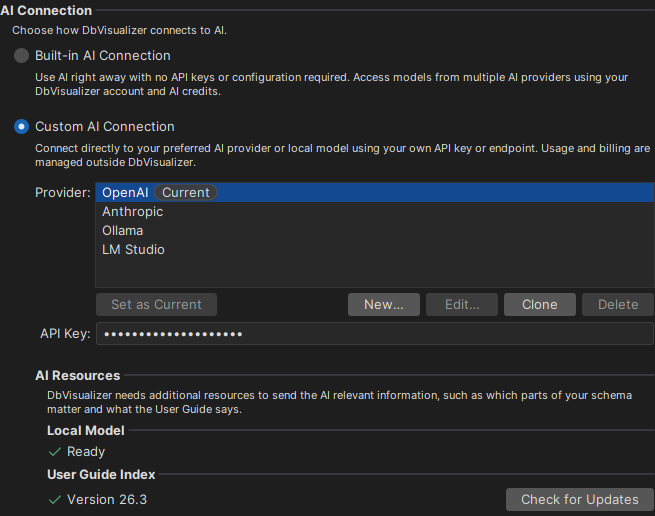
To switch, open Tool Properties → AI Assistant → AI Connection, and select Built-in AI Connection or Custom AI Connection. To switch between custom providers, select a provider in the list and click Set as Current, or double-click it. Each provider keeps its own API key, models and current model.
Using your OpenAI or Anthropic account
You need an API key from OpenAI or Anthropic. You create it in your account on the OpenAI or Anthropic developer platform, where API usage is also billed. A ChatGPT or Claude subscription doesn't include API access, so it can't be used.
- Open Tool Properties → AI Assistant → AI Connection, and select Custom AI Connection.
- Select OpenAI or Anthropic in the list, and click Set as Current. The provider is marked Current.
- Enter your API key in the key field below the list.
- Click Apply. The list of models is loaded from the provider.
- Open the AI Assistant / AI Models category, and choose the model to use in Current Model.
- Click OK.
Until you choose a model, the model indicator in the AI Assistant panel shows No model selected. You can also choose the model there.
API keys are stored in DbVisualizer's password vault, so you may be asked for your master password. To see a stored key, right-click the field and select Show Password.
Using a local model
With a local model, your questions are answered on your computer, and nothing leaves it. Before you start, install Ollama or LM Studio, and download a model:
- Ollama runs in the background once it is installed. To download a model, use
ollama pullfollowed by the model name. - LM Studio must have a model loaded, and its local server started.
Choose a fairly large model, if your computer can run it. Small models often fail to reply in the format that DbVisualizer needs.
- Open Tool Properties → AI Assistant → AI Connection, and select Custom AI Connection.
- Select Ollama or LM Studio in the list, and click Set as Current.
- Click Apply. The list of models is loaded from Ollama or LM Studio.
- Open the AI Assistant / AI Models category, and choose the model to use in Current Model.
- Click OK.
DbVisualizer expects Ollama at http://localhost:11434/v1 and LM Studio at http://localhost:1234/v1. If yours runs on another address, for example on another computer, clone the provider and change the endpoint, see Managing your own providers.
Using another AI service
You can use any AI service that supports the OpenAI API or the Anthropic API, for example your organization's AI gateway, another cloud AI provider, or a model server. You need to know:
- the endpoint, that is, the base URL of the API,
- which API the service supports: the OpenAI Responses API, the OpenAI Chat Completions API, or the Anthropic Messages API,
- how to authenticate, and your API key, if one is needed.
You find these in the service's documentation, or you get them from your IT department.
- Open Tool Properties → AI Assistant → AI Connection, and select Custom AI Connection.
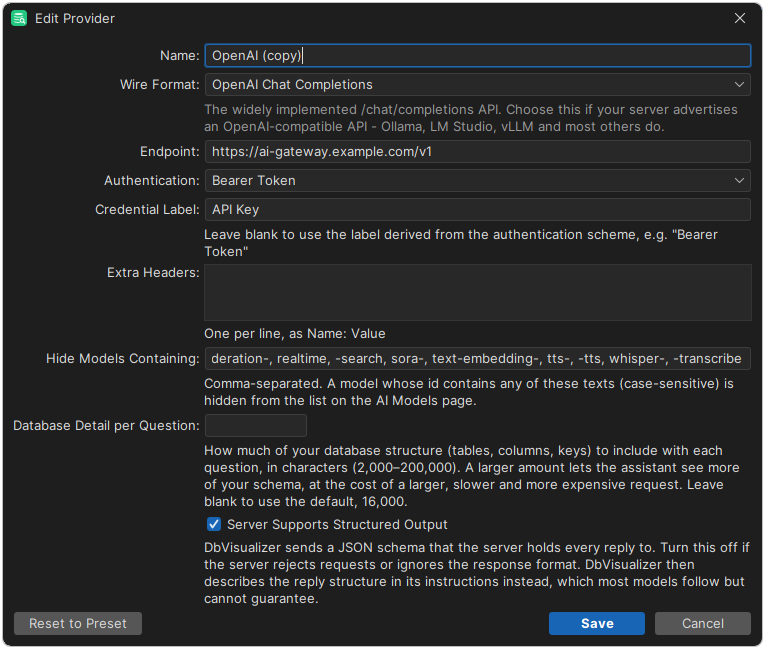
- Select the provider that is closest to the service, such as OpenAI for a service that supports the OpenAI API, and click Clone. A copy is added to the list and selected. Click Edit to open it. To start from scratch instead, click New.
- Enter a name, and the endpoint, wire format and authentication, see the table below. Then click Save.
- Select the new provider, and click Set as Current.
- If the service needs an API key, enter it in the key field below the list.
- Click Apply. The list of models is loaded from the service.
- Open the AI Assistant / AI Models category, and choose the model to use in Current Model.
- Click OK.
In the provider dialog, you specify:
| Field | Description |
|---|---|
| Name | The name shown in the list of providers. |
| Wire Format | The API that the service supports: the OpenAI Responses API, the OpenAI Chat Completions API, or the Anthropic Messages API. Many local servers and AI gateways support the OpenAI Chat Completions API. |
| Endpoint | The base URL of the API, for example https://api.openai.com/v1. |
| Authentication | How the API key is sent: Bearer Token, Custom Header, Query Parameter or None. For a custom header or a query parameter, also enter its name. |
| Extra Headers | Other HTTP headers to send with each request, one per line, as Name: Value. |
| Hide Models Containing | Models whose names contain any of these texts are hidden. Separate the texts with commas. |
| Server Supports Structured Output | Whether the service can make its replies follow the format that DbVisualizer asks for. Turn it off if the service rejects the requests. |
| Database Detail per Question | How much of your database structure to include with each question, in characters. More detail helps the AI, but makes the questions larger, slower and more expensive. |
| Credential Label | The label of the key field. |
If the endpoint uses http on another computer than your own, and the provider uses authentication, you are warned that the key will be sent without encryption.
Managing your own providers
- To create a provider from scratch, click New.
- To create a provider based on an existing one, select it and click Clone.
- To change one of your own providers, select it and click Edit. The providers that come with DbVisualizer can't be edited, but you can clone them.
- To change a clone back to the settings of the provider it was based on, click Edit, and then Reset to Preset.
- To delete one of your own providers, click Delete. Its API key and model list are also deleted.
What is sent to the provider
Your questions are sent to the provider, together with the earlier questions and answers in the chat. If you include context information, DbVisualizer also sends the relevant parts of your database structure, and excerpts from this user guide, see Downloading AI Resources.
Troubleshooting
- No models are listed: Check the endpoint and the API key, and that the service is running. Then click Refresh in the AI Assistant / AI Models category. Some services don't list their models. Then click Add there, and enter the model name from the service's documentation.
- The reply could not be read: Smaller models do not always follow the format that DbVisualizer asks for. If the service supports it, turn on Server Supports Structured Output in the provider settings, or try a larger model.
- A local model times out: A local model can take a long time to load or answer. To wait longer than 120 seconds, add
-Ddbvis.ai.request.timeout.seconds=300to the Java VM options, see Installation Structure.
Settings from your administrator
Your organization can set up the AI providers for all users, for example to offer only an approved service or approved models. Settings made by your administrator can't be changed, and are marked as such in Tool Properties. If you are an administrator and want to configure AI for your organization, contact DbVisualizer Support.