Creating your account
Go to portal.dbvis.com. It opens the sign-in page, Log in to DbVisualizer. The account you create there is the one you also use to sign in to DbVisualizer itself.
Sign up
On the sign-in page, click Sign Up after "New user?". On the Sign Up page, enter your Email and click Sign Up.
To use your Google account instead, click Google under "Or log in with". You then sign in with Google and don't choose a separate password.
By signing up you agree to the User Portal EULA Addendum, linked at the bottom of the page.

Verify your email
After you click Sign Up, the Email verification page tells you that an email has been sent to your address. Open the email and click Verify Email.
If the email doesn't arrive
Check your spam or junk folder. To get a new email, click Click here on the Email verification page ("Click here to re-send the email").
Set your password
The link in the email takes you to the Update password page. Type your password in New Password and again in Confirm password, then click Submit. From now on you sign in with your email address and this password.
First sign-in
Once your password is set, you are signed in and land on Overview. The portal creates a personal account for you, with you as its Owner, and sends you a welcome email, "Welcome to the DbVisualizer User Portal".
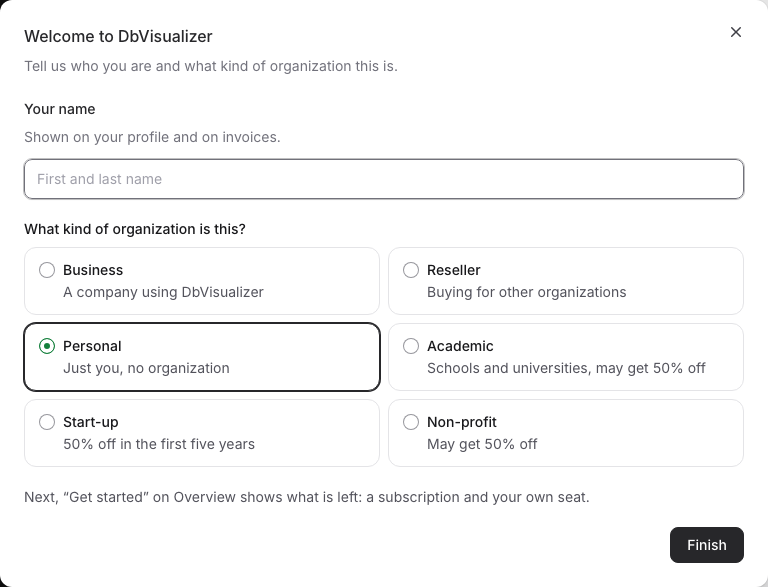
On top of Overview, the Welcome to DbVisualizer dialog asks for your name and what kind of organization you buy for. What to answer is described in Setting up your organization.
Next time you sign in
Sign in on the same page with your email address and password, or with Google. If you forget your password, click Forgot Password? on the sign-in page. To change it later, see Security.
If you were invited
If someone invited you to their organization, click the link in the invitation email. It opens the Sign Up page: sign up with the address the invitation was sent to. If you already have an account, click Log In instead. Once you are signed in, you are in the organization that invited you. If the invitation did not include your name, the welcome asks only for that.