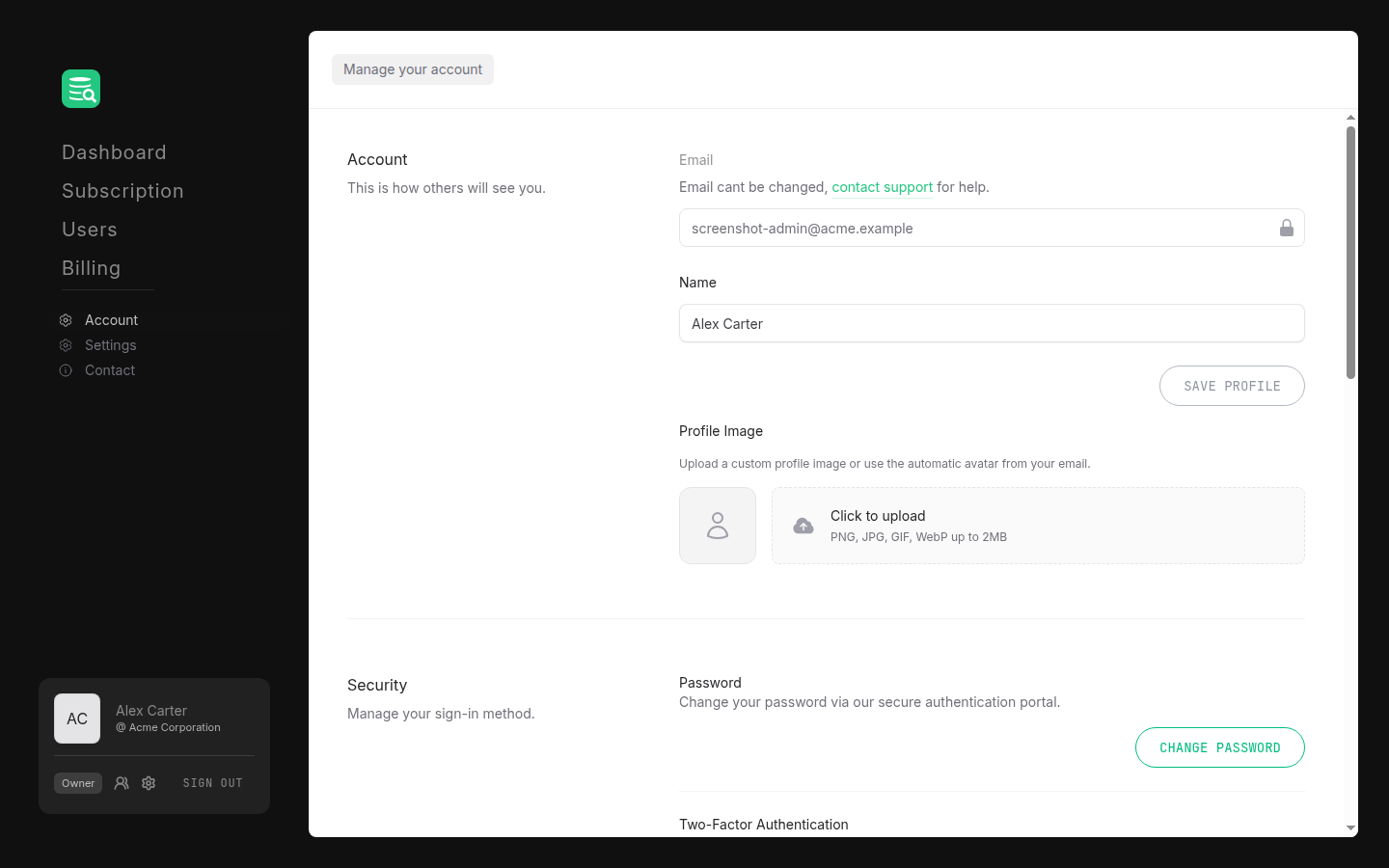
Security
The Security section appears directly below your profile on the Account page.
Password users
If you signed up with an email and password, click Change Password to be redirected to the secure authentication portal. You may be asked to sign in again before the change is applied.
SSO / OAuth users
If your organization uses single sign-on, a badge shows which identity provider is connected (for example, "Connected via Google"). Password changes are handled through your identity provider, not here.
Two-factor authentication (2FA)
All users can enable TOTP-based two-factor authentication regardless of sign-in method.
- If 2FA is not yet enabled, click Enable 2FA to be redirected to the authentication portal to set it up.
- If 2FA is already active, a green Enabled badge is shown and you can click Manage 2FA to adjust or disable it.