Organization settings
Owners and admins open Settings in the left sidebar. The page has up to three cards:
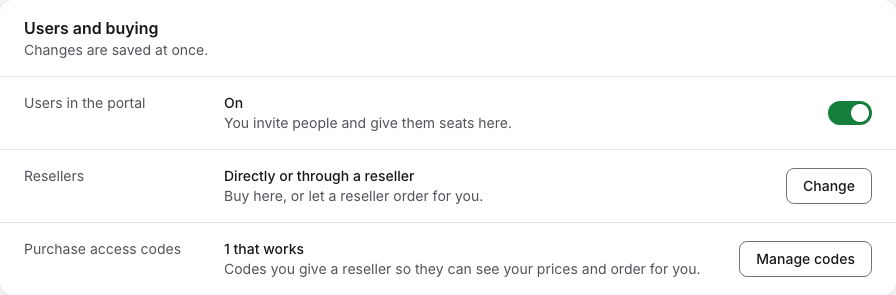
- Users and buying: whether you manage your users in the portal, and how your organization buys through resellers.
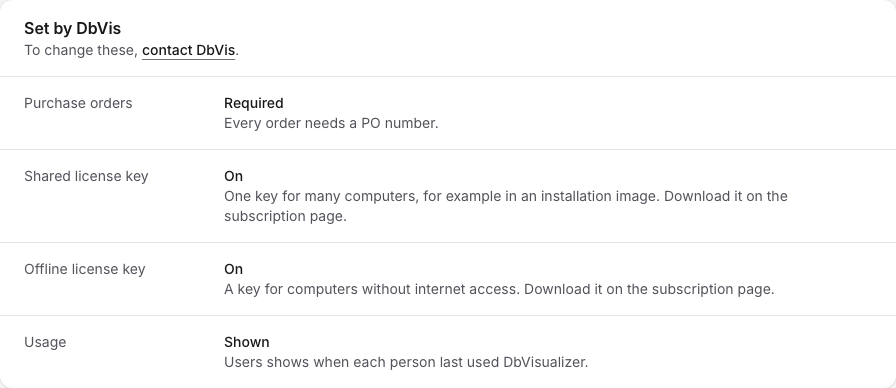
- Set by DbVis: the rules DbVis has set for your organization. The card only shows when DbVis has set any.
- Email: who gets which emails, see Email notifications.
Members without an admin role don't have Settings. Their own name, password and two-factor authentication are on the Account page.
Users and buying
Changes on this card are saved at once.
- Users in the portal: a switch. On means you invite people and give them seats in the portal. Off means the portal lists only owners and administrators; turn it on to invite people and give them seats there. See Adding users.
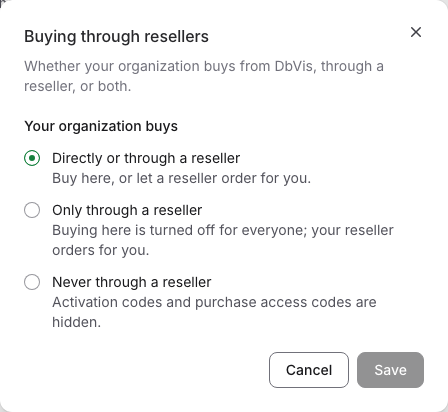
- Resellers: how your organization buys. Click Change to choose in Buying through resellers, then click Save:
- Directly or through a reseller: buy in the portal, or let a reseller order for you.
- Only through a reseller: buying in the portal is turned off for everyone; your reseller orders for you.
- Never through a reseller: activation codes and purchase access codes are hidden.
- Purchase access codes: how many of your codes still work. Not shown when you never buy through a reseller. Manage codes opens your codes, see Purchase access codes.
Purchase access codes
A purchase access code lets a reseller see your prices and order for you. You create one and send it to your reseller. How this works from start to finish: Buying through a reseller.
Manage codes opens Your purchase access codes: "Codes your reseller can use to order for you." Click Create a code to make a new one. The codes are listed under the subscription they are for, or under For a new subscription, each with its name, the code itself, and when it was created and how long it is valid. From there you copy a code to send it, rename it to tell your codes apart, or delete one your reseller should no longer use. Earlier codes lists codes that passed their end date; a reseller can no longer use them.
Set by DbVis
Some rules for your organization are set by DbVis. The card lists the ones that are on, and you can't change them yourself: "To change these, contact DbVis." The link opens the Contact page.
| Rule | What it means |
|---|---|
| Purchase orders: Required | Every order needs a PO number. |
| Purchase orders: Not used | Orders take no PO number. |
| Shared license key: On | One key for many computers, for example in an installation image. Download it on the subscription page. |
| Offline license key: On | A key for computers without internet access. Download it on the subscription page. |
| Usage: Shown | Users shows when each person last used DbVisualizer. |
| Two-factor sign-in: Required | Everyone in your organization confirms their sign-in with a code from an authenticator app. |
| Single sign-on: On | Your users sign in through your organization's identity provider. |