Buying through a reseller
A reseller can order DbVisualizer for you. Two kinds of codes go back and forth:
- A purchase access code is one you make and give to your reseller. It lets the reseller see your organization details and pricing and place an order for you.
- An activation code is one the reseller gives you once they have bought. You enter it to start, renew or add seats to your subscription. Some resellers update the subscription for you instead.
To open the page Buy through a reseller, click Buy through a reseller on Subscriptions while you have no subscription. (Manage codes under Purchase access codes on Settings opens the list of your codes on the same page.) The page has three parts: I have a code with Enter a code, I need a code with Create a code, and Your purchase access codes with Manage codes.
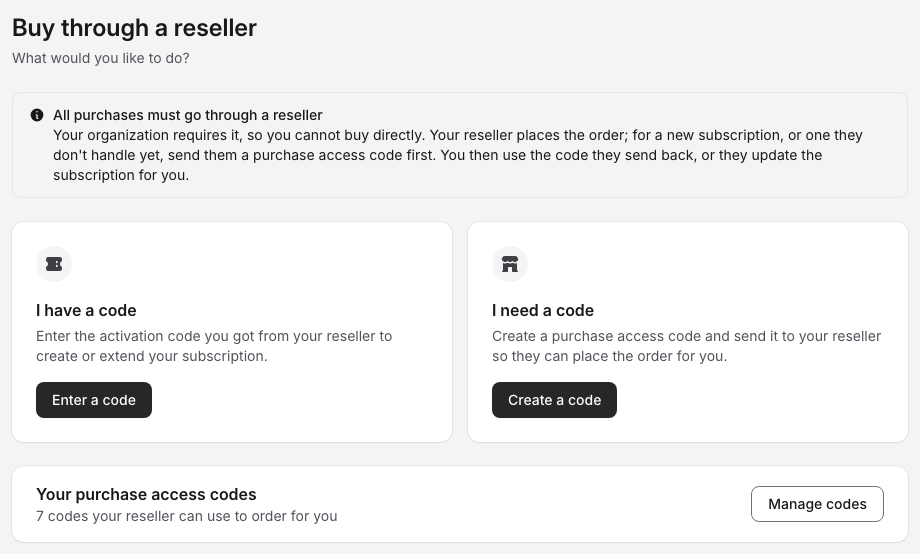
Creating a purchase access code
- On Buy through a reseller, click Create a code.
- Under What is the code for?, check the subscription the reseller should order for. Click Change to pick another subscription, or a new subscription.
- Give the code a Name if you like, for example after the reseller, so you can tell your codes apart.
- Click Generate code, copy the code and send it to your reseller. The page says until when it works.
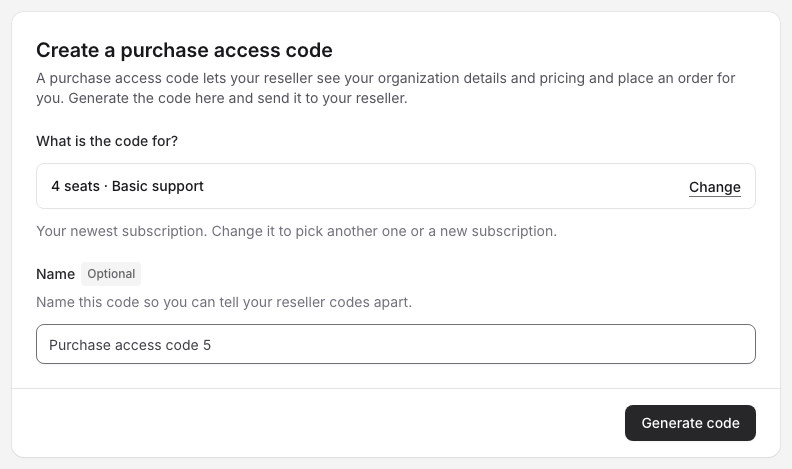
On a subscription, Link a reseller (in the Activation code row, or on a notice that the subscription ends) makes a code for that subscription directly: give it a name if you like and click Generate code. The reseller can then order renewals, additional seats and support upgrades for it.
Manage codes lists your codes for each subscription and For a new subscription. Click ⋯ next to a code to Copy code, Rename it, or Delete it: the code stops working for your reseller right away. Earlier codes are codes that passed their end date.
Entering an activation code
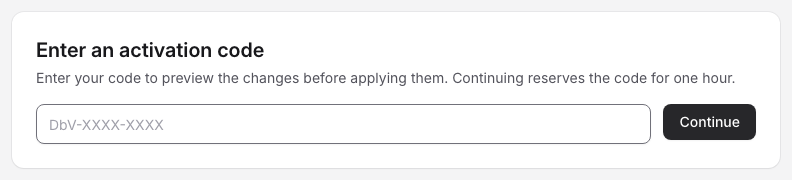
You enter an activation code with Enter a code in a subscription's Activation code row, with Enter a code on Buy through a reseller, or with Use an activation code in a checkout.
- Type the code, for example
DbV-XXXX-XXXX, and click Continue. This reserves the code for you for one hour. - The portal says what the code does before anything changes, for example This code renews your subscription, This code adds seats to your subscription, This code starts a new subscription or This code merges your subscriptions.
- Click Use the code (Complete consolidation for a merge). Code accepted says what happened. Click Open subscription to see it.
Other things the portal can tell you about a code:
- This code belongs to another organization: you belong to more than one organization and the reseller made the code for another one. Click Switch to and the organization's name, then Continue again.
- A colleague started using the code less than an hour ago: the portal says who and when you can complete it, or ask them to finish it.
- This code does not fit the subscription it was written for: what the reseller sold no longer matches the subscription. Using it leaves the subscription as it is and hands the order to DbVis, who finish it.
- Your reseller has also bought seats for this subscription: you are about to renew while seats the reseller bought wait on the old period. Click Cancel to use those codes first, or Continue anyway.
- This code can't be used here, or We can't use this code: nothing was changed. Ask your reseller, or click Contact sales.
A Basic code on a Premium subscription
If a code was bought with Basic support and your subscription has Premium, using it adds what was bought and keeps Premium. The subscription then says that DbVis sales will be in touch to settle the support level.
When your organization buys only through a reseller
On Settings, owners and administrators choose under Resellers (see Organization settings) whether the organization buys Directly or through a reseller, Only through a reseller or Never through a reseller. With Never through a reseller, activation codes and purchase access codes are hidden.
With Only through a reseller, nobody in the organization can buy in the portal. Each subscription says Your organization buys through a reseller, names the reseller to ask for more seats, another support level or a renewal, and offers Link a reseller and Enter a code. Add seats, Upgrade to Premium and Renew now are not shown, and Payment method says Through your reseller. An offer from DbVis can't be accepted either: ask your reseller to order it, or decline the offer.
