Payment methods
Every checkout asks How do you want to pay?: Pay now by card, Pay by invoice or Get a price quote. Which ways appear depends on the order. A subscription that DbVis invoices itself is paid by invoice or with a price quote, not by card.
Quick guide
| If you want to… | Go to |
|---|---|
| Pay by card, PayPal, Apple Pay or Google Pay | Paying by card |
| Pay by bank transfer | Paying by invoice |
| Get a PDF quote for your purchasing department | Price quote |
| Fill in what an invoice or quote needs | When details are missing |
| Add a PO number, upload a PO or use DbVisualizer before paying | Purchase orders |
| Pay again after a failed payment | If a payment fails |
| Change the card a subscription is charged to | Updating your card |
Paddle: our payment partner
DbVisualizer partners with Paddle to process payments. This makes it easier for customers around the world to pay using their preferred payment methods, including local options supported in many countries (for example iDEAL, Bancontact, and a range of regional card networks).
For an overview of available payment methods by region, see Paddle's documentation: Payment methods overview.
If you have questions specifically about a payment, such as which methods are available to you, why a transaction was declined, or how a charge appears on your statement, you can contact Paddle directly for help.
Choosing how to pay
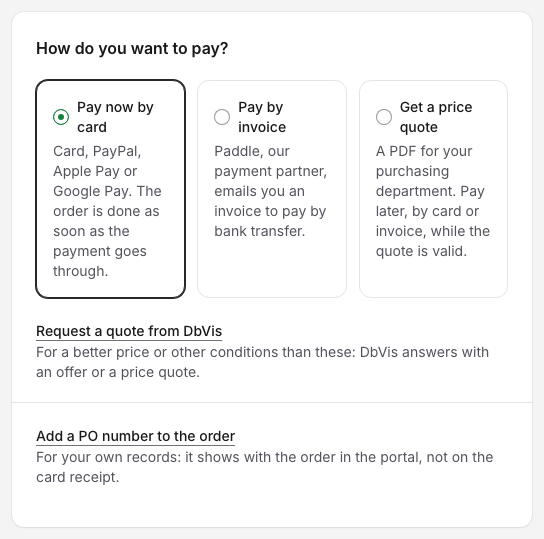
Under How do you want to pay?, pick one way. The button in the order summary changes with it, and the line under the button says what happens next.
- Pay now by card: card, PayPal, Apple Pay or Google Pay. The order is done as soon as the payment goes through.
- Pay by invoice: Paddle, our payment partner, emails you an invoice to pay by bank transfer. For a subscription DbVis invoices, DbVis emails you the invoice instead.
- Get a price quote: a PDF for your purchasing department. Pay later, by card or invoice, while the quote is valid.
The currency you choose under Currency in the order applies to every way of paying.
Paying by card
- Choose Pay now by card and click Continue to card payment.
- Under Pay by card, enter your payment details in Paddle's secure form, which opens right on the page. Your order is folded into one line above it: click Change to go back to it.
- Confirm the payment in Paddle's form. The order is done as soon as the payment goes through.
If Paddle's form does not load or the payment does not go through, Payment not completed says why. Click Reopen checkout to try again. See also If a payment fails.
Paying by invoice
- Choose Pay by invoice. Under On the invoice, you can add a PO number and a Text on invoice, for example a cost centre. Your organization's name, organization number and VAT number are printed on the invoice too: click Edit organization to correct them.
- Click Continue to invoice. Pay by invoice shows what the invoice will say: the PO number, the text on the invoice and the currency. To change any of it, click Change to go back to the order.
- Click Get invoice, or Request invoice for a subscription DbVis invoices. Nothing is charged now.
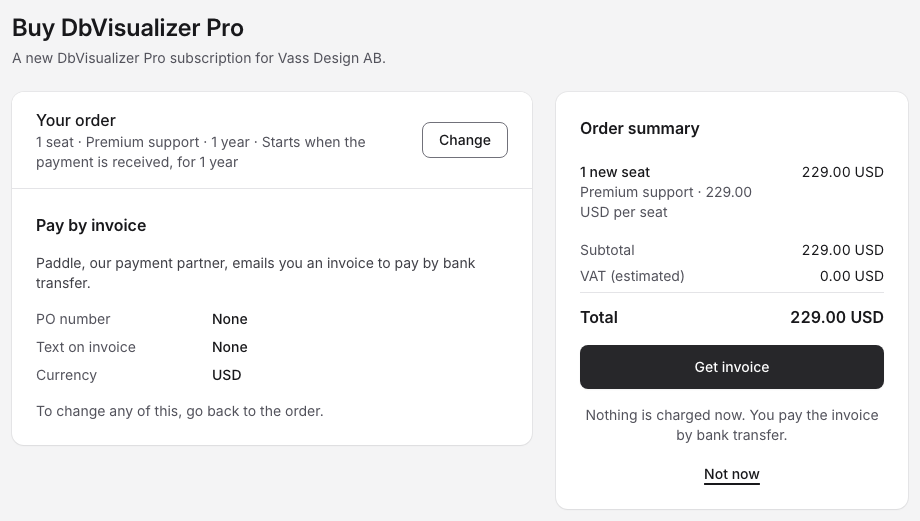
What happens next:
- Paddle's invoice: Paddle emails you the invoice to pay by bank transfer.
- DbVis's invoice: the subscription says We are preparing your invoice until DbVis has sent it. It is emailed to you when it is ready.
- Until you have paid, the subscription says Invoice to pay by the due date. Once that date has passed, it says Payment overdue since the date. Click Pay now to pay it.
A new subscription starts when the payment is received, and new seats come with the payment too. To use DbVisualizer before your payment is in, ask for a pre-approval of your purchase order. See Purchase orders.
Currencies for invoices
Invoices are paid in USD, EUR or GBP. If you chose another currency, choose one of those to pay by invoice, or pay by card in the currency you chose.
Estimated VAT
The VAT in the order summary is an estimate. The final tax is calculated at invoicing time, based on your location and the tax rules that apply.
Price quote
- Choose Get a price quote. Under On the quote, you can add a PO number and a Text on invoice, printed on the price quote.
- Click Create price quote. Nothing is charged now.
- The page Pay your quote opens. It shows the Price quote with its number, when it was issued and until when it is valid. Click Download quote for the PDF, or Cancel quote if you no longer need it.
- When you are ready to pay, pay the quote on the same page by card or invoice, as above.

Until you pay, the subscription and Billing say Your quote is ready to pay, with Pay quote. A quote that has expired can't be paid: Your quote has expired, and you can ask for a new one.
A price quote is for the order as you put it together, at its price. For a better price or other conditions, click Request a quote from DbVis instead. See Offers and quotes from DbVis.
When details are missing
An invoice needs your name and your organization's full address. A price quote, and accepting an offer, also need your organization's name. When something is missing, the way to pay says so, for example Needs your organization's full address first., with a link to fill it in: Edit your name, Edit organization or Edit address. Until then, the button in the order summary can't be clicked, and the line under it says what is missing. Paying by card still works, except to accept an offer.
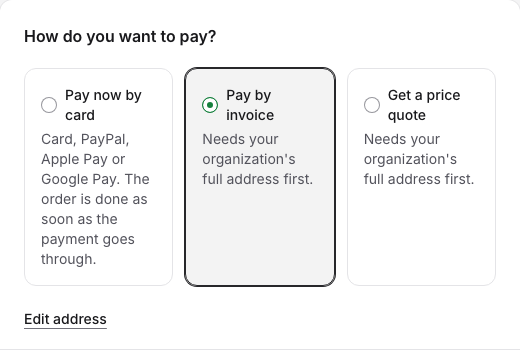
You can also complete your organization's details on Account. See Setting up your organization → Editing organization details later.
Purchase orders
A PO number on the order. When you pay by invoice or with a price quote, the PO number you enter is printed on the invoice or the quote. When you pay by card, click Add a PO number to the order: it shows with the order in the portal, not on the card receipt.
When your organization requires a PO number. If your organization requires a PO number on every order, the PO number field is marked Required, and you can't pay until it is filled in: Your organization requires a PO number before you pay. You can create a price quote without one, but paying it needs one.
The PO document and a pre-approval. When you pay by invoice or with a price quote, click PO document and pre-approval. The dialog Purchase order has these steps:
- PO number: enter your purchase order number and click Save. It is printed on your invoice and quote.
- PO document (optional): upload your purchase order document, a PDF of up to 12 MB.
- Request review: once the document is uploaded, ask for a manual pre-approval to use DbVisualizer before the payment is confirmed. Click Create review request. Your organization's name and full address must be filled in first: the step says what is missing, with Complete address or Complete organization.

Review request sent confirms the request. Our team reviews your purchase order, usually within a few business days, and you are told when it is done. On the order, Payment then says Purchase order. The subscription shows how it stands:
- We are reviewing your purchase order: nothing to do for now.
- Purchase order approved: you can use the seats now. Pay the invoice by the date shown, or click Pay now.
- Your purchase order was rejected: the reason is shown. Click Choose how to pay to pay another way.


If a payment fails
When a card payment fails, the subscription says Your payment failed. Click Pay now. The page Payment failed says that nothing was charged. Click Try the card payment again to pay with the same or another card, or Pay by invoice instead.
If the order can't be paid by card again, the notice offers Pay by invoice or Contact us instead.
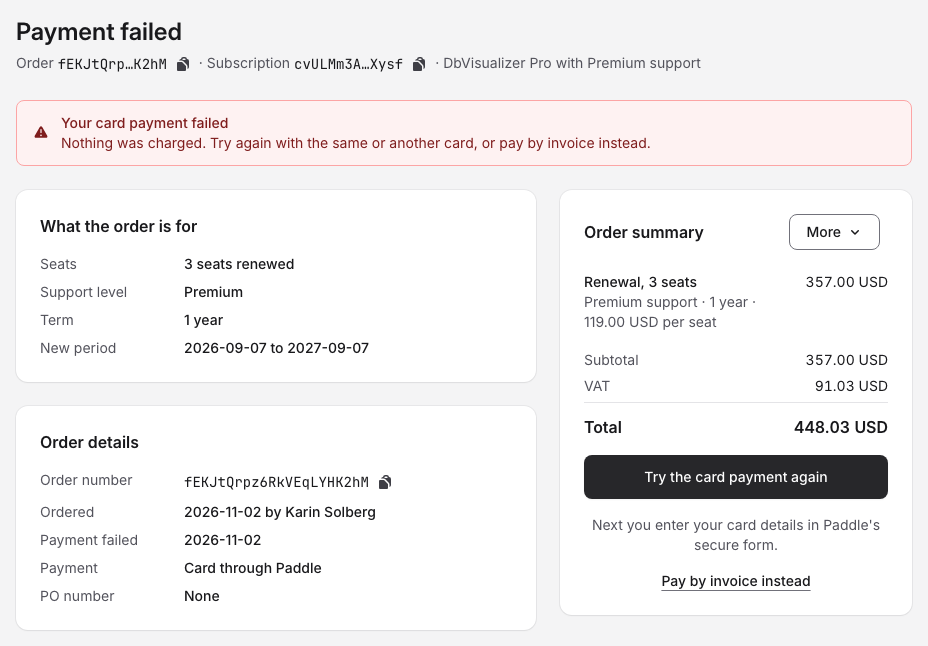
When the failed payment was for a renewal, the subscription has ended and is in its grace period: pay by the date shown to keep the renewal price. See The grace period. For questions about why a card was declined, contact Paddle (see Paddle: our payment partner).
Updating your card
The owner of a subscription paid by card can change the card it is charged to:
- Open the subscription and click Update card in the Payment method row.
- In Payment method options, click Update card under Update card details.
- Enter the new card in Paddle's form, Update payment method.