Buying a subscription
You buy and change a subscription in a checkout in the portal: choose what you want, see the price, and pick how to pay. Owners and administrators can buy. This page covers what you can buy; how to pay is on Payment methods.
Quick guide
| If you want to… | Go to |
|---|---|
| Buy your first subscription | Buying your first subscription |
| Add seats to a subscription | Adding seats |
| Have fewer seats | Removing seats |
| Move from Basic to Premium support | Upgrading to Premium support |
| Ask DbVis for a better price, or answer an offer | Offers and quotes from DbVis |
| Let a reseller order for you | Buying through a reseller |
| Use an activation code from a reseller | Entering an activation code |
Before you can buy
DbVis verifies each organization before it can buy. Until then, the Subscriptions page says We are verifying your organization: you can buy a subscription once your organization is verified. You can already buy through a reseller, or enter a code one gave you. Academic organizations: see Academic and research verification.
Buying your first subscription
- Go to Subscriptions in the left sidebar and click Buy a subscription. The checkout Buy DbVisualizer Pro opens.
- Under Your order, choose:
- Seats: the number of seats. Each seat gives one person a license. Use − and +, or type the number.
- Support level: Basic (help from our developers for the first 60 days) or Premium (priority help from our developers for the whole subscription period).
- Term: 1 year, 2 years or 3 years. A 2-year term gives 10% off in year 2, a 3-year term 20% off in years 2 and 3.
- Currency: the currency you pay in.
- Check the Order summary: the price per seat, the Subtotal, a Discount if your organization has one, VAT (estimated) and the Total. The price follows each change you make.
- Under How do you want to pay?, choose Pay now by card, Pay by invoice or Get a price quote, and click the button in the order summary. See Payment methods.
Period says when the subscription starts: when the payment is received. Once it is paid, the subscription shows on Subscriptions and you can give people seats on Users (see Users and licenses). Click Not now to leave the checkout without ordering.

Licenses from our earlier system
If you have licenses bought before the portal, the checkout asks Do you already have licenses from our earlier system? You may be eligible for renewal pricing. Click Send reference numbers, paste the order reference numbers of your old orders and click Send reference numbers. Our team reviews them by hand and gets back to you by email.
Adding seats
- Open the subscription on Subscriptions and click Add seats in the Seats row. The checkout opens with one new seat, as Add a seat, and is called Add seats once you add more.
- Under Your change, set the total number of seats you want. The row says how many are new: new seats run for the rest of the current period, until the end date shown under Period.
- Check the Order summary, which prices the new seats for the rest of the period, choose how to pay and click the button. See Payment methods.
When the subscription can be renewed, the checkout also has a Renewal switch: switch it on to renew the subscription in the same order and choose its term. To leave without ordering, click Discard this change: nothing is ordered and the subscription stays as it was.

If more people hold a seat than the subscription has, the subscription says 1 seat too few (or more) and offers Add seats, or Free a seat on Users.
Removing seats
Seats can be removed only when you renew. In the renewal checkout, set fewer seats; the renewal keeps at least as many seats as are in use. To free seats first, take them back on Users. See Unassigning and reassigning licenses and Renewing a subscription.
Upgrading to Premium support
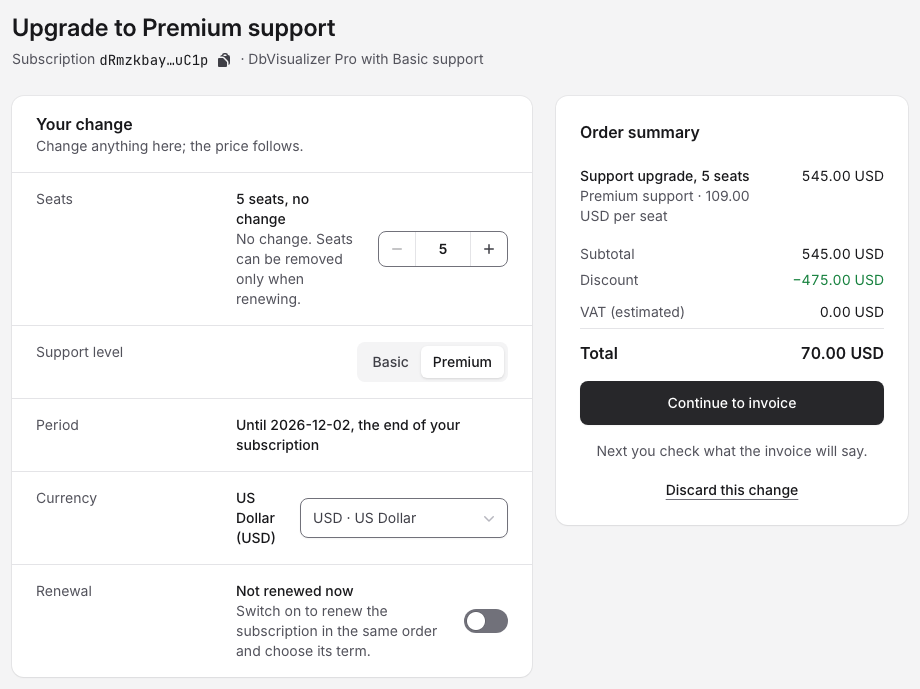
- Open the subscription and click Upgrade to Premium in the Support level row. The checkout Upgrade to Premium support opens.
- Every seat on the subscription moves to Premium for the rest of the period. The order summary shows it as Support upgrade, not as new seats. You can add seats in the same order.
- Choose how to pay and click the button.
From Premium to Basic
Only DbVis sales can change a Premium subscription to Basic. If you choose Basic in a checkout, it says Only DbVis sales can change Premium to Basic and you can't pay until you choose Premium again. Click Contact sales to talk to them.
Offers and quotes from DbVis
For a better price or other conditions, ask DbVis: in any checkout, click Request a quote from DbVis under the ways to pay. Add a Message to DbVis if you like, for example the price you have in mind, and click Request quote.
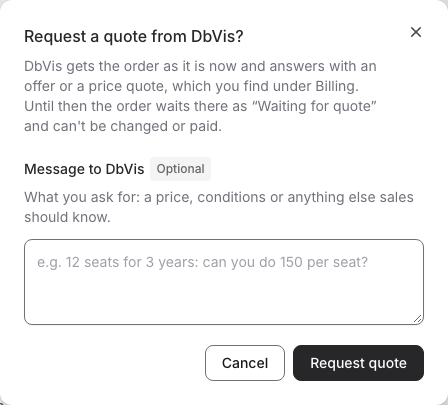
DbVis gets the order as it is now. Until they answer, it waits on Billing as "Waiting for quote" and can't be changed or paid, and the subscription says We are preparing your quote. DbVis answers with an offer or a price quote:
- An offer from DbVis is waiting for you: click Review offer. The page Review the offer shows what the offer gives you, when it was made for you and how long it is valid. Some offers let you choose the number of seats within a range. Choose how to pay and click the button in the order summary: that accepts the offer. Click Decline offer if you don't want it.
- Your quote is ready to pay: click Pay quote. See Price quote.
DbVis can also send you an offer without your asking, for example for a renewal. You find offers and quotes on the subscription, under Needs your attention on Subscriptions, and on Billing.
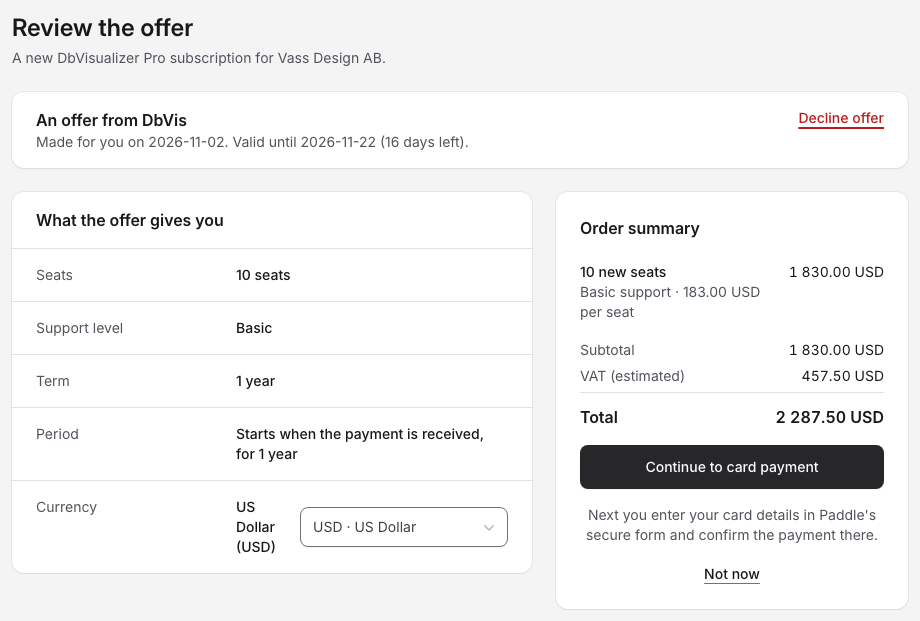
An offer that has expired says This offer has expired: click Contact sales if you still want it. An offer can wait for your details: until DbVis has verified your organization, or until your name or your organization's full address is filled in, the checkout says what is missing. See Payment methods → When details are missing.
Buying through a reseller
A reseller can order DbVisualizer for you: you give them a purchase access code, and they give you an activation code to enter in the portal. See Buying through a reseller.