Using Workspaces
Only in DbVisualizer Pro
This feature is only available in the DbVisualizer Pro edition.
A workspace has its own connections, settings, favorites, recent files, drivers, certificates and so on. Use workspaces to keep unrelated work apart, for example the databases of different customers, each with their own settings. You can have several workspaces open at the same time, each in its own window.
Creating a workspace
- Select File → Workspaces → New Workspace.
- Enter the Workspace Name. The Folder Name is filled in from it, and you can change it.
- Choose the Location. A workspace is stored in a folder of its own, which must not exist yet. For example, with the folder name
customer-aand the locationC:\Users\bobby, the workspace is stored inC:\Users\bobby\customer-a. - Click Create.
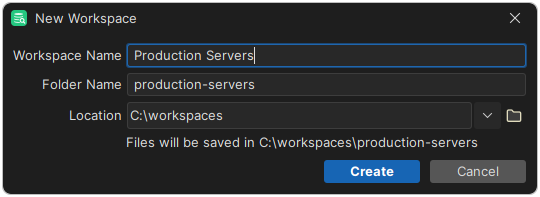
The workspace opens in a new window. Changes in one workspace don't affect the others.
Opening a workspace
To open a workspace, select File → Workspaces → Open Workspace and select its folder. The workspaces you have opened before are also listed in the File → Workspaces menu.
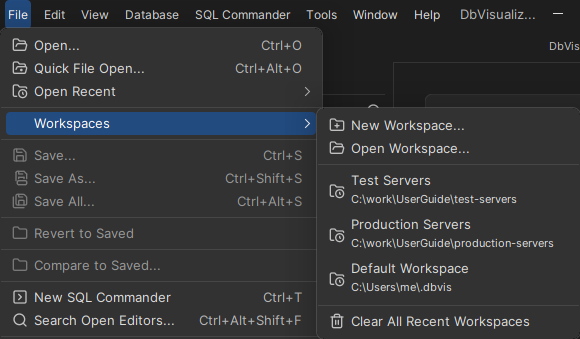
The workspace opens in a new window. If the workspace is already open in another window, you are warned. To clear the list of recent workspaces, select Clear All Recent Workspaces. The workspaces themselves aren't removed.
Renaming a workspace
- Open the workspace, and select Tools → Tool Properties.
- In the General / General category, enter the new name in Workspace Name.
- Click OK or Apply.
The default workspace
The first time you start DbVisualizer, it creates the default workspace, Default Workspace, in the .dbvis folder in your home folder. It opens when you start DbVisualizer, and you can't rename it. When another workspace is open, the default workspace is always in the list of recent workspaces.
Opening a workspace at startup
To open another workspace than the default when DbVisualizer starts, start it with the -workspace argument and the folder of the workspace, for example -workspace C:\business\my-workspace.
For more about starting DbVisualizer from a terminal, see Starting the GUI from the Command Line (dbvisgui).