Command-Line Interface (dbviscmd)
Only in DbVisualizer Pro
This feature is only available in the DbVisualizer Pro edition.
In addition to the DbVisualizer application, there is a command-line interface, dbviscmd, for running queries and scripts without the GUI. To start the DbVisualizer GUI from a terminal instead, see Starting the GUI from the Command Line (dbvisgui). Use it to automate database tasks, for example:
- scheduled jobs, such as nightly exports or cleanup scripts, run by cron or Windows Task Scheduler,
- steps in a CI/CD pipeline, a deployment script or the setup of integration tests, such as running migration scripts or loading test data. The exit code tells the pipeline whether the script succeeded,
- database tasks in a larger shell script,
- large scripts, such as a script generated by the Export Schema feature.
On a build server, dbviscmd needs a DbVisualizer installation. Connect with -url and a driver if there is no workspace with your connections, and pass passwords with environment variables, see Keeping passwords off the command line.
Running dbviscmd
You find dbviscmd in the DbVisualizer installation folder:
- Windows:
dbviscmd.bat - Linux:
dbviscmd.sh - macOS:
dbviscmd.shin/Applications/DbVisualizer.app/Contents/Resources/app
To choose which Java to use, or to pass extra arguments to the Java VM, use the JAVA_EXEC and VM_ARGS environment variables, see Starting the GUI from the Command Line (dbvisgui).
When you have installed a new DbVisualizer version, start DbVisualizer once and let it migrate your settings before you use dbviscmd.
What you can do with dbviscmd
| Task | Options |
|---|---|
| Run queries | A connection, and -sql or -sqlfile |
| Create a connection | -createconnection |
| Change the user ID or password of a connection | -modifyconnection |
| List your connections | -listconnections |
| Show help or the version | -help or -version |
The last two tasks need no other options. For a complete list of options, see All options.
Running queries
To run queries, you specify a connection, and the queries to run.
Choosing the connection
The easiest way is to use a connection that you have created in DbVisualizer, using the -connection option:
./dbviscmd.sh -connection "Sakila" -sql "select * from sakila.actor"
If you don't remember the name, list your connections with -listconnections.
You can also connect without a connection in DbVisualizer, by giving the JDBC URL with -url, and the driver to use:
-drivernameuses a driver from the Driver Manager in DbVisualizer, see Managing Database Drivers. If the driver files have not been downloaded yet, they are downloaded when you run dbviscmd.-driverclassand-driverpathspecify the driver class and the driver's JAR files yourself. Separate several JAR files with:, or with;on Windows.
./dbviscmd.sh -url jdbc:mysql://localhost:3306/ \
   -drivername "MySQL 8+" \
   -userid root \
   -sql "select * from sakila.actor"
./dbviscmd.sh -url jdbc:oracle:thin:@localhost:1521/ORCL \
   -driverclass oracle.jdbc.OracleDriver \
   -driverpath /drivers/ojdbc11.jar \
   -userid system \
   -passwordfile /secure/oracle.pw \
   -sql "select * from hr.countries"
For more about JDBC URLs, see Creating a Connection. For how to give the password, see Keeping passwords off the command line.
Running statements
To run one or more statements, use -sql. Separate several statements with ;:
> ./dbviscmd.sh -connection "Sakila" -sql "select * from sakila.actor; select * from sakila.category"
22:05:36  START Executing Command Line for: 'Sakila' [H2], Schema: PUBLIC
22:05:36  INFO  Physical database connection acquired for: Sakila
22:05:36  SUCCESS  [SELECT - 5 rows, 0.004 secs]  Result set fetched
select * from sakila.actor;
ACTOR_ID  FIRST_NAME  LAST_NAME
--------  ----------  ------------
1         PENELOPE    GUINESS
2         NICK        WAHLBERG
3         ED          CHASE
4         JENNIFER    DAVIS
5         JOHNNY      LOLLOBRIGIDA
22:05:36  SUCCESS  [SELECT - 5 rows, 0.001 secs]  Result set fetched
select * from sakila.category;
CATEGORY_ID  NAME
-----------  ---------
1            Action
2            Animation
3            Children
4            Classics
5            Comedy
22:05:36  END Execution 2 statement(s) executed, 10 row(s) affected, exec/fetch time: 0.005/0.000 secs   [2 successful, 0 errors]
Running a script
If you run the same statements often, put them in a script file, and run it with -sqlfile. To specify the encoding of the file, use -encoding.
./dbviscmd.sh -connection "Sakila" -sqlfile myscript.sql
The output is the same as when you give the statements with -sql. Scripts can also contain client-side commands, such as @run and @export.
Controlling the execution
| Option | Description |
|---|---|
-catalog, -schema | The database (catalog) and schema to use for table names without a database or schema, see Choosing the Connection, Database and Schema. |
-stoponerror | Stop when a statement fails. |
-stoponsqlwarning | Stop when a statement gives an SQL warning. |
-stoponnorows | Stop when a statement returns no rows, or affects no rows. |
-maxrows, -maxchars | The maximum number of rows to show for a result set, and of characters to show for a column. |
-stripcomments true, -stripcomments false | Whether to remove comments before the statements are sent to the database. By default, the setting in DbVisualizer is used. |
-reconnectpolicy | What to do if the connection is lost: noreconnect handles it as an error, reconnect reconnects, and reconnectandexecute reconnects and runs the failed statement again. Not all statements can be run again. |
Controlling the output
By default, dbviscmd shows both log messages and result sets. To show only the result sets, use -output result:
> ./dbviscmd.sh -connection "Sakila" -sqlfile myscript.sql -output result
ACTOR_ID  FIRST_NAME  LAST_NAME
--------  ----------  ------------
1         PENELOPE    GUINESS
2         NICK        WAHLBERG
3         ED          CHASE
4         JENNIFER    DAVIS
5         JOHNNY      LOLLOBRIGIDA
CATEGORY_ID  NAME
-----------  ---------
1            Action
2            Animation
3            Children
4            Classics
5            Comedy
To show only the log messages, for example for a script with INSERT statements, use -output log:
> ./dbviscmd.sh -connection "Sakila" -sqlfile myscript.sql -output log
22:05:43  START Executing Command Line for: 'Sakila' [H2], Schema: PUBLIC
22:05:43  INFO  Physical database connection acquired for: Sakila
22:05:43  SUCCESS  [SELECT - 5 rows, 0.005 secs]  Result set fetched
select * from sakila.actor;
22:05:43  SUCCESS  [SELECT - 5 rows, 0.001 secs]  Result set fetched
select * from sakila.category;
22:05:43  END Execution 2 statement(s) executed, 10 row(s) affected, exec/fetch time: 0.006/0.000 secs   [2 successful, 0 errors]
To show nothing, use -output none. To write the output to a file instead of the console, use -outputfile.
Using variables
To use DbVisualizer variables in the statements, add -processvariables. dbviscmd prompts for the value of each variable, and shows the default value in brackets. In this example, J% is entered:
> ./dbviscmd.sh -connection "Sakila" -processvariables \
     -sql 'select first_name, last_name from sakila.actor where first_name like ${Name||P%||String||}$'
dbviscmd.sh: Valid inputs: Enter '_B_' for empty, '(null)' for null
dbviscmd.sh: Variable 'Name' (Literal) [P%]: J%
22:05:52  START Executing Command Line for: 'Sakila' [H2], Schema: PUBLIC
22:05:52  INFO  Physical database connection acquired for: Sakila
22:05:52  SUCCESS  [SELECT - 2 rows, 0.015 secs]  Result set fetched
select first_name, last_name from sakila.actor where first_name like J%;
FIRST_NAME  LAST_NAME
----------  ------------
JENNIFER    DAVIS
JOHNNY      LOLLOBRIGIDA
22:05:52  END Execution 1 statement(s) executed, 2 row(s) affected, exec/fetch time: 0.015/0.001 secs   [1 successful, 0 errors]
To specify what an empty entry means, use -emptypromptvalue.
Calling dbviscmd from a shell script
For more complex tasks, you can call dbviscmd from a shell script or a BAT file, and use DbVisualizer variables to pass values from the shell script to an SQL script.
In this example, the SQL script cmdtest.sql selects from a table given by a variable:
select * from ${table}$
The text file tables.txt lists the tables to select from:
sakila.actor
sakila.category
This Bash loop runs dbviscmd once for each table:
for name in `cat tables.txt`;
  do ./dbviscmd.sh -connection "Sakila" -sql "@run cmdtest.sql \${table||$name||||nobind}\$; ";
done
Each run uses the client-side command @run to run the script, with the table variable set to the table name from the shell. Note that the dollar signs of the variable are escaped, so that the shell doesn't interpret them. The output of the first run:
22:05:55  START Executing Command Line for: 'Sakila' [H2], Schema: PUBLIC
22:05:55  INFO  Physical database connection acquired for: Sakila
22:05:55  RUNNING  [@run ....actor||||nobind}$ - - secs]
@run cmdtest.sql ${table||sakila.actor||||nobind}$;
22:05:55  SUCCESS  [SELECT - 5 rows, 0.005 secs]  Result set fetched
select * from sakila.actor;
ACTOR_ID  FIRST_NAME  LAST_NAME
--------  ----------  ------------
1         PENELOPE    GUINESS
2         NICK        WAHLBERG
3         ED          CHASE
4         JENNIFER    DAVIS
5         JOHNNY      LOLLOBRIGIDA
22:05:55  SUCCESS  [@run ....actor||||nobind}$ - 0.005 secs]  Script processed
@run cmdtest.sql ${table||sakila.actor||||nobind}$;
22:05:55  END Execution 1 statement(s) executed, 5 row(s) affected, exec/fetch time: 0.005/0.000 secs   [1 successful, 0 errors]
If the saved password for the connection is protected by a master password, each run of dbviscmd prompts for it. To run the loop without prompts, see Keeping passwords off the command line.
Creating and changing connections
To create a connection in DbVisualizer, use -createconnection with a name for the new connection, its JDBC URL and driver, and optionally a user ID and password. dbviscmd connects to the database to check the connection before it is saved:
./dbviscmd.sh -createconnection -connection "Sakila" \
   -url jdbc:h2:/data/sakila \
   -drivername "H2 2.x Embedded" \
   -userid sa
To change the user ID or password of a connection, use -modifyconnection. Give at least one of -userid, -password, -passwordfile and -passwordenv:
./dbviscmd.sh -modifyconnection -connection "Sakila" -userid newuser
Keeping passwords off the command line
A password given with -password or -masterpw is visible to other users on the machine in the process list (for example, with ps) while dbviscmd runs. To avoid this, read the password from a file or an environment variable instead:
| Connection password | Master password | |
|---|---|---|
| From a file | -passwordfile <filename> | -masterpwfile <filename> |
| From an environment variable | -passwordenv <variable> | -masterpwenv <variable> |
- A password file is read as UTF-8, and only its first line is used. Restrict access to the file so that only you can read it.
- Specify the name of the environment variable, not its value.
- Use only one of
-password,-passwordfileand-passwordenv, and only one of-masterpw,-masterpwfileand-masterpwenv. - The options work with
-sql,-sqlfile,-createconnectionand-modifyconnection.
Updating a connection password from a script
./dbviscmd.sh -connection "MyDatabase" -modifyconnection \
   -passwordfile /secure/mydb.pw \
   -masterpwenv DBVIS_MASTER_PW
If your workspace has a master password and you don't give one using an option, dbviscmd prompts for it. If the password vault is unlocked with Touch ID or Windows Hello, dbviscmd asks for the recovery code instead, and the options take the recovery code. When no console is available, for example when dbviscmd runs from a scheduler, use -masterpwfile or -masterpwenv.
Other options
| Option | Description |
|---|---|
-workspace | Use the settings and connections of another workspace. |
-debug, -debugfile | Write debug messages, by default to the console. |
-errordir | Write error logs to another folder. |
Exit codes
| Code | Meaning |
|---|---|
| 0 | OK |
| 1 | Other error |
| 2 | Connect error |
| 3 | Script execution resulted in an error. Execution stopped |
| 4 | Script execution resulted in errors |
| 5 | Script execution failed unexpectedly |
Generating a command from SQL Commander
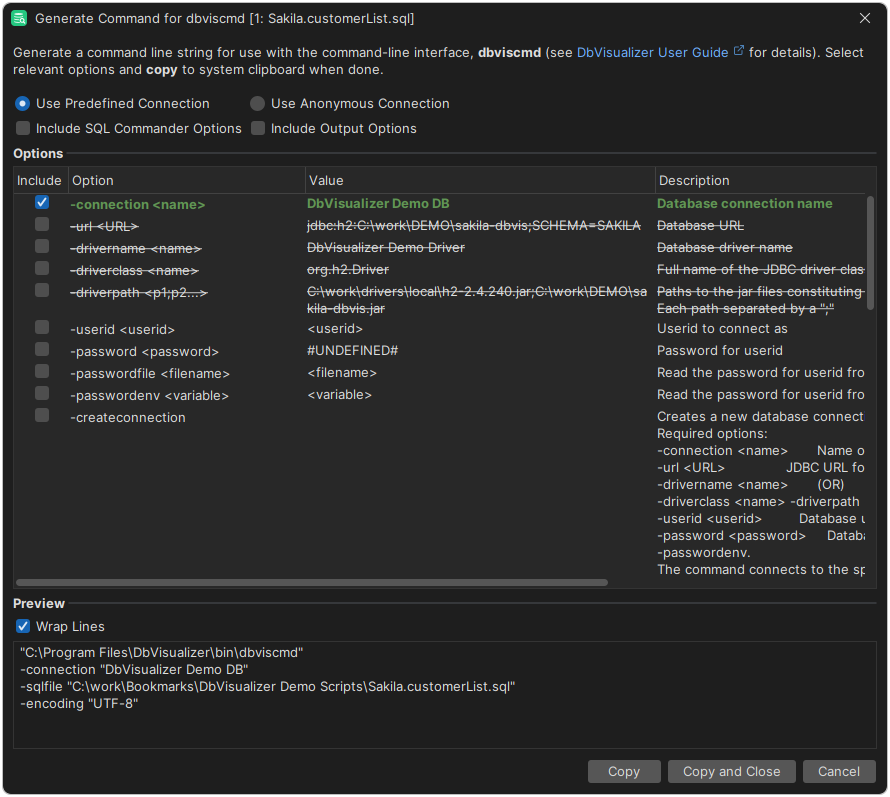
From time to time, you may want to use some SQL that you have tested in the GUI and run it in the command-line interface. You can generate the string with all parameters and paste that string on the command line or a script. Use menu option SQL Commander → Generate Command for dbviscmd to open a dialog where you can specify the options. Some options are selected and some are disabled depending on the editor contents.
If you generate a command from an anonymous script (a script that has not been saved to a file) with more than one line, you will be prompted to save the file or generate a temporary one. If you generate the command from a file that is modified, you will be prompted to save the file before generating the command.
In addition to the options, there are a few settings in the dialog:
- You can use a predefined (named) or an anonymous connection; this will enable and disable connection options accordingly.
- You can choose whether or not to Include SQL Commander Options; this is a convenient way to enable or disable all corresponding options. You can still enable or disable individual options as desired.
- You can choose whether or not to Include Output Options; this is a convenient way to enable or disable all corresponding options. You can still enable or disable individual options as desired.
All options
This is the help text that dbviscmd -help shows:
Usage: dbviscmd     -connection <name> |
                    -url <URL> -drivername <name> |
                    -url <URL> -driverclass <name> -driverpath <p1:p2...> )
                   [-userid <userid>]
                   [-password <password> | -passwordfile <filename> |
                    -passwordenv <variable>]
                   [-createconnection]
                   [-modifyconnection]
                   [-masterpw <password> | -masterpwfile <filename> |
                    -masterpwenv <variable>]
                   (-sql <statements> |
                    -sqlfile <filename> [-encoding <encoding>])
                   [-catalog <catalog>] [-schema <schema>]
                   [-maxrows <max>] [-maxchars <max>]
                   [-stoponerror] [-stoponsqlwarning] [-stoponnorows]
                   [-stripcomments (true | false)]
                   [-processvariables]
                   [-emptypromptvalue <string>]
                   [-listconnections]
                   [-output (all | none | log | result)] [-outputfile <filename>]
                   [-debug [-debugfile <filename>]]
                   [-errordir <directory>]
                   [-workspace <directory>]
                   [-reconnectpolicy (reconnectandexecute | noreconnect | reconnect)]
                   [-help] [-version]

Options:
 -connection <name>                  Database connection name
 -url <URL>                          Database URL
 -drivername <name>                  Database driver name
 -driverclass <name>                 Full name of the JDBC driver class name
 -driverpath <p1:p2...>              Paths to the jar files constituting the JDBC driver.
                                     Each path separated by a ":"
 -userid <userid>                    Userid to connect as
 -password <password>                Password for userid
 -passwordfile <filename>            Read the password for userid from the first line of a file
 -passwordenv <variable>             Read the password for userid from an environment variable
 -createconnection                   Creates a new database connection in the workspace using the specified parameters.
                                     Required options:
                                     -connection <name>       Name of the connection to be created.
                                     -url <URL>               JDBC URL for the target database.
                                     -drivername <name>       (OR)
                                     -driverclass <name> -driverpath <path1[:path2...]>  JDBC driver details for the database.
                                     -userid <userid>         Database userid for the connection.
                                     -password <password>     Database password, if needed. Or use -passwordfile or -passwordenv.
                                     The command connects to the specified database after creating the connection to validate credentials.
                                     Example:
                                     -connection "H2 1.x Embedded with password" -createconnection -url "jdbc:h2:/path/to/db" -drivername "H2 1.x Embedded" -userid "sa" -password "secret"
 -modifyconnection                   Modifies an existing database connection by updating its user ID and/or password.
                                     Required options:
                                     -connection <name>       Name of the existing connection to modify.
                                     Optional options:
                                     -userid <userid>         New userid for the connection.
                                     -password <password>     New password for the connection.
                                     At least one of -userid, -password, -passwordfile or -passwordenv must be provided.
                                     Example:
                                     -connection "MyDatabase" -modifyconnection -userid "newuser" -password "newpass"
 -masterpw <password>                Master Password for encrypted database passwords.
                                     If Touch ID or Windows Hello protects them, the recovery code
 -masterpwfile <filename>            Read the Master Password from the first line of a file
 -masterpwenv <variable>             Read the Master Password from an environment variable
 -sql <statements>                   One or more delimited SQL statements
 -sqlfile <filename>                 SQL script file to execute
 -encoding <encoding>                Encoding for the SQL script file
 -catalog <catalog>                  Catalog to use for unqualified identifiers
 -schema <schema>                    Schema to use for unqualified identifiers
 -maxrows <max>                      Maximum number of rows to display for a result set
 -maxchars <max>                     Maximum number of characters to display for a column
 -reconnectpolicy <reconnect policy> Specify how to handle connection lost when executing scripts
 -stoponerror                        Stop execution when getting an error
 -stoponsqlwarning                   Stop execution when getting an SQL warning
 -stoponnorows                       Stop execution when an empty result set or no affected rows
 -stripcomments <true/false>         Strip comments before sending to database.
                                     Default is the setting made in the GUI
 -processvariables                   Process variables
 -emptypromptvalue <string>          String to use when entering an empty value when
                                     prompted for variable(s)
 -listconnections                    Lists all database connections
 -output <out>                       "all" (default), output both log messages and result sets
                                     "none", suppress both log messages and result sets
                                     "log", output only log messages
                                     "result", output only result sets
 -outputfile <filename>              Script execution output file. Default is stdout
 -debug                              Write debug messages
 -debugfile <filename>               File for debug messages. Default is stderr
 -errordir <directory>               Use an alternate location for error logs
 -workspace <directory>              Load preferences from an alternate workspace
 -help                               Display this help
 -version                            Show version info