Choosing the Connection, Database and Schema
The three lists above the editor in SQL Commander decide where your queries are executed:
- Database Connection: one of the connections in the Databases tab, that is, the database server to execute the queries on.
- Database: for database types that allow several databases per server, the database to use. In some database types, the databases are called catalogs.
- Schema: for database types that support schemas, the schema to use for table names without a schema.
Some database types support both databases and schemas, some only one of them, and some neither. A list that doesn't apply to the current database type is disabled.
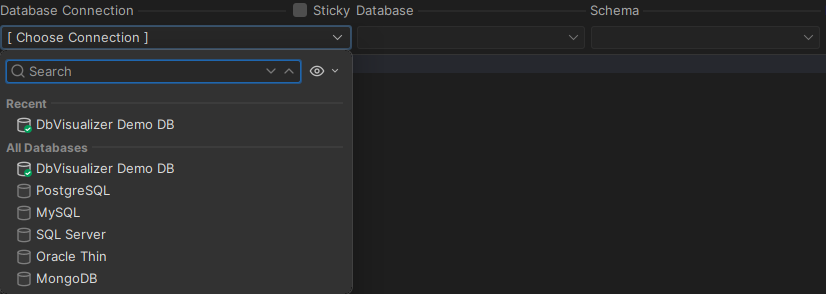
Choosing the connection
The connection list shows your database connections in the All Databases section, in the same folders and order as in the Databases tab. For faster access, your connected and recently used connections are listed in a separate Recent section at the top.
To filter the list, type in the search field. By default, connections are shown in their folders; to show a flat list, click the icon next to the search field and clear Show Folders.
Keeping the selection
When you open a script, SQL Commander switches to the connection, database and schema you last used with this script. To keep your current selection instead, select Sticky.
To select Sticky by default in new SQL Commander tabs, select Set "Sticky" for SQL Commanders in Tool Properties → SQL Commander.
Choosing the database
The queries are executed in the selected database, and a table name without a database refers to a table in it. For example, in MySQL with the database sakila selected, SELECT * FROM actor reads from sakila.actor.
To query a table in another database on the same server, qualify the table name with the database, such as world.city.
Choosing the schema
A table name without a schema refers to a table in the selected schema. For example, with the schema sales selected, SELECT * FROM orders reads from sales.orders.
This works in many database types, such as Oracle, PostgreSQL, Db2 and Snowflake, and with the Generic database type if the database driver supports it. In other database types, such as SQL Server, the selected schema only limits the tables that auto-completion suggests.
In some database types, such as PostgreSQL and Vertica, tables that are not in the selected schema can also be found in the other schemas of the session's search_path. For example, with the schema sales selected, SELECT * FROM customers reads from public.customers if there is no sales.customers and public is in the search_path. A result set from such a table can't be edited. To edit it, select the table's schema, or qualify the table name with the schema.
To use the selected schema only for auto-completion, set Set Current Schema to Do Not Use the Schema in the SQL Editor category. You find it in the Properties tab for the connection, or for all connections of a database type, in the Database tab in Tool Properties.
Choosing what is selected first
When you select a connection, the Database and Schema lists show the connection's default database and schema. To start with nothing selected, or with the database and schema you used last, change Initial Database/Schema Selection in the SQL Editor category. You find it in the Properties tab for the connection, or for all connections of a database type, in the Database tab in Tool Properties.