Executing SQL Statements
In SQL Commander, you can execute the whole script, the statements you have selected, or only the statement at the caret. The statements are executed one by one using the connection selected above the editor, and the progress is shown in the Log tab. You can't execute one script on several connections at once.
Executing a script
To execute all statements in the editor, select SQL Commander → Execute, or press Ctrl+Enter (Cmd+Enter on macOS).
To execute only some of the statements, select them first. Only the selected text is executed.
The results are shown in the results area below the editor. If there are several results and one of the statements failed, the Log tab is shown, so that you see the error.
Statement delimiters
DbVisualizer splits the script into statements using the delimiters in the General / SQL Commander / Statement Delimiters category in Tools → Tool Properties. By default, these are:
- A semicolon (
;) after the statement. goalone on the line after the statement, with no semicolon. To execute the statement several times, add a number, for examplego 5.
For statements that contain semicolons, such as CREATE PROCEDURE, see Executing Complex Statements.
Executing the current statement
To execute only the statement at the caret, without selecting it, select SQL Commander → Execute Current, or press Ctrl+. (Cmd+. on macOS).
The current statement is the one that contains the caret, or that ends on the line with the caret. So the caret can be after the delimiter, as long as no other statement is on the same line. To see which statement is current, select Edit → Selection → Select Current Statement.
Executing the whole editor as one statement
SQL Commander → Execute Buffer sends the whole text in the editor, or the selected text, to the database as one statement, without splitting it. See Using Execute Buffer.
Stopping on errors
By default, the next statements are executed even if a statement fails. To stop the script instead, select Stop on Error, Stop on SQL Warning or Stop on No Rows in the General / SQL Commander category in Tools → Tool Properties. Stop on No Rows stops when a statement returns or changes no rows.
To set this in a script, use these client-side commands:
@stop on error;
@stop on sqlwarning;
@stop on norows;

@continue on error;
@continue on sqlwarning;
@continue on norows;
Stopping a script
To stop a running script, click Stop in the SQL Commander toolbar. To stop a script at a certain point, put @stop now; in it.
Leaving out comments
By default, comments in the script are sent to the database with the statements. If your database doesn't accept them, select Strip Comments when Executing in SQL Commander → SQL Commander Options, or using the SQL Commander Options button in the toolbar. The comments are found using the delimiters in the General / SQL Commander / Comments category.
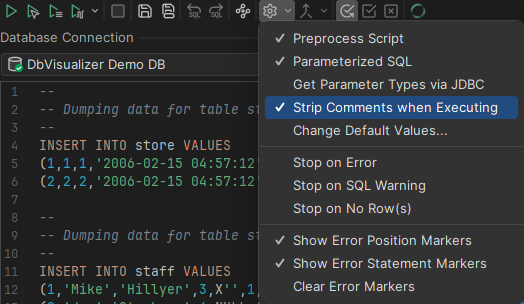
The options in this menu apply to the current tab. To change the defaults for new tabs on the connection, select Change Default Values in the menu. This opens the connection properties.
Reconnecting after a lost connection
If the connection to the database is lost while a script runs, DbVisualizer can restore it. Choose how in Handling loss of Connection in the SQL Editor category of the connection properties. Both ways of reconnecting only work when auto commit is on.
- No Reconnect: Don't restore the connection.
- Reconnect: Restore the connection and continue the script.
- Reconnect and re-execute: Restore the connection, and execute the failed statement again before continuing.
Some commands, such as the client-side command @commit, aren't executed again. A statement that is executed again has two entries in the log: one for the failure and one for the new result. If the new result is OK, the script counts as successful.