Managing Frequently Used SQL
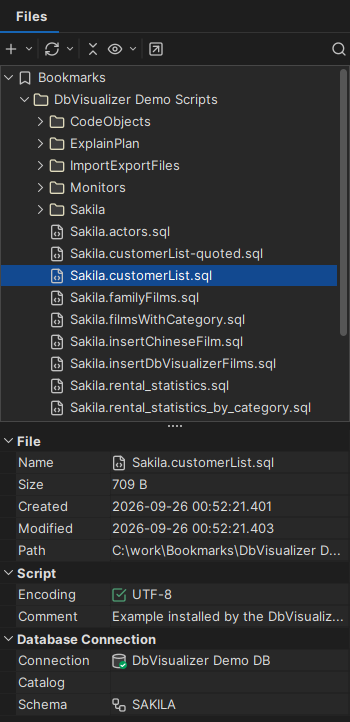
If you have SQL statements that you use over and over, you can keep them as bookmarks. Bookmarks is a pre-mounted folder in the Files tab for scripts that you want to have at hand. The scripts are typically stored in .dbvis/Bookmarks in your home folder.
You work with bookmarks as with any other files in the Files tab, see Using the Files Tab.
Why use bookmarks
You can keep your scripts in any folder that you mount in the Files tab. Bookmarks have a few advantages:
- The Bookmarks folder is always available, with no setup.
- Bookmarks are included when you export your settings, together with the connection, catalog and schema used for each of them. This makes it easy to move them to another computer.
- Bookmarks are easy to find. Quick Load lists them in a category of their own, and quick search in the Files tab searches all bookmarks, not only the folders you have expanded.
Since bookmarks are stored with your DbVisualizer settings, they are not a good choice for scripts that you want to share with your team. For that, see Sharing and backing up scripts.
Creating bookmarks
- To create a new bookmark, select the Bookmarks folder, or a subfolder, and select New → Create File in the Files tab toolbar or right-click menu.
- To turn an existing script into a bookmark, drag it to the Bookmarks folder, from another folder in the Files tab or from your file browser.
- To save a statement that you have executed, drag its entry from SQL History to the Bookmarks folder, see Re-Executing SQL Statements.
Using Quick Load
An alternative to locating editor tabs, Recent Files, Bookmarks or Monitors from the Files tab and entries from SQL History is to use the Quick Load feature, by default bound to the Ctrl+Alt+O key combination. It is also available via a main toolbar button as well as in the File → Quick File Open menu.
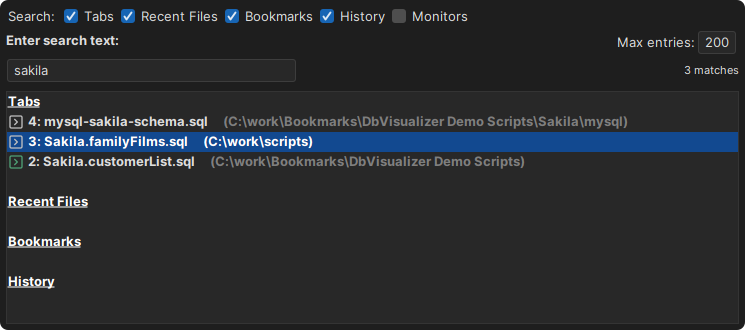
The Quick Load feature locates files with partly matching names from the categories you have selected, as you type. You can use an asterisk ("*") as a wildcard in the search string. Files already open in editor tabs is not displayed in Recent Files.
When you see the file you're looking for, just select it and press Enter to load it into an SQL Commander editor. If the file is already loaded in an editor, that tab is made visible instead.
The number of matches is shown below the search field. To change how many matches are shown for each category, change the number in the Max entries field.