Using the Files Tab
A script is a file with SQL statements that you edit and execute in SQL Commander. You can open a script from anywhere in the file system, but the Files tab makes it easier to organize your scripts and get to them.
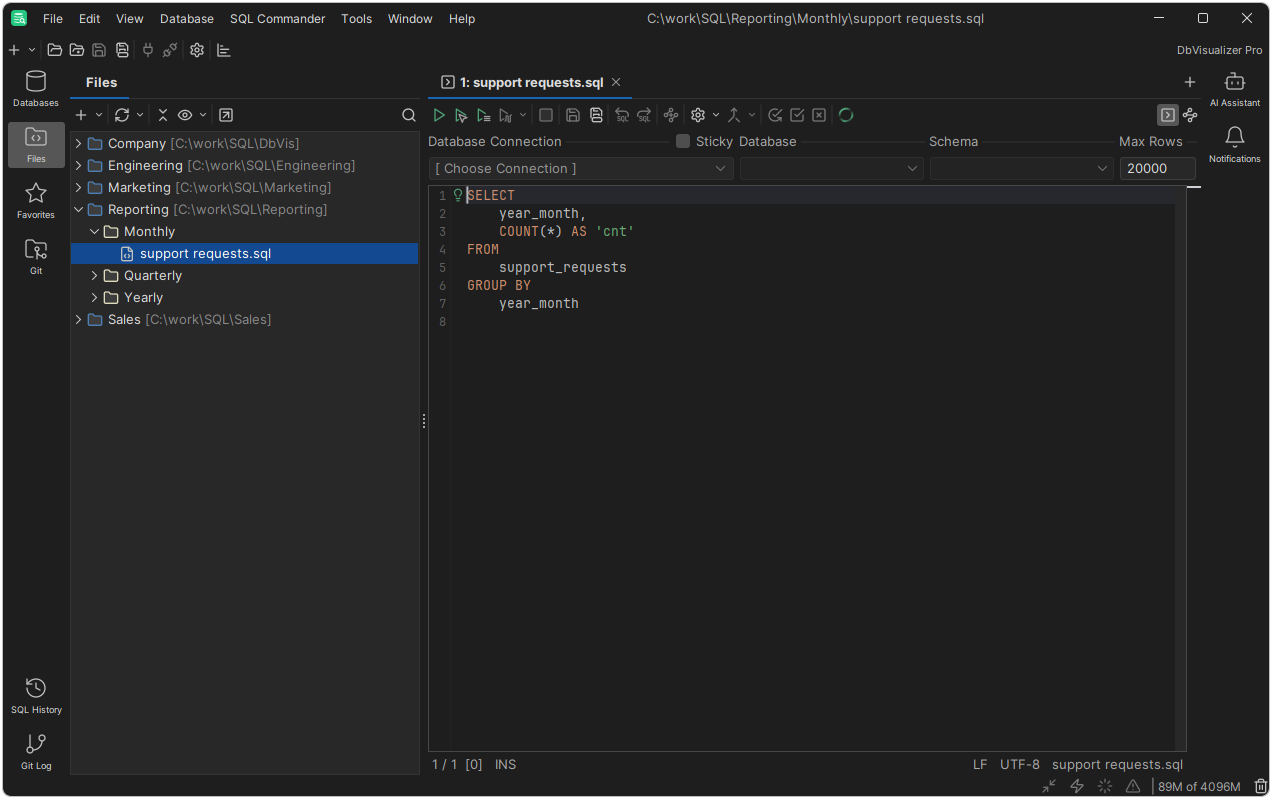
Mounting folders
To add a folder to the Files tab, you mount it: select Mount Folder in the New menu in the toolbar, or in the right-click menu, and choose the folder. You can also drag a folder from your file manager to an empty area in the Files tab.
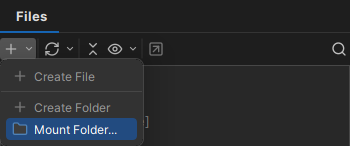
To change the order of the mounted folders, drag them. To give a mounted folder another name, right-click it and select Rename. The path of the folder is shown in square brackets after the name.
Pre-mounted folders
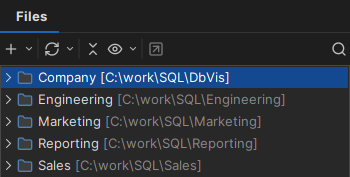
By default, the Files tab has three mounted folders:
- Bookmarks: scripts stored in the DbVisualizer settings folder. See Managing Frequently Used SQL.
- Monitors: your monitors.
- Your home folder.
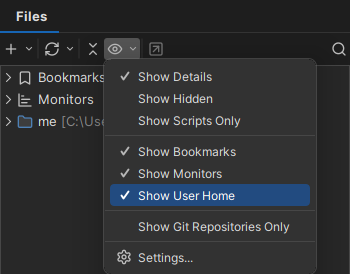
You can hide them, and show them again, using the Show menu in the toolbar.
Folders that are expanded when you close DbVisualizer are expanded again when you start it.
Working with files
- To open a script in SQL Commander, double-click it, or right-click it and select Open in SQL Commander. To also execute it, select Open in SQL Commander and Execute.
To insert a script in the current editor, drag it to the editor.
To add a file to your favorites, right-click it and select Add to Favorites, or drag it to the Favorites toolbar.
To create or rename files and folders, use the toolbar or the right-click menu. To duplicate a file, right-click it and select Duplicate File.
- To move files and folders, drag them. To copy them, drag them while you hold down a modifier key, or use the copy and paste shortcuts.
- To delete a file or folder, right-click it and select Delete. If your operating system supports it, the file is moved to the trash.
Reloading the tree
The tree follows changes in the file system where possible. For example, a file created in an expanded folder outside DbVisualizer appears in the tree. If the tree gets out of sync, reload the selected nodes or the whole tree using the toolbar.
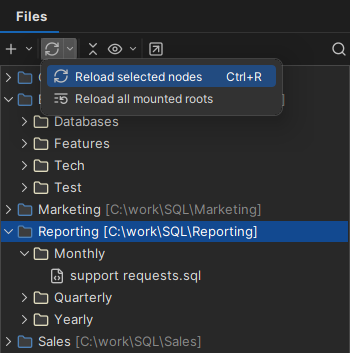
Choosing what to see
By default, the Files tab shows all files except hidden files. To change this, use the Show menu in the toolbar. Show Hidden shows hidden files, and Show Scripts Only hides files that aren't scripts. To choose which file extensions are scripts, select Settings in the same menu, which opens the setting in Tool Properties.
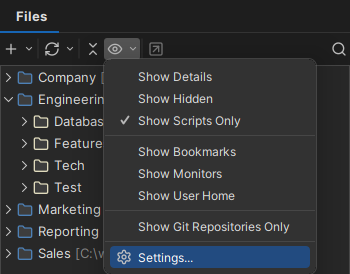
To show only the mounted folders that are Git repositories, select Show Git Repositories Only. This is only in DbVisualizer Pro. See also Using Git.
Quick search
To find entries in the tree, click Find (the magnifying glass) in the toolbar or press Ctrl+F, and type the text. Only the matching entries are shown. For more about quick search, see Using Quick Search.
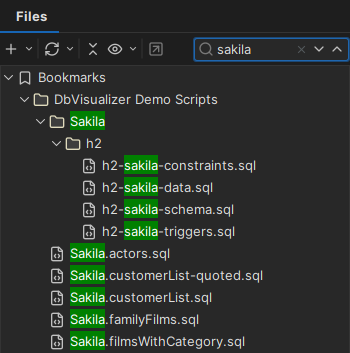
Quick search only searches the parts of the tree that are loaded. The Bookmarks and Monitors folders are always searched in full, but in other folders, only the parts you have expanded since the last reload are searched.
The details section
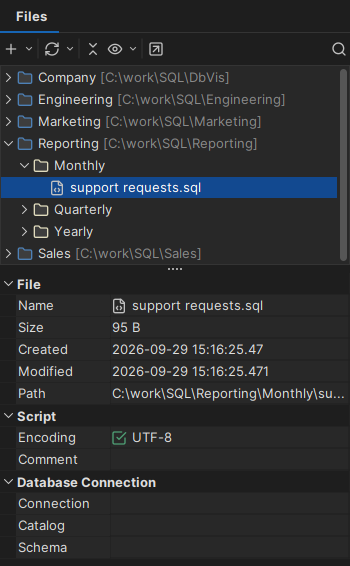
Details about the selected item are shown at the bottom of the Files tab. To hide them, clear Show Details in the Show menu. For a script, the details include the connection, catalog and schema it was last used with.
Sharing and backing up scripts
To share scripts with your team, store them in a network folder and mount it in the Files tab. Everyone who mounts the folder works with the same files. Files are not locked while you edit them, so two users can change the same file at the same time. If a file you have open is changed by someone else, DbVisualizer warns you, both in the editor and when you save the file, see When another program changes the file.
To avoid such conflicts and keep a history of changes, you can use a Git repository instead. Each user works in their own copy and shares changes by committing and pushing them, see Using Git.
To back up your scripts, keep them in a folder that is included in your regular backup, for example a synced cloud folder, and mount it in the Files tab.