Using Quick Search
Quick search lets you find matching text in data grids, such as result sets and the Data tab for a table, and in navigation views such as Databases, Files, Favorites and Git, as well as in SQL History. To find a tab or script by name, see Finding Tabs and Scripts by Name.
Opening and closing quick search
By default, the search field is closed, and only the Find button (the magnifying glass) is shown in the toolbar, as here in the Databases tab:
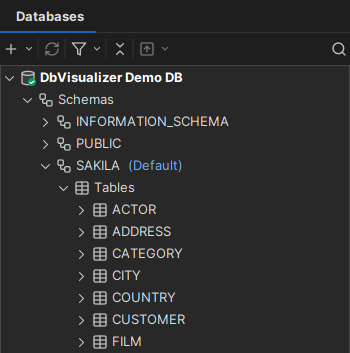
To open quick search, do one of the following:
- Click the Find button in the toolbar.
- Press
Ctrl+F(Cmd+Fon macOS). - Start typing when the grid or tree has focus. Note that in an editable grid, typing starts editing the selected cell instead.
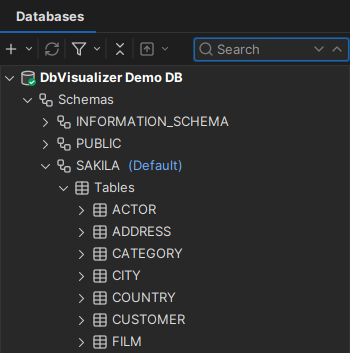
When there is enough room, the search field is displayed in the toolbar, in place of the Find button. Otherwise, it is displayed on a row of its own below the toolbar.
As you type, the matches are highlighted. If no match is found, the search field gets a red border.
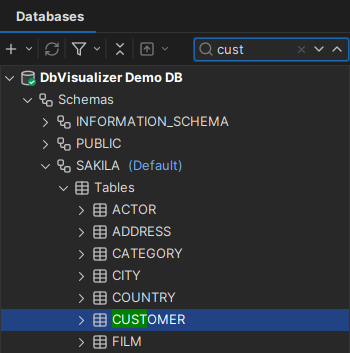
Press Esc to clear the search field. Pressing Esc in an empty search field closes it.
Moving between matches
To move between the matches, use the Find Next and Find Previous buttons next to the search field, press F3 and Shift+F3, or use the Up and Down arrow keys in the search field.
Search options
You can refine the search with the following options:
- Match Case: only find text with the same upper and lower case letters.
- Match Word: only find whole words.
- Match Regexp: use a regular expression (see below).
You find these options in the menu that opens when you right-click in the search field. In result sets, the Data tab and monitors, they are also available as buttons to the right of the search field, unless the search field is narrow.
Regular expressions
Regular expressions can be used for advanced searching. For reference, here are a few of the most commonly used quantifiers:
?– Matches zero or one of the preceding element. For example,colou?rmatches both "color" and "colour".*– Matches zero or more of the preceding element. For example,ab*cmatches "ac", "abc", "abbc", "abbbc", and so on.+– Matches one or more of the preceding element. For example,ab+cmatches "abc", "abbc", "abbbc", and so on, but will not match "ac".
Filtering and highlighting
What happens with the entries that don't match depends on where you search.
In result sets, the Data tab and monitors, only the rows with matching cells are shown by default. To show all rows and only highlight the matches, clear the Filter check box to the right of the search field. For more about searching in grids, see Quick search in Viewing Table Data.
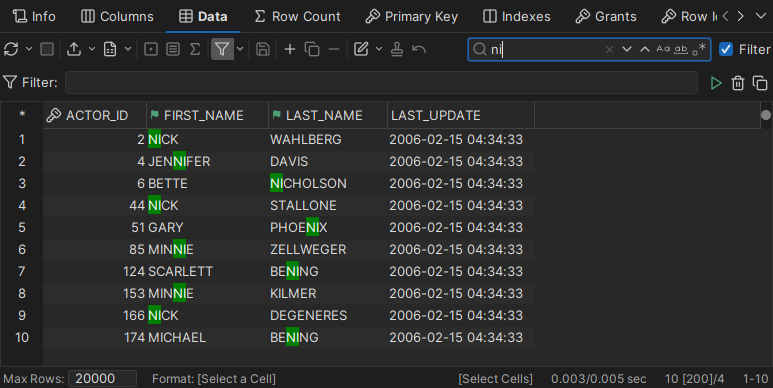
In the Files, Favorites, Git and SQL History tabs, only the matching entries and the folders that contain them are shown. In the Files tab, only the folders that have already been loaded are searched (see Using the Files Tab).
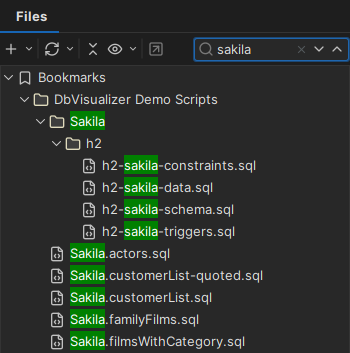
In the Databases tab, the matches are highlighted, and the current match is selected in the tree (see Locating an Object in the Tree).
Always showing the search field
To keep the search field open at all times, right-click in the search field and select Always Show Search. Pressing Esc then clears the search field, but doesn't close it.
This setting, the search options and the Filter check box are remembered when you restart DbVisualizer. They apply separately to data grids and to the other views, such as the navigation views and SQL History. For example, if you select Always Show Search in a result set, the search field is shown in all data grids, but not in the Databases tab.