Re-Executing SQL Statements
Every statement and script you execute in SQL Commander is saved in the SQL history, together with the connection it was executed on and the result. So you can find and run it again later, even if you didn't save it.
Going back to recent statements
To load the statements you executed before in the editor, one at a time, use Load Previous History Entry and Load Next History Entry in the SQL Commander toolbar or the right-click menu of the editor.
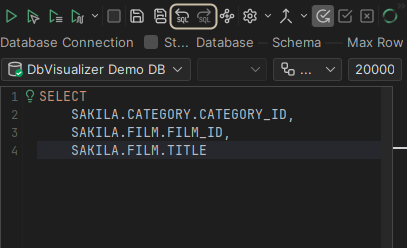
Browsing the SQL history
To see all history entries, click SQL History in the sidebar.
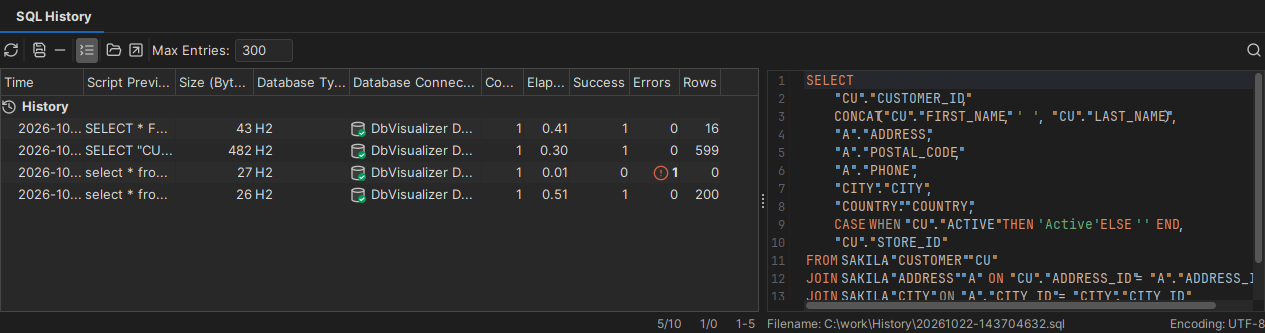
The newest entries are at the top. To sort the list by another column, click the column header. For each entry, the list shows when it was executed, the beginning of the script and its size, the database type and connection, and how long it took. Success and Errors show how many statements succeeded and failed, and Rows how many rows were returned or changed. To see the whole script of the selected entry below the list, click Show Details in the toolbar.
To find an entry, use quick search: click Find (the magnifying glass) in the toolbar or press Ctrl+F (Cmd+F on macOS), and type the text to look for. Only the matching entries are shown. The whole script is searched, not only the part in the list. To choose which columns to search, right-click the search field.
Limiting the history
The history keeps the number of entries set in Max Entries in the toolbar of the SQL History view, by default 300. When there are more, the oldest entries are deleted. To turn the history off, set it to 0. It is best to keep the number reasonably low.
By default, if you execute the same script again right after, on the same connection, database and schema, the last entry is updated instead of a new one being added, and its Count column goes up. To add a new entry each time, clear Collect Duplicates in a Single History Entry in the General / SQL History category in Tools → Tool Properties. In the same category, you can also choose not to save scripts that failed, or scripts that match a regular expression.
Running an entry again
To open an entry in SQL Commander, double-click it, or select it and use the button in the toolbar. To add it to a script in the editor instead, drag it to the place in the editor.
Saving an entry
To keep an entry at hand, save it as a bookmark or a file: select it and use Save As, or drag it to the Bookmarks folder in the Files tab.
Each entry is stored in a file. To open the folder of the file, click Open Enclosing Directory in the toolbar.
Finding an entry using Quick File Open
Quick File Open can also list the history entries, next to your open tabs, recent files and bookmarks. To find an entry, type part of the statement or the connection name. See Finding Tabs and Scripts by Name.