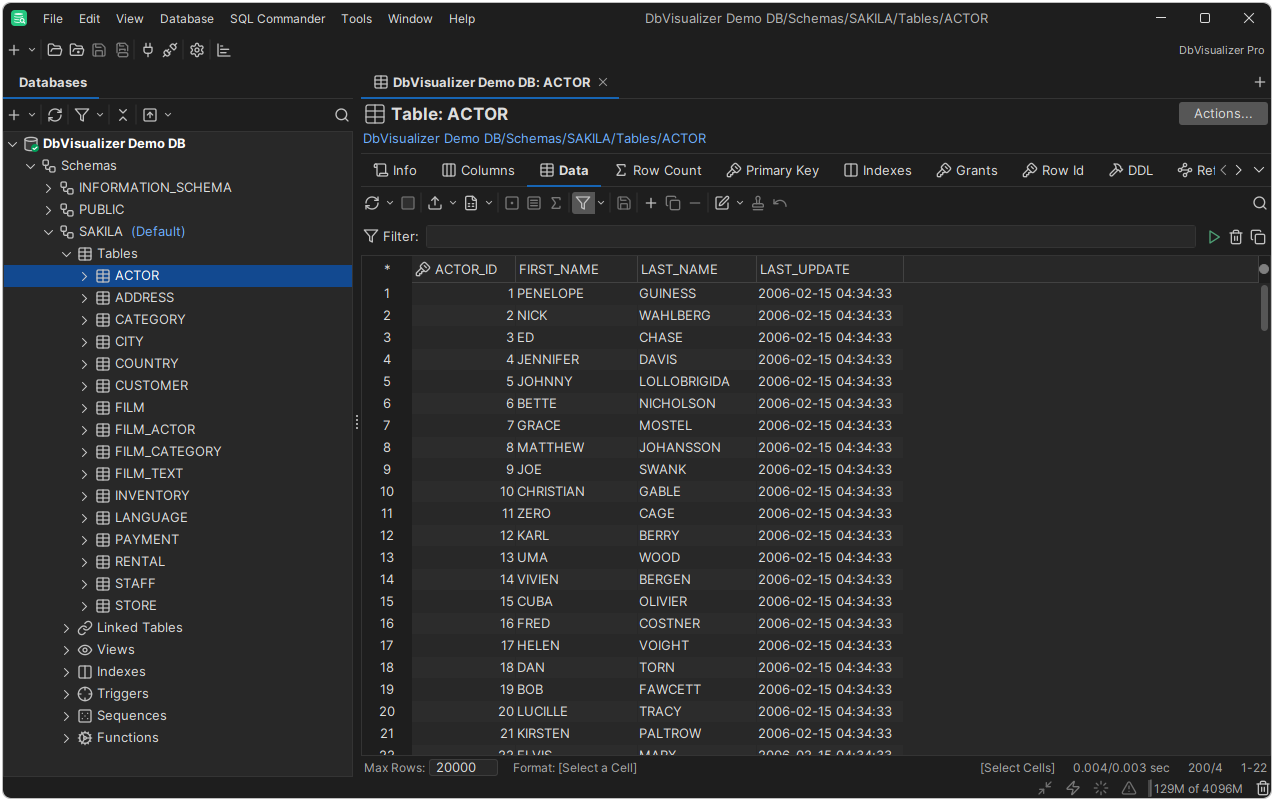
Main Window
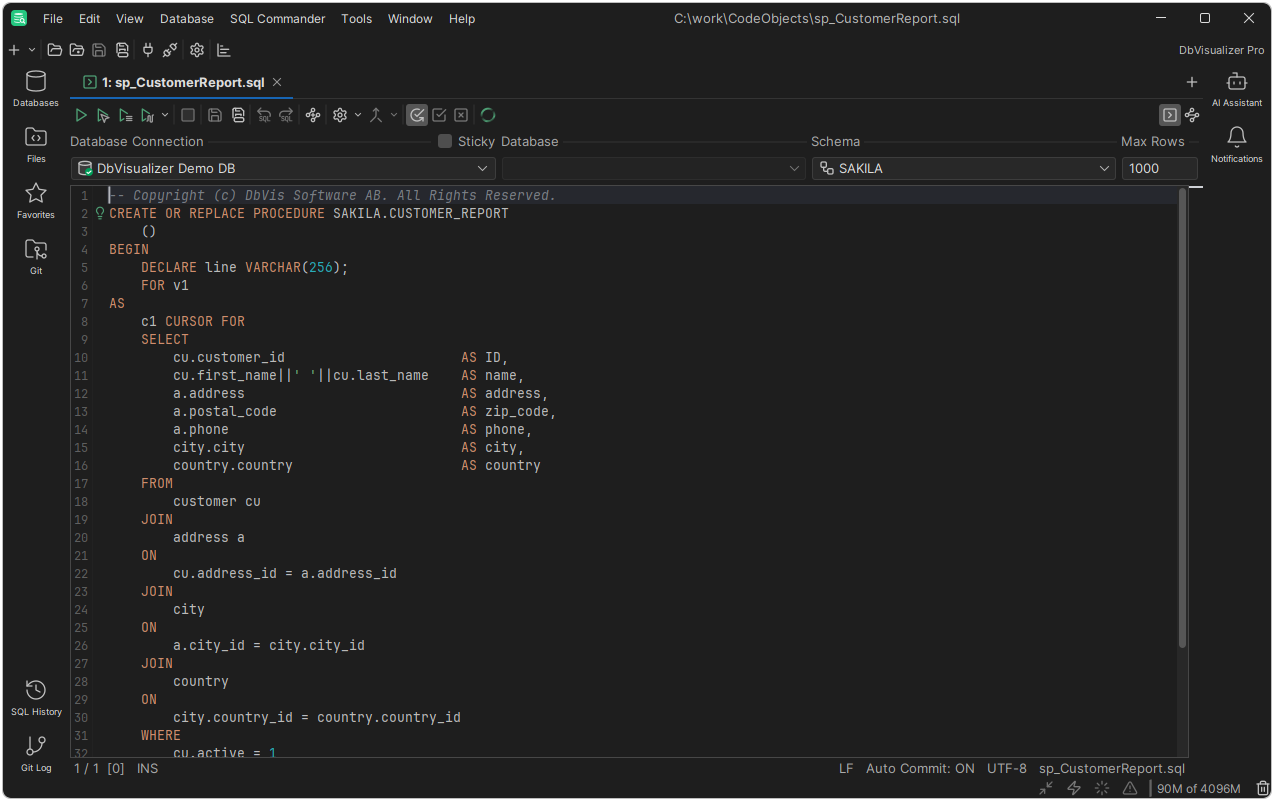
In the center of the main window is the work area, where you work with database objects and scripts. Around it are areas for views, such as the Databases tree, and you choose which views to show using the sidebars.
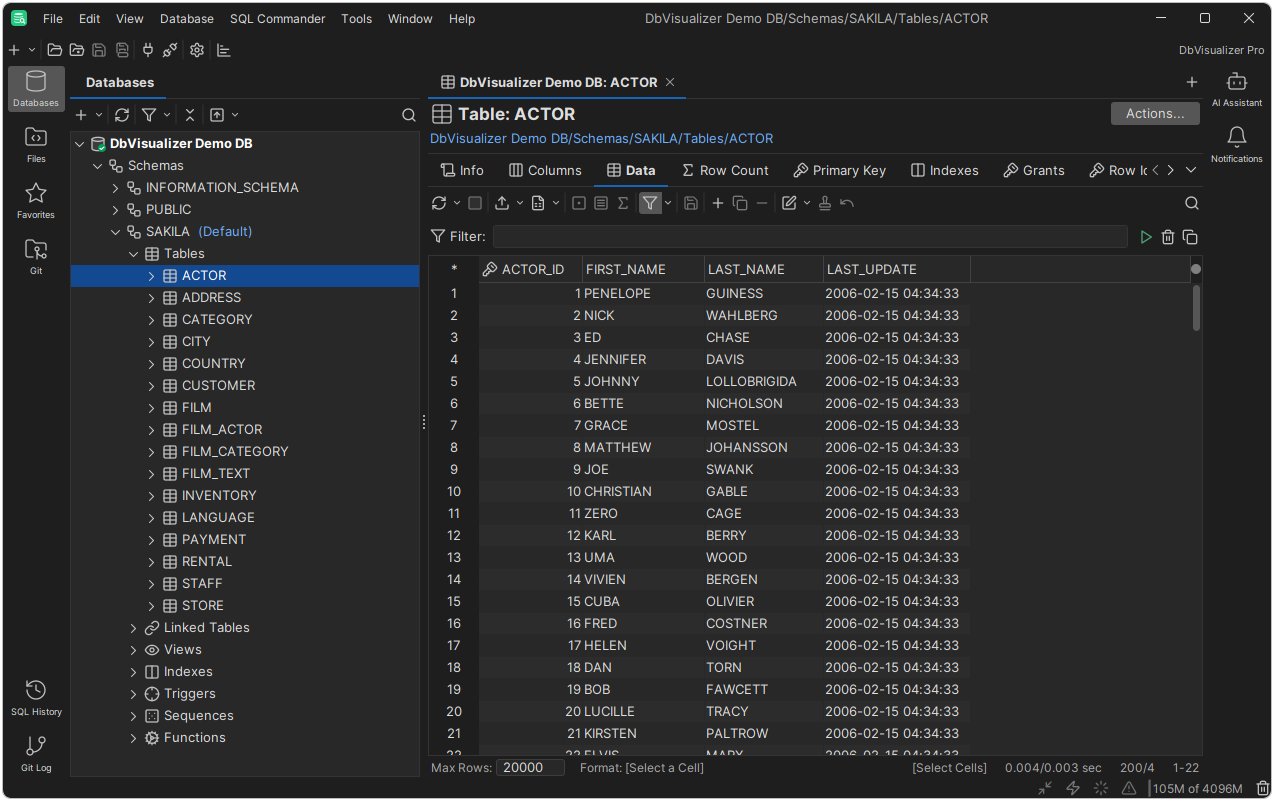
Parts of the main window
- Menu bar and main toolbar, at the top. The main toolbar has buttons for common tasks, such as opening a new SQL Commander tab, opening and saving files, and connecting to all databases. On macOS, the menu bar is at the top of the screen.
- Sidebars, along the left and right edges, with a button for each view.
- Navigation area, on the left. It shows the Databases, Files, Favorites or Git view, where you select the objects and scripts to work with.
- Work area, in the center. Database objects and scripts open in tabs here.
- Tool area, on the right. It shows the AI Assistant and Notifications views.
- Bottom area, at the bottom of the main window. It shows the SQL History and Git Log views.
- Status bar, along the bottom edge. It shows the memory use, and highlights an icon when, for example, a task runs in the background or a tab is maximized. Point to an icon to see what it means.
The work area
The work area has two kinds of tabs: Object View tabs for database objects, and SQL Commander tabs for scripts. To open, close and arrange them, see Opening, Closing and Pinning Tabs and Arranging and Switching Tabs.
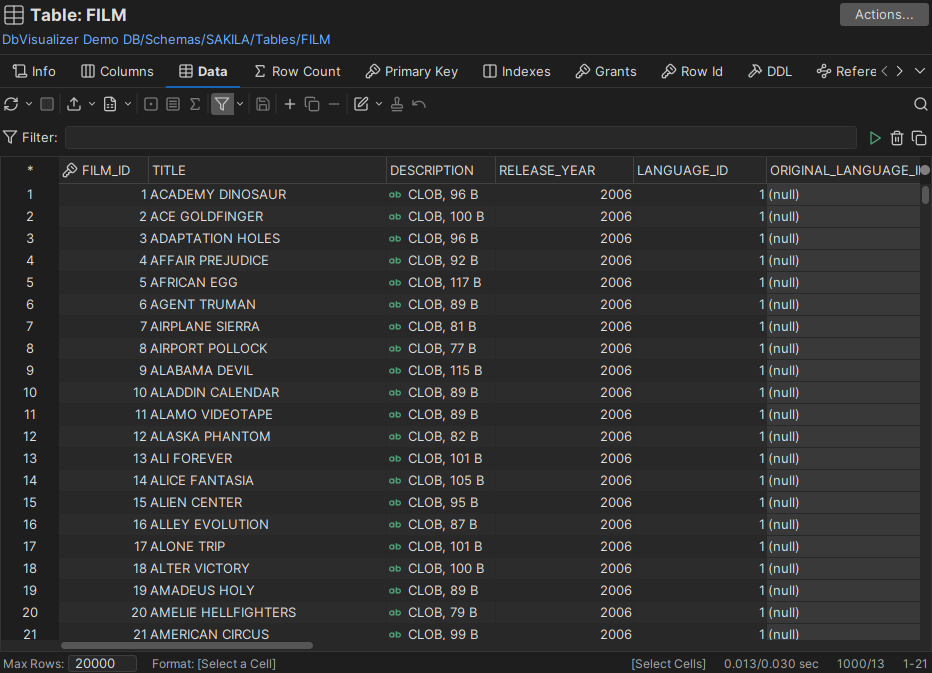
Object View tabs
An Object View tab shows a database object, such as a table. Each kind of information, such as the columns or the data, is in its own sub-tab.
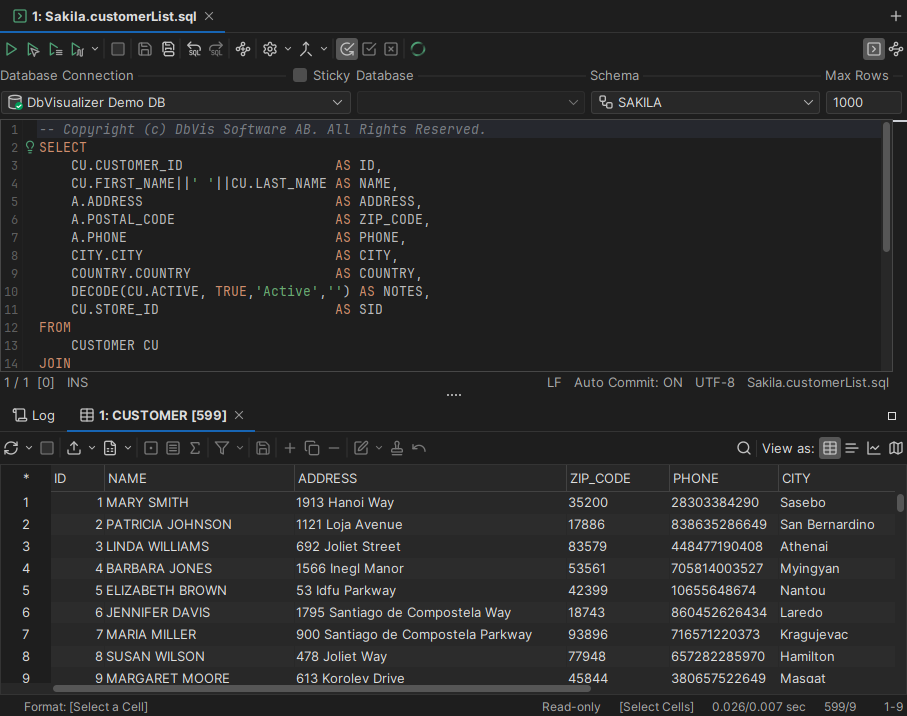
SQL Commander tabs
An SQL Commander tab has an editor where you write and run SQL scripts, and a results area that shows the query results and a log of the executed statements.
Showing and hiding views
The sidebars have a button for each view. Click a button to show the view, and click it again to hide it:
| Buttons | Views |
|---|---|
| Top of the left sidebar | Databases, Files, Favorites and Git |
| Bottom of the left sidebar | SQL History and Git Log |
| Right sidebar | AI Assistant and Notifications |
You can also show the views from the View menu, or using keyboard shortcuts. See Changing Keyboard Shortcuts.
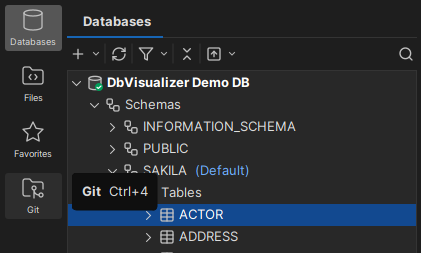
To make room for the work area, hide the current navigation view by clicking its sidebar button.
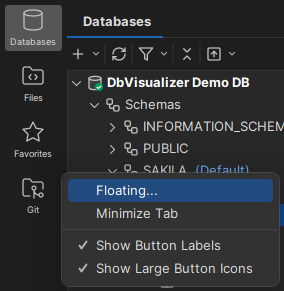
To show a view in a separate window, right-click its sidebar button and select Floating.
Customizing the sidebars
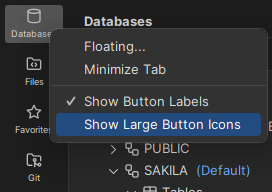
To use large or small icons, and to show or hide the text labels, right-click a sidebar, or use the Appearance category in Tools → Tool Properties.
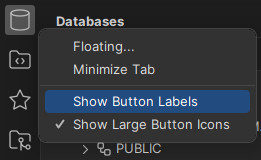
To hide the sidebars, use the View menu. You can still switch views using the keyboard.