Comparing Data
Only in DbVisualizer Pro
This feature is only available in the DbVisualizer Pro edition.
You can compare two grids, such as result sets or table data, or two texts, such as scripts or the DDL of two tables. To compare the structure of two schemas, databases or tables, see Comparing Schemas, Databases and Tables.
Choosing what to compare
To choose two objects to compare, select Tools → Compare Grids or Editors.
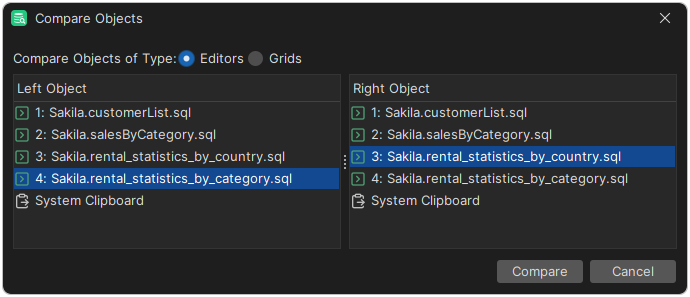
- Editors lists the SQL Commander editors, the text tabs of open Object View tabs, such as DDL and Procedure Editor, and System Clipboard.
- Grids lists the result set tabs, monitor results, and the grid tabs of open Object View tabs, such as Data and Columns.
Only objects that aren't empty are listed.
Select one object under Left Object and one under Right Object, and click Compare, or double-click the second one.
You can also right-click in a text or grid and select Compare. The dialog then opens with that object selected on both sides, and you choose the other object. To compare a script in SQL Commander with the saved file, right-click in the editor and select File → Compare to Saved.
Comparing texts
The texts are shown side by side. The divider between them shows which lines are changed, added or removed, and the changed text is highlighted. The margins also mark the differences; click a mark to go to it, or use the buttons in the toolbar, or F7 and Shift+F7.
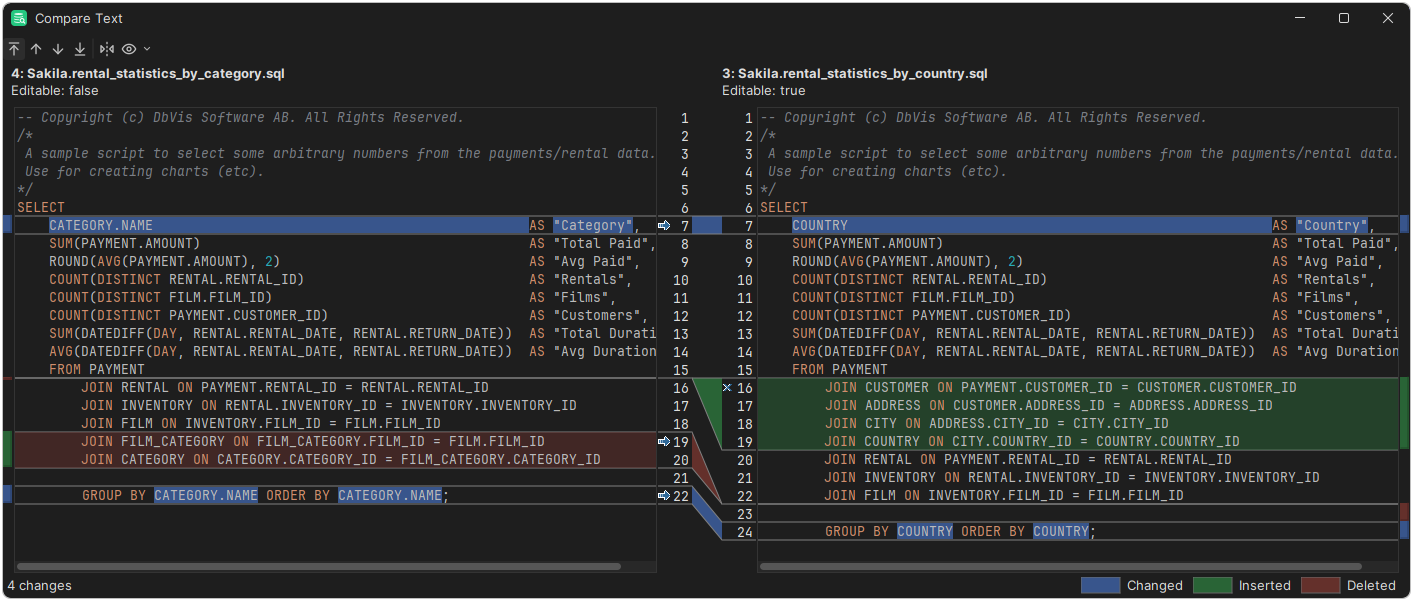
If the right text can be edited, such as a script, you can edit it, or apply a difference by clicking the arrow or cross icon next to it in the divider. The changes are also made in the tab where the text is open. To keep them, save that tab. To swap the left and right texts, click Flip in the toolbar.
Comparing grids
In a grid comparison, each row is compared with the row that has the same key. Rows whose key value has changed are shown as one removed and one added row. If the grids have no key columns, all columns are compared as regular columns. The grids should be sorted the same way.
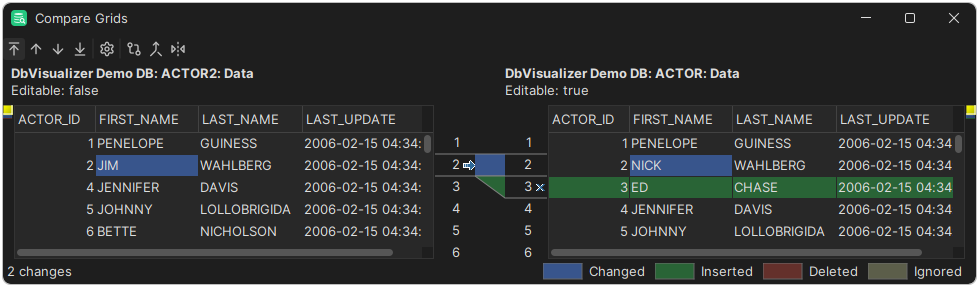
By default, columns are matched by name, ignoring case, and the raw values are compared. The primary key columns are used as key columns. To compare the values as they are shown, with the data formats, select Compare Formatted Values in the toolbar.
To change how the columns are matched, click Column Configuration in the toolbar:
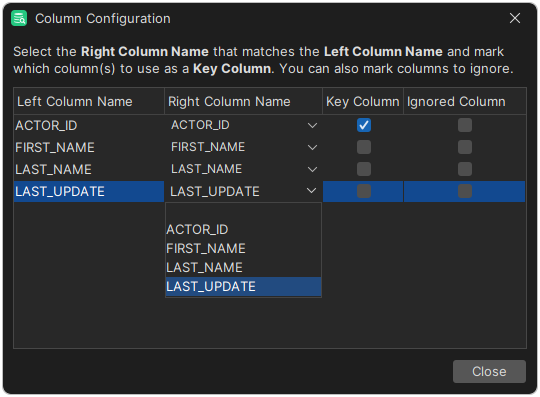
- In Right Column Name, select the column that matches each Left Column Name. Leave it empty to leave the column out.
- Select Key Column for the columns that identify a row.
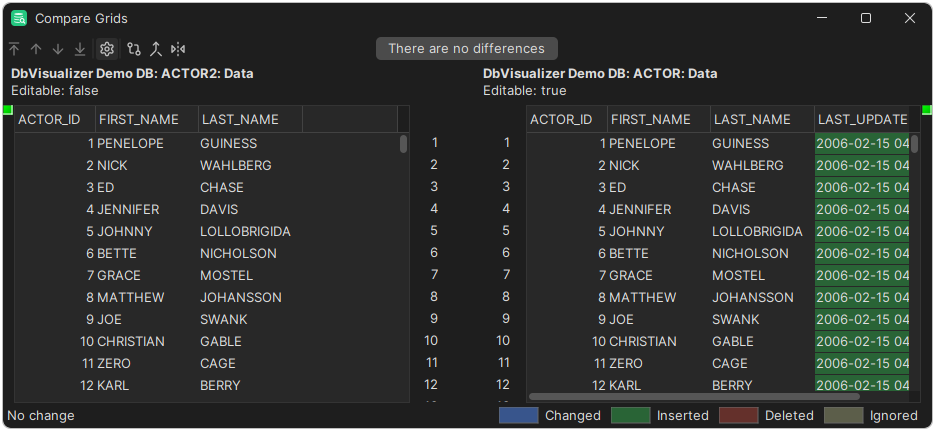
- Select Ignored Column for columns whose differences don't matter, such as a timestamp.
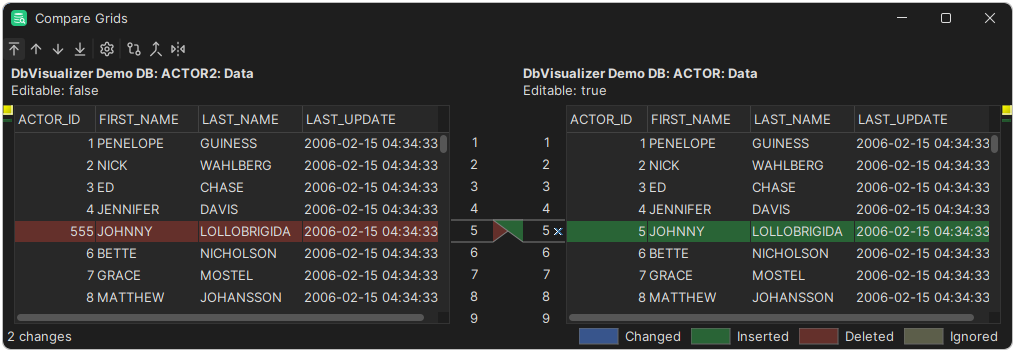
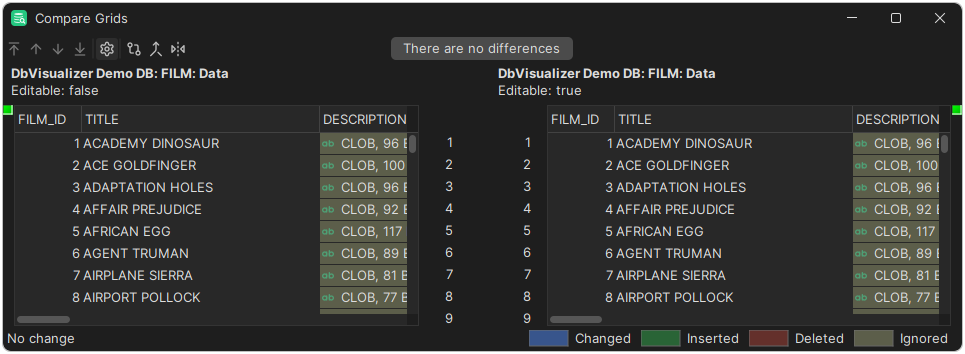
Columns that are only in one of the grids aren't compared. Binary, BLOB and CLOB columns are ignored by default, but you can include CLOB columns in Column Configuration.
If the right grid can be edited, you can edit it in the compare window, or click Sync in the toolbar to make it match the left grid. The changes are made in the grid where the data is open.
Comparing two cells
To compare the values of two cells in a Data tab or a result set, select two cells in the same row or column, right-click and select Compare Two Selected Cells. The values are compared like texts, but you can't edit them.