Comparing Schemas, Databases and Tables
Only in DbVisualizer Pro
This feature is only available in the DbVisualizer Pro edition.
You can compare the structure of two schemas, databases or tables, see the differences between them, and generate a script that makes one of them look like the other. The two sides can be different types of databases, and either side can be a snapshot that you have saved earlier.
You can compare relational databases. Other databases, such as document, key-value and graph databases, can't be compared.
Opening the Compare Schemas window
To compare two schemas, databases or tables:
- In the Databases tab, select the two nodes you want to compare. The first node you select is the Source, and the second is the Target.
- Right-click and select Compare Schemas, Compare Databases or Compare Tables.
You can also select only one node, or open the window from Tools → Compare Schemas, Databases or Tables, and then choose the Source and Target in the window.
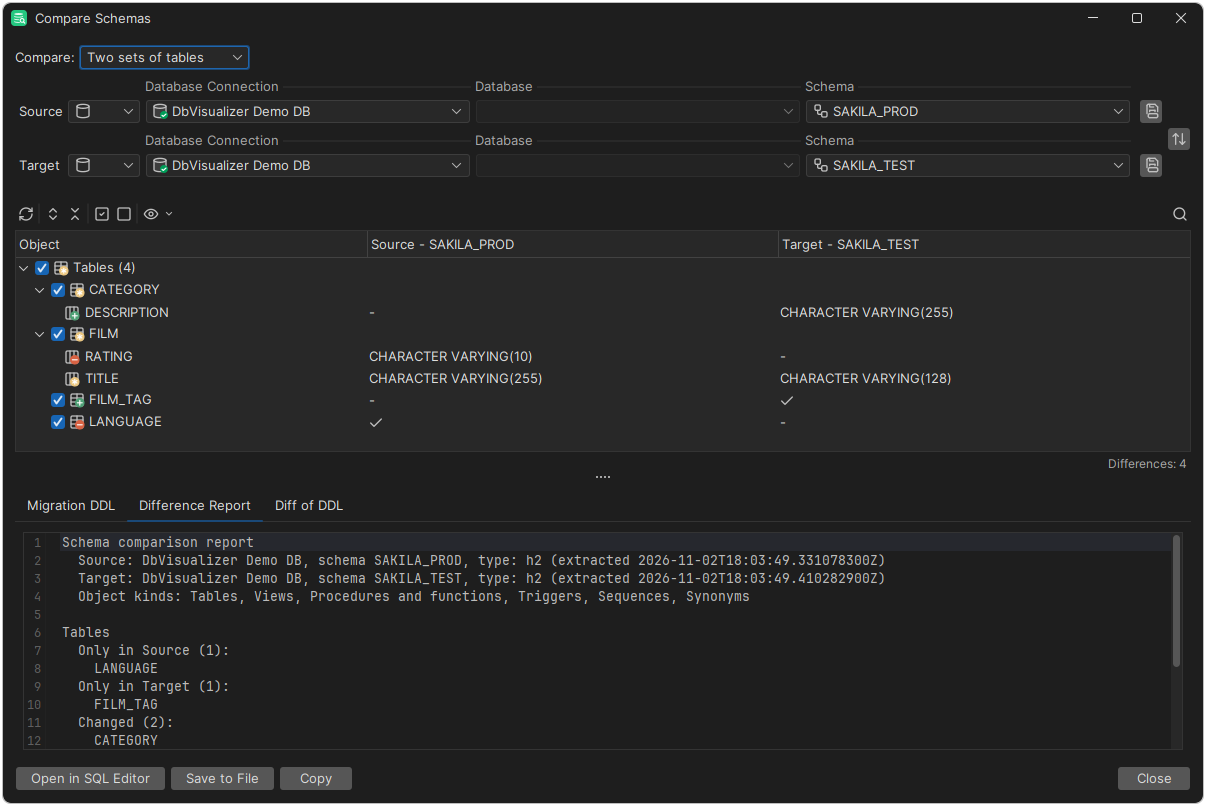
Choosing what to compare
At the top of the window, choose what to compare in Compare. Which option to choose depends on how your database groups its tables:
| Compare | What is compared | Use it for |
|---|---|---|
| Two tables | One table on each side. | Any database. |
| Two sets of tables | All tables in one schema or database on each side. | A schema, for example in Oracle or PostgreSQL. A MySQL, MariaDB or SQLite database. |
| Two sets of schemas | All schemas in one database on each side. | A whole database that contains schemas, for example in PostgreSQL or SQL Server. |
For example, to compare the public schema in two PostgreSQL databases, choose Two sets of tables. To compare all schemas in the two databases, choose Two sets of schemas.
When you open the window from the right-click menu, the option matches the nodes you selected.
For both the Source and the Target, choose either a Connection or a Snapshot File. For a connection, select the database and schema where the database has them, and for Two tables also the Table. For Two sets of schemas, you select only the database, since all its schemas are compared. To exchange the two sides, click Swap.
Reviewing the differences
The tree in the middle of the window lists the objects that differ, and shows whether each object is only in the Source, only in the Target, or changed.
Use Show in the toolbar to choose which kinds of objects to compare, such as tables, views, procedures and functions, triggers, sequences and synonyms, and which differences to show. If you change the Source or the Target databases, click Reload to compare them again.
Generating a migration script
The tabs at the bottom of the window show the result for the objects checked in the tree:
- Migration DDL contains the statements that make one side look like the other. Choose the side to change in Direction.
- Difference Report describes the differences in text.
- Diff of DDL shows the DDL of the two sides next to each other.
Use Check All and Uncheck All in the toolbar, or the check boxes in the tree, to choose the objects to include.
For Migration DDL and Difference Report, click Open in SQL Editor to run or edit the result. To save it, click Save to File, or click Copy to copy it to the clipboard.
Review the migration script before you run it. Statements that drop objects or columns also remove their data.
Comparing with a snapshot
A snapshot is a file with the structure of a schema, database or table. You can use it to compare a database with how it looked earlier, for example before an upgrade, or to compare databases that can't be reached at the same time.
To save a snapshot, choose the side in the Compare Schemas window and click Save Snapshot. To compare with the snapshot later, select Snapshot File for one of the sides and choose the file.
A snapshot contains what was on that side when you saved it: one table, a set of tables or a set of schemas. To compare with it, set Compare to the option you used when you saved it, for example Two sets of tables for a snapshot of a schema. If the option doesn't match, a message tells you which one to choose.
Using the @compare schema and @snapshot schema commands
You can also compare schemas in a script, for example to check a database regularly using the command-line interface.
The @snapshot schema command saves a snapshot file:
@snapshot schema File="/tmp/sakila-before.dbschema" Connection="Sakila Production" Schema="sakila";
| Parameter | Description |
|---|---|
File | Required. The file to save the snapshot in. |
Connection | The name of the connection. Defaults to the connection of the SQL Commander tab. |
Catalog | The database to save. |
Schema | The schema to save. |
Table | The table to save. |
Level | What to save: container (a set of tables), set (a set of schemas) or table. Defaults to table when Table is given, and otherwise to container. |
The @compare schema command compares two sides and writes the result to a file:
@compare schema SourceConnection="Sakila Test" SourceSchema="sakila"
                TargetConnection="/tmp/sakila-before.dbschema"
                Format="ddl" Update="target" OutputFile="/tmp/sakila-migration.sql";
| Parameter | Description |
|---|---|
SourceConnection | Required. The name of a connection, current_connection for the connection of the SQL Commander tab, or a snapshot file. |
TargetConnection | Required. The same as for SourceConnection. |
SourceCatalog, SourceSchema, SourceTable | The database, schema or table to compare on the Source side. |
TargetCatalog, TargetSchema, TargetTable | The database, schema or table to compare on the Target side. |
Level | What to compare: container (a set of tables), set (a set of schemas) or table. Defaults to table when a table is given, otherwise to the level of a snapshot file, and otherwise to container. |
Format | report for a difference report (the default) or ddl for a migration script. |
Update | For a migration script, the side to change: source (the default) or target. |
Dialect | For a migration script, the database type to write it for. Defaults to the database type of the side that is changed. |
Include | A comma-separated list of the kinds of objects to compare: tables, views, routines, triggers, sequences and synonyms. Defaults to all. |
OutputFile | The file to write the result to. If you leave it out, the result is shown in SQL Commander. |
Comparing table data
To compare the data in two tables or result sets, rather than their structure, see Comparing Data.