Using the AI Assistant
Only in DbVisualizer Pro
This feature is only available in the DbVisualizer Pro edition.
The AI Assistant helps you write and improve SQL, understand and design schemas, and fix errors. Its answers are based on what you are working on, such as your database structure and the statement in the editor.
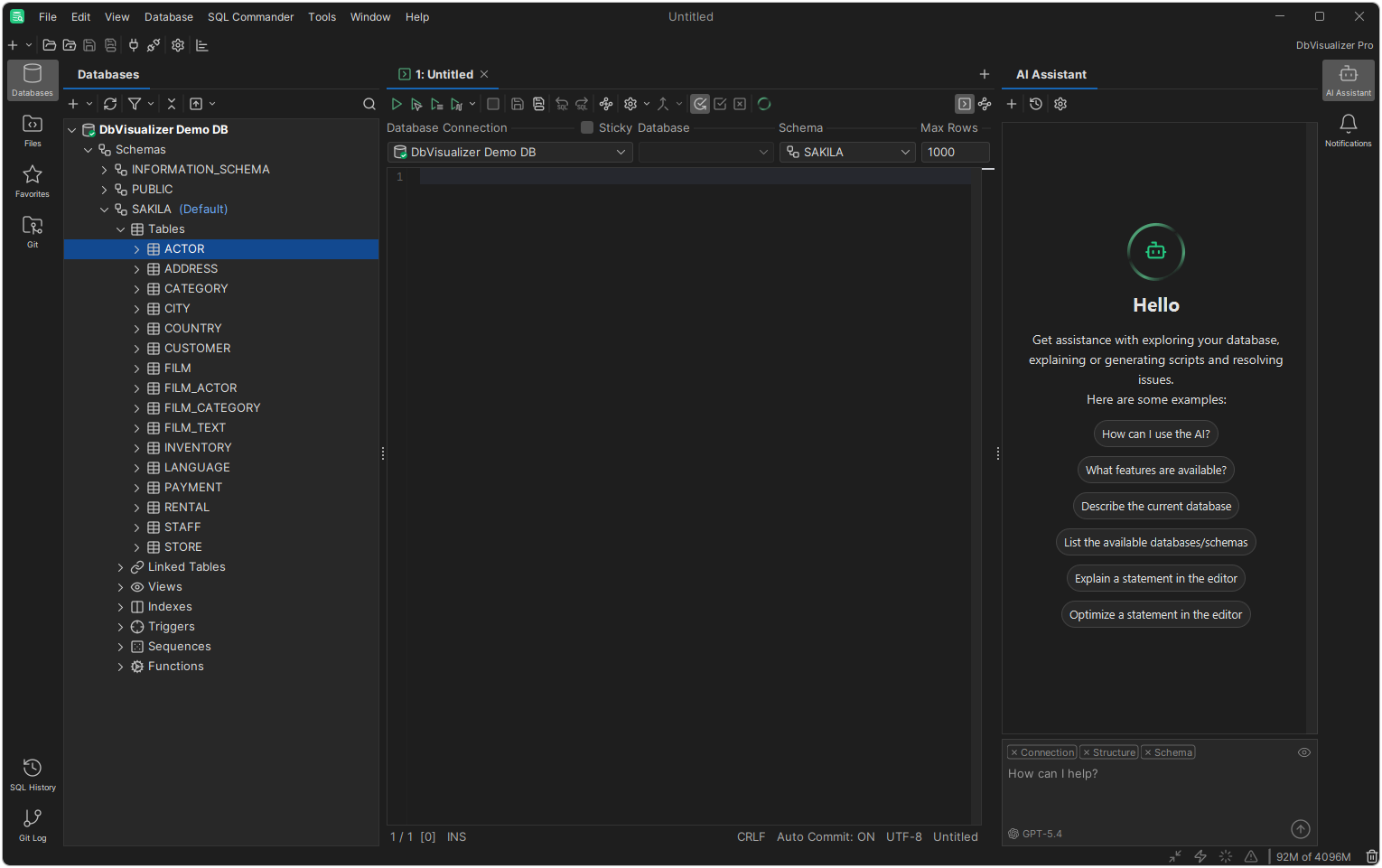
By default, the AI Assistant uses the built-in AI connection, which comes with your DbVisualizer account. You can also use your own OpenAI or Anthropic account, a local model, or your organization's AI service; see Choosing an AI Connection.
The AI Assistant is not available on Windows on Arm.
Turning the AI Assistant on and off
With the built-in AI connection, nothing is sent to an AI service until you activate the AI Assistant. The first time you open it, log in, or create a DbVisualizer account, accept the AI terms, and click Activate AI Assistant. Here, you also choose whether to include the database context by default. With a custom AI connection, there is no activation.
To turn off all AI features, clear Enable AI Assistant in the AI Assistant category in Tools → Tool Properties, and restart DbVisualizer. If you are an administrator and want to turn off the AI Assistant for all users in your organization, contact DbVisualizer Support.
Asking questions
To open the AI Assistant panel, click the AI Assistant button in the main window, or press Ctrl+Shift+I (Cmd+Shift+I on macOS). Type your question in the input area at the bottom, and read the answer above it. You can ask follow-up questions in the same chat.
If an answer includes code, you can run it, copy it, or insert it in the current editor, using the buttons on the code block.
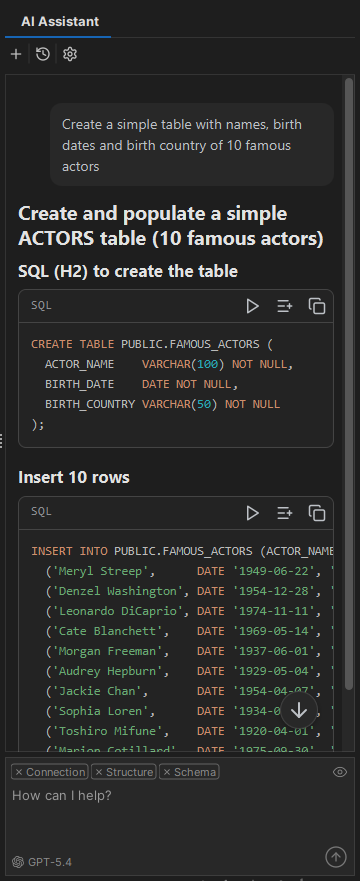
Running generated queries
When you run a query from the AI Assistant panel, it is checked against the AI permissions in the AI Assistant / Permissions category in Tools → Tool Properties. By default, they are strict, to prevent unintended changes to your data. The query is also checked against the SQL Commander permissions of the connection, and the stricter setting applies.
Including database context
When you are connected to a database, you can include context with your question, so that the answers fit your database. The context can include the database type and driver version, the databases and schemas, and the tables and columns of the selected schema. To include or leave out a part, click it in the input area. To see what will be sent, click the icon.
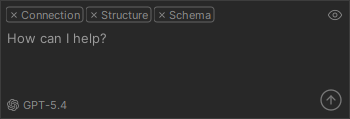
The context follows the editor or Object View tab you are in, and you can choose it for each question. To see what was sent with a question, click Details under it.
To choose whether to include the database context by default, use Include Context Automatically in the AI Assistant category in Tools → Tool Properties.
With a custom AI connection, DbVisualizer selects the relevant parts of the context on your computer; see Downloading AI Resources.
Choosing the AI model
The current model is shown at the lower left of the input area. To choose another model, click it and select one. The model affects the quality and cost of the answers, and you may need to use a model that your organization has approved.
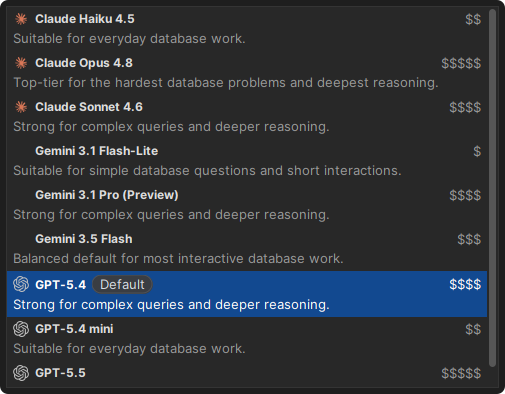
You can also choose the model in the AI Assistant / AI Models category in Tools → Tool Properties. For the built-in AI connection, the Cost column shows the relative credit cost per question.
With a custom AI connection, the AI Models category has the Current Model and two lists of the provider's models:
- Enabled Models are the models you can choose from. New models from the provider are added here.
- Available Models are the other models. To shorten the list in the input area, move the models you don't need here.
To get the latest models from the provider, click Refresh. To open the category from the input area, click Manage models in the list of models.
Chat history
To start a new chat, click the button in the toolbar of the AI Assistant panel. The current chat is saved in the history. To open an earlier chat, click the button and select it. You can then continue it.
To find a chat, type in the search field at the top of the list. To rename, pin or delete a chat, click its button, or right-click it. Pinned chats are shown at the top, and are kept when the oldest chats are removed from a long history.
Changing the font size
By default, the font in the AI Assistant panel is a little larger than in the rest of DbVisualizer. To change it, use Font Scale in the AI Assistant category in Tools → Tool Properties. To open the AI Assistant settings, you can also click the button in the toolbar of the panel.
Using AI in the editor
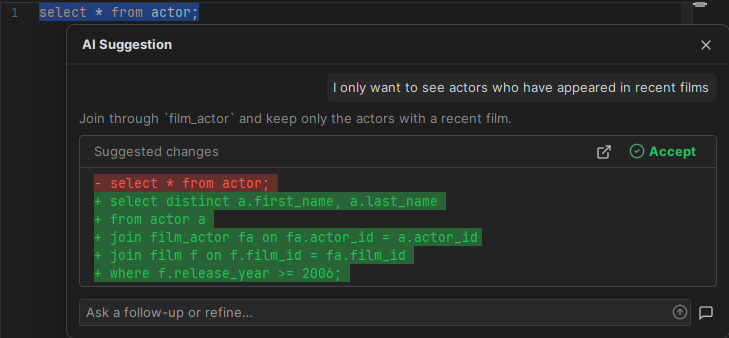
To ask about your SQL from the editor, click Ask AI in the SQL Commander toolbar, or press Ctrl+Shift+H (Cmd+Shift+H on macOS). If text is selected, or the cursor is in a statement, you can ask about that code. Otherwise, describe what you want, and the AI Assistant writes the SQL.
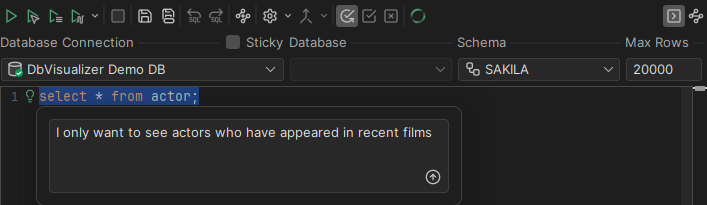
The answer is shown in a popup, where you can accept the suggestion, ask follow-up questions, or continue the chat in the AI Assistant panel.
The lightbulb menu
When the cursor is in a statement, a lightbulb is shown in the left margin of the editor. Click it to Optimize the statement, Chat About it or Execute Statement.
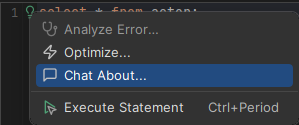
To choose when the lightbulb is shown, use Display for the Current Statement and Display on Statement Execution Errors under Inline AI Actions in the AI Assistant category in Tools → Tool Properties.
Explaining and fixing errors
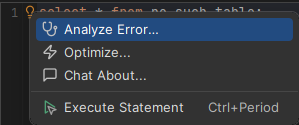
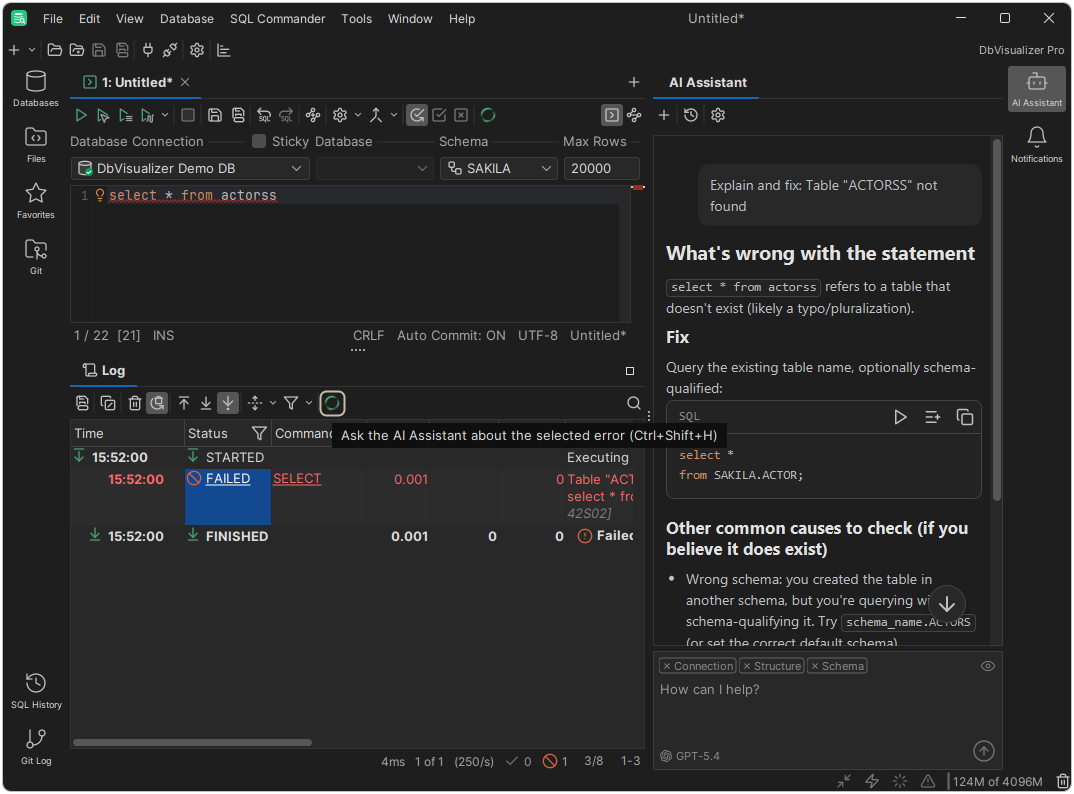
When a statement fails, the error is marked in the editor, and the lightbulb menu has Analyze Error. It opens a popup where the AI Assistant explains the error and suggests a fix. You can accept the fix, ask follow-up questions, or continue the chat in the AI Assistant panel.
Explaining errors from the Log tab
Errors are also listed in the Log tab. To get help with an error there, select it and click Explain Error Using AI Assistant in the toolbar. A new chat opens in the AI Assistant panel.
AI credits
With the built-in AI connection, each question costs AI credits. The cost depends on the model and on the size of the question and the answer. Each follow-up question includes the earlier chat, so it costs more. To see your credit balance, use the AI Assistant category in Tools → Tool Properties. To refill your credits, contact support.
With a custom AI connection, no AI credits are used; any costs are between you and the provider.