Arranging and Switching Tabs
When you work with many tabs, you can arrange them to suit your work: move and group them, show several at the same time, give one tab the whole window, or move a tab to a separate window. This page also describes how to switch between tabs, and how to change the sub-tabs of an Object View tab.
Moving tabs
To move a tab among the tabs next to it, drag its header to the new place.
Grouping tabs
If you work with many SQL Commander or Object View tabs, you can group related tabs, for example by task, environment or project. A group is shown as a header in the tab row, followed by its tabs. Here, the ACTOR and FILM tabs are in a group, and the CUSTOMER tab isn't:

- To add a tab to a group, right-click its header and select Add Tab to New Group. When there are groups, select Add Tab to Group, and then New Group or an existing group. You can also drag a tab into or out of a group.
- To change the name and color of a group, right-click the group header and select Edit Group.
- To collapse or expand a group, click the group header.
- To remove a tab from its group, right-click it and select Remove from Group.
- To remove a group but keep its tabs, right-click the group header and select Ungroup Tabs. To close the group and its tabs, select Close Group and Tabs.
Showing tabs side by side
To see several tabs at the same time, drag a tab header. An outline shows where the tab will be placed: above, below or next to another tab, or among the tabs next to it.
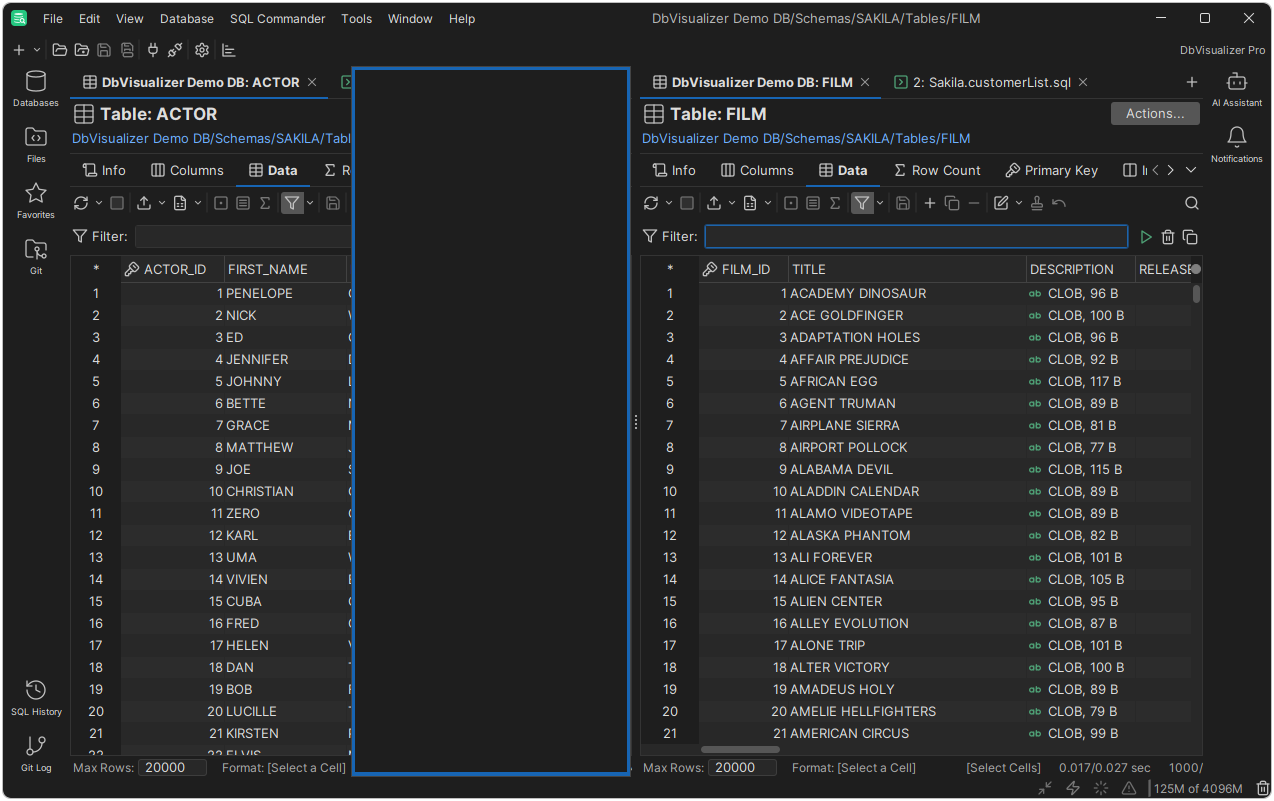
To show all tabs at the same level side by side, right-click a tab header and select Tile all Tabs. To show only the active tab again, select Collapse all Tabs.
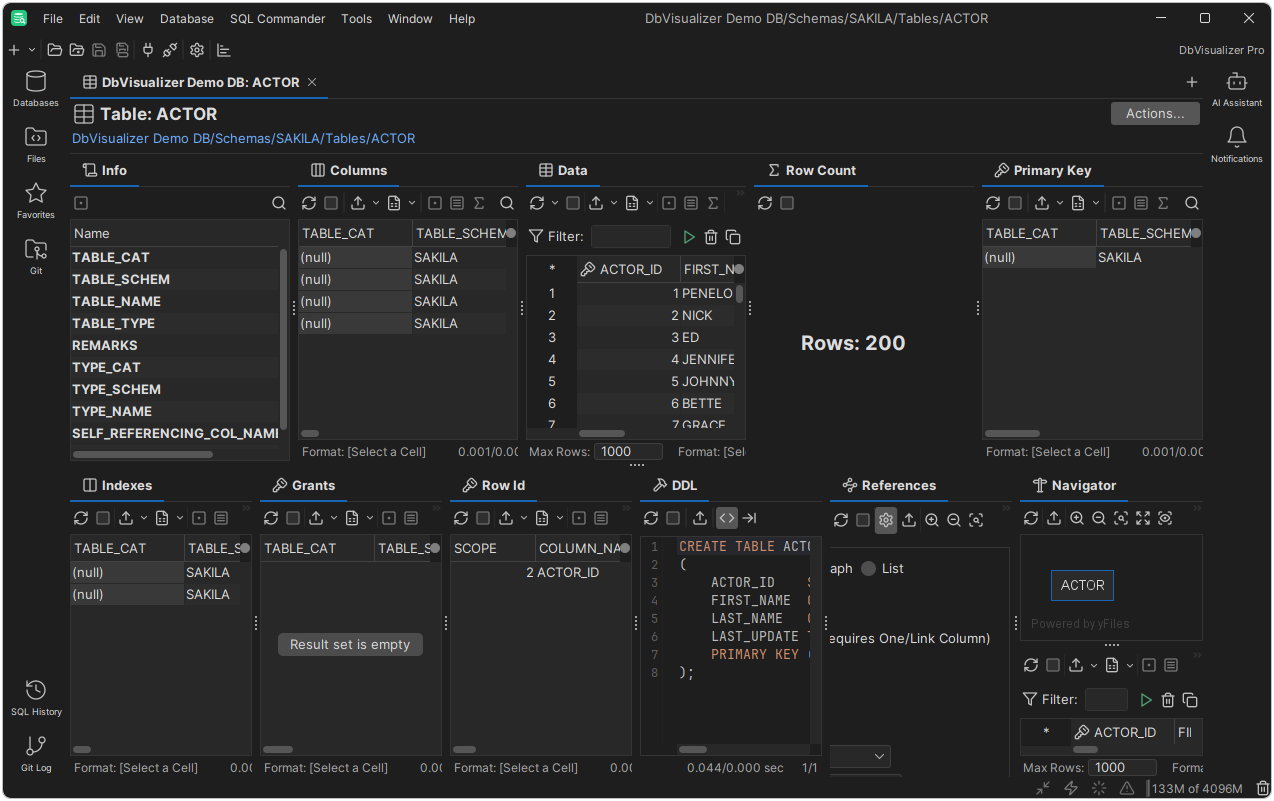
Maximizing tabs
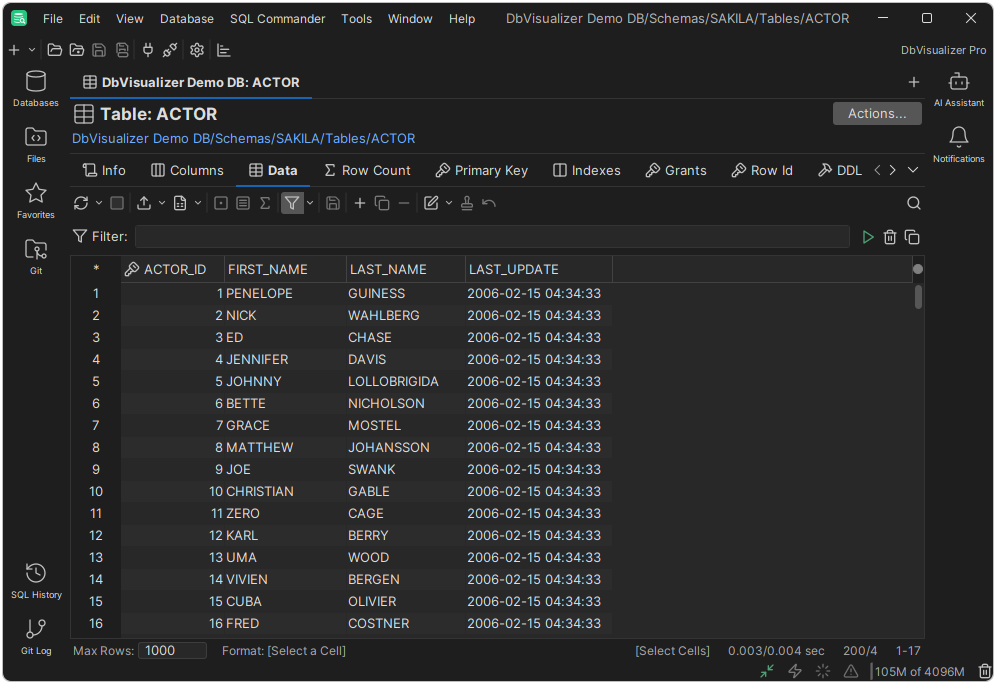
To give a tab the whole window, double-click its header, or right-click it and select Maximize Tab. An icon in the status bar shows that a tab is maximized. To restore the tabs, double-click the header again, clear Maximize Tab, or double-click the icon in the status bar.
To make room by closing a navigation view, such as Databases, right-click its header and select Minimize Tab, or click its button in the sidebar. To show it again, click its button in the sidebar.
Floating tabs
To show a tab in a separate window, right-click its header and select Floating, or drag the tab outside the main window. To put it back, right-click it and clear Floating. If you close the window of a floating Object View or SQL Commander tab, the tab is closed.
Double-clicking the header of a navigation view also floats it, or docks it again.
Switching between tabs
To go to the next or previous tab, press Alt+Right or Alt+Left (Option+Right or Option+Left on macOS).
When there isn't room for all tabs, use the arrow buttons to the right of the tabs to scroll through them. To see a list of all open tabs, click the down arrow.
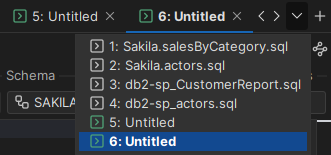
Finding a tab by name
When you have many tabs open, use Quick File Open to find one by name instead of looking through the tab row: press Ctrl+Alt+O (Cmd+Option+O on macOS) and type a part of the name. It also lists scripts that aren't open, such as recent files and bookmarks, so you can close tabs you don't need right now and still get back to them quickly. See Finding Tabs and Scripts by Name.
Changing the sub-tabs of an Object View tab
An Object View tab has a row of sub-tabs, such as Info, Columns and Data. If you don't use some of them, you can hide them to make the row shorter. Right-click the sub-tab and select Hide Tab. To show the hidden sub-tabs again, right-click another sub-tab and select Restore Hidden Tabs.
You can also move and float sub-tabs, as for other tabs. If you close a floating sub-tab, it is hidden.
The changes only apply to that tab. To use them for all objects of the same type, save the layout.
Saving the layout for all objects
Only in DbVisualizer Pro
This feature is only available in the DbVisualizer Pro edition.
To use the layout of the sub-tabs for all objects of the same type and database type, right-click a sub-tab header and select Save as Default Layout. To go back to the original layout, select Reset to Factory Layout.