Using Favorites
To get to the database objects and scripts you use often with one click, add them to the Favorites tab.
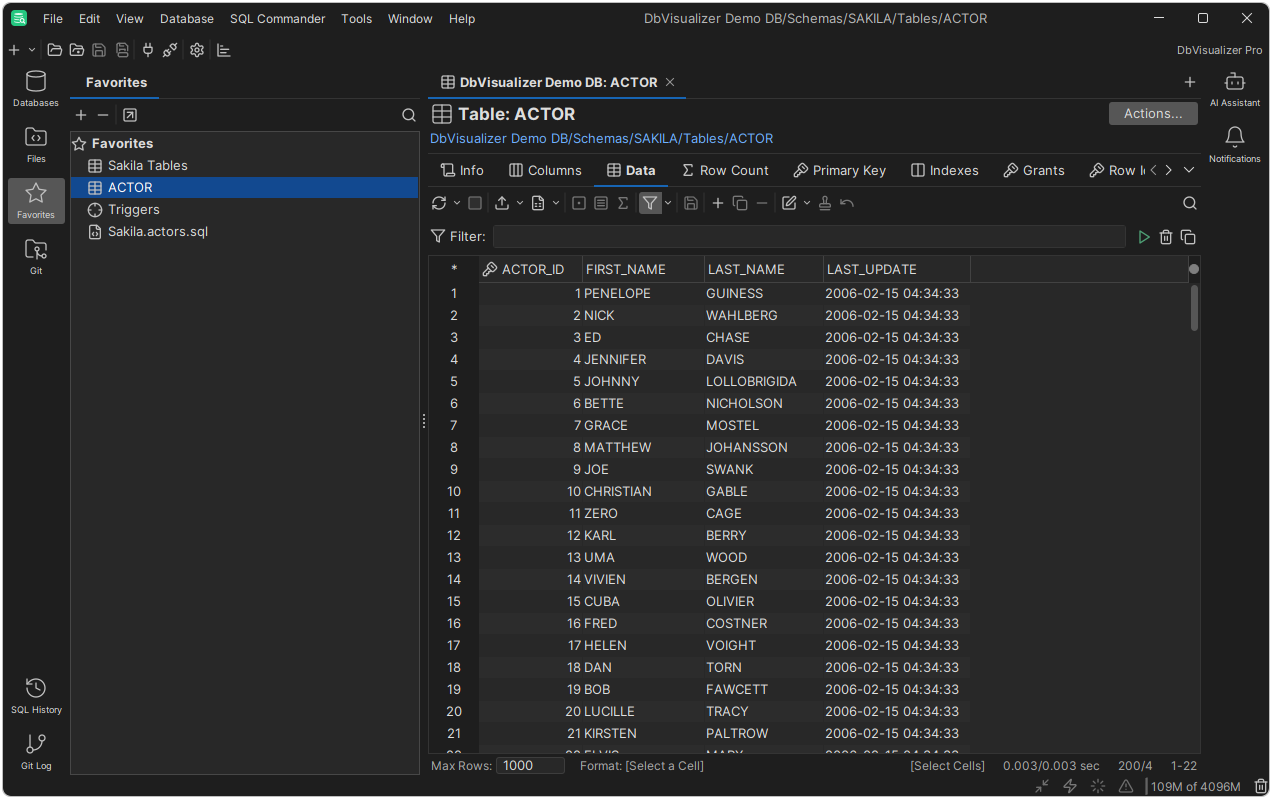
Double-click a database object in the Favorites tab to open it in an Object View tab. If you aren't connected to its database, DbVisualizer connects. Double-click a script to open it in SQL Commander.
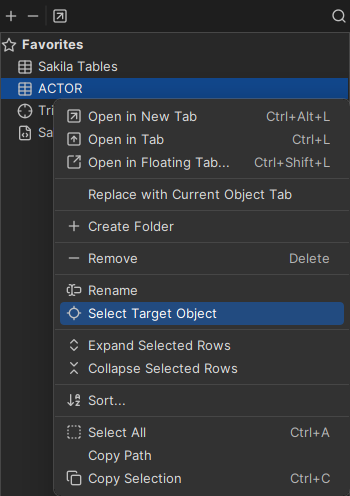
To find the object of a favorite in the Databases or Files tab, right-click the favorite and select Select Target Object.
To find a favorite, use quick search.
Adding favorites
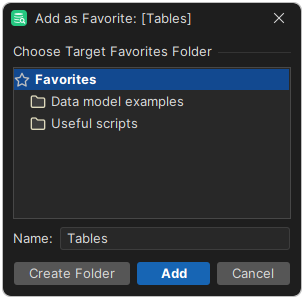
To add an object or a script, right-click it in the Databases or Files tab and select Add to Favorites. In the dialog, choose to add it at the top level or in a new or existing folder.
Organizing favorites
In the Favorites tab, you can change the order of the favorites, put them in folders, and rename and remove them. The right-click menu of a favorite also has actions for its type, such as executing a bookmark or opening a database object in a separate window.
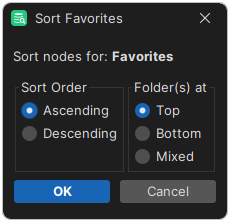
To sort the favorites, right-click a favorite, select Sort, and choose how to sort them.
Using the Favorites toolbar
You can also open your favorites from a toolbar below the main toolbar. To show or hide it, select View → Show Favorites Toolbar. Click a favorite to open it. Folders are shown as menus. To add an object, drag it from the Databases or Files tab to the toolbar.