Using Editor Templates
Only in DbVisualizer Pro
This feature is only available in the DbVisualizer Pro edition.
An editor template inserts text that you use often, such as a code snippet or the current date and time. You type the short name of the template, the shortcut, and the shortcut is replaced by the text of the template. DbVisualizer comes with some templates, and you can create your own.
Inserting a template
- Type the shortcut, or the first characters of it.
Press
TaborCtrl+Shift+T(Cmd+Shift+Ton macOS). If only one template matches, it is inserted at once. Otherwise, a list of the matching templates is shown, with their descriptions or the beginning of their text.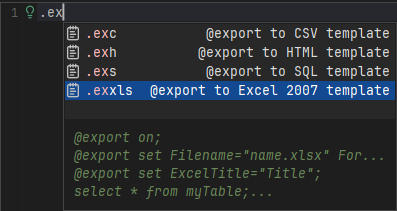
Select the template and press
TaborEnter. The shortcut is replaced by the text of the template.
You can also show the list using Show Editor Templates in the Edit menu or the right-click menu of the editor.
To show the list also when only one template matches, clear Instant Substitution in the toolbar of the General / SQL Commander / Editor Templates category in Tools → Tool Properties.
To use another key than Tab, change the Show Editor Templates shortcut in the Main Menu / Edit node of the Key Bindings category. See Changing Keyboard Shortcuts.
Creating a template
- In Tools → Tool Properties, select the General / SQL Commander / Editor Templates category.
- Click Insert New Row in the toolbar. To start from an existing template instead, select it and click Duplicate Row(s).
- Enter the Shortcut and the Expanded Text, and optionally a Description.
- To format the text using your SQL formatting settings when it is inserted, select Format when activated.
- Click Apply or OK.
Start each shortcut with a special character, such as a dot or a hash mark.
The templates that come with DbVisualizer start with a dot. If a shortcut starts with a letter, an ordinary word you type may match it, and pressing Tab after the word inserts the template.
Changing or deleting a template
- In Tools → Tool Properties, select the General / SQL Commander / Editor Templates category.
- To change a template, double-click a cell and edit the value. To delete a template, select it and click Delete Row(s).
- Click Apply or OK.