Searching Database Objects
You can find a database object in three ways: search all objects of a connection, search the nodes in the Databases tab, or look up an object that is named in a script.
Searching all objects of a connection
Only in DbVisualizer Pro
This feature is only available in the DbVisualizer Pro edition.
Using the Search tab of a connection, you find objects by name among all objects of the connection, also those you haven't expanded in the tree. Which kinds of objects can be found depends on the database. For example, some databases have columns in the tree, and others don't.
- Connect to the database. In the Databases tab, double-click the connection, and select the Search tab in its Object View tab.
- Enter the whole name, or a pattern with
*or%as a wildcard. To use a regular expression instead, select Regular Expression. - Optionally, choose where in the tree to start, and whether to match the case.
- Click Search.
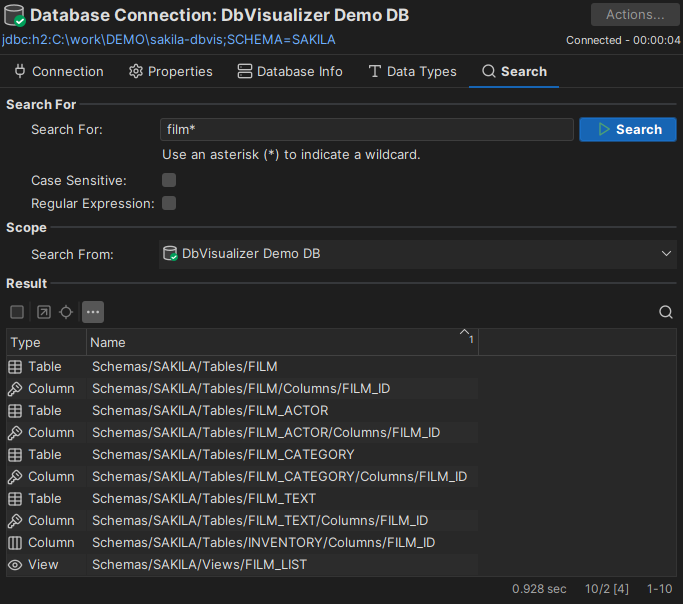
To stop a search, click Stop, either the search button or the button in the grid toolbar. To see the path of each object, as in the tree, select Show/Hide Object Path in the toolbar.
To see an object in its Object View tab, double-click it.
Tree filters also apply to the search: objects that are hidden by a filter aren't found.
Searching the tree
To find an object among the nodes in the Databases tab, select the tree and press Ctrl+F (Cmd+F on macOS), or start typing the name. Only the nodes that are already loaded, such as the contents of nodes you have expanded, are searched. See Locating an Object in the Tree.
Looking up an object from the editor
To open an object that is named in a script in SQL Commander, for example a table in a SELECT statement, place the caret in or next to the name, right-click and select Show Object at Cursor, or press Ctrl+Shift+Space (Cmd+Shift+Space on macOS). The object opens in its Object View tab.