Protecting Saved Passwords
When you select Save Between Sessions for database passwords, SSH passwords or passphrases, they are stored encrypted in the password vault. The same goes for other saved secrets, such as the proxy password.
To choose how the vault is protected, open Tools → Tool Properties and select the General / Password Vault category. There are three protection levels:
- Basic Protection: Passwords are encrypted, but no action is needed to unlock them. Anyone who copies your DbVisualizer configuration can use them.
- Master Password: You enter a master password once per session to unlock the vault.
- Touch ID Protection (macOS) or Windows Hello Protection (Windows): You unlock the vault with Touch ID or Windows Hello. This option is available in DbVisualizer Pro, and only on computers that support it.
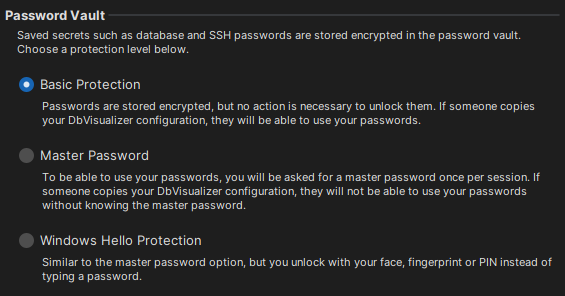
To change the protection level later, you first confirm with your current protection, for example by entering your master password. Your saved passwords are kept when you change the protection level.
Using Touch ID or Windows Hello
To unlock the vault with Touch ID or Windows Hello:
- Open Tools → Tool Properties and select the General / Password Vault category.
- Select Touch ID Protection or Windows Hello Protection as the protection level.
- In the Recovery Code dialog, select Use This Generated Code, or select Choose My Own Recovery Code and enter a code that meets the master password rule.
- Store the recovery code somewhere safe, select I have stored my recovery code and confirm.
From now on, DbVisualizer asks for Touch ID or Windows Hello when it needs a saved password.
The recovery code is your backup. Enter it when you're asked to unlock the vault and Touch ID or Windows Hello can't be used, for example when you have copied your settings to another computer. The command-line interface also asks for the recovery code.
If you lose the recovery code and this computer can't unlock the vault, your saved passwords are lost.
If your DbVisualizer Pro license ends, you are asked to choose another protection level.
Setting a master password
To protect the vault with a master password:
- Open Tools → Tool Properties and select the General / Password Vault category.
- Select Master Password as the protection level.
- In the Set Master Password dialog, enter a password that meets the described rule in both the Master Password and Confirm Master Password fields, and click OK.
DbVisualizer asks for the master password the first time it needs a saved password in a session, for example when you connect to a database.
If you forget the master password, it cannot be recovered. The only way forward is to reset it, which also clears all saved passwords.
Changing the master password
To change the master password:
- Open Tools → Tool Properties and select the General / Password Vault category.
- Click Change Master Password.
- Enter the current password in the Current Master Password field and the new password in both the New Master Password and Confirm Master Password fields, and click OK.
Your saved passwords are kept and protected with the new master password.
Resetting a forgotten master password
If you have forgotten the master password:
- Open Tools → Tool Properties and select the General / Password Vault category.
- Click Forgot Master Password and confirm with Reset.
Resetting returns the vault to basic protection and clears all saved passwords. There is no way to recover them.
Locking the password vault
Once you have unlocked the vault, it stays unlocked until you restart DbVisualizer. To lock it earlier, select Help → Lock Password Vault. You are then asked to unlock it the next time a saved password is needed.
Showing a saved password
When the vault is protected with a master password, Touch ID or Windows Hello, you can view a saved database password or SSH password or passphrase in clear text:
- Right-click the password field label and select Show Password.
- Unlock the vault if you're asked to.
Declaring a master password rule
By default, a master password, or a recovery code you choose yourself, must have at least eight characters. To declare your own rule using a regular expression:
- Open the
dbvis-custom.prefsfile. - Enter a regular expression as the value of the
dbvis.-MasterPasswordRuleproperty. - Enter a description of the rule, shown when the user sets or changes the master password, as the value of the
dbvis.-MasterPasswordRuleDescrproperty.
The regular expression for the default rule is .{8,}. For example, this rule requires at least nine characters, with at least one symbol, one digit, one uppercase character, and one lowercase character:
(?=.{9,})(?=.*?[^\\w\\s])(?=.*?[0-9])(?=.*?[A-Z]).*?[a-z].*