Preventing Accidental Changes
Sometimes you want to make sure that you don't change data in a database by mistake. Depending on the database and its driver, DbVisualizer can help.
A client can't reliably prevent write operations. For real protection, the database administrator must set up roles and permissions on the server.
Permission mode
Only in DbVisualizer Pro
This feature is only available in the DbVisualizer Pro edition.
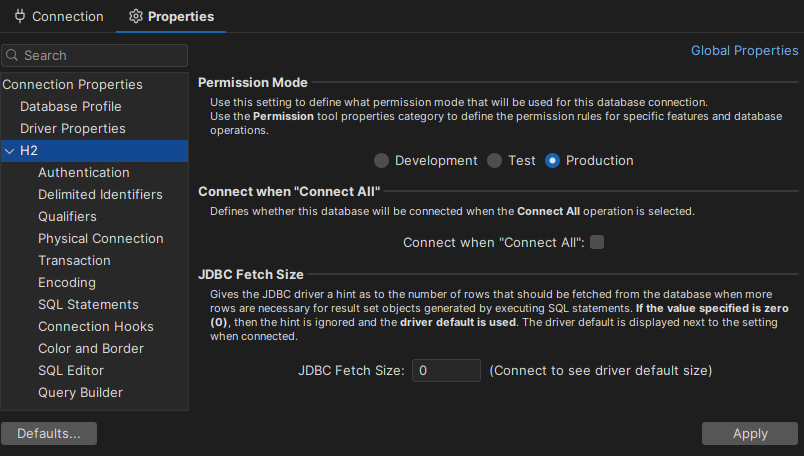
Set the Permission Mode of the connection to Production, in the Connection tab. Then set the permissions in SQL Commander for the Production mode.
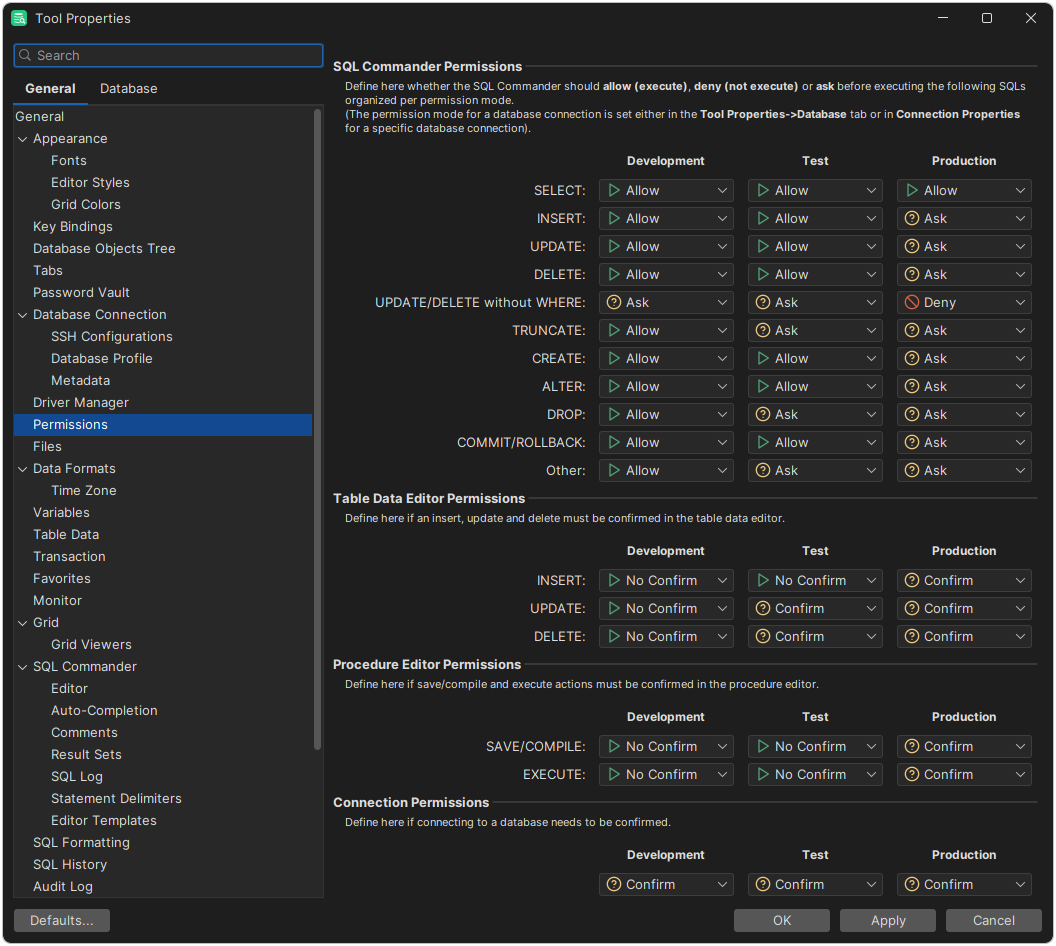
By default, the Production mode allows SELECT statements, asks for confirmation before other statements, and denies UPDATE and DELETE statements without a WHERE clause. For more safety, change Ask to Deny.
The permissions apply to SQL Commander, and to queries that the AI Assistant runs, see AI Assistant permissions. Editing table data has its own setting, which by default asks for confirmation in Production mode. Operations such as Alter Table from a menu are not affected.
Read-only connections
Depending on the database and its driver, you can also set the session to read-only mode, in one of these ways.
Using the setReadOnly method
You may be able to set the session to read-only mode by adding the driver property java.sql.connection.setReadOnly with the value true. See Configuring Connection Properties.
The effect is not guaranteed: the server may ignore the setting and still allow write operations.
Using a driver property
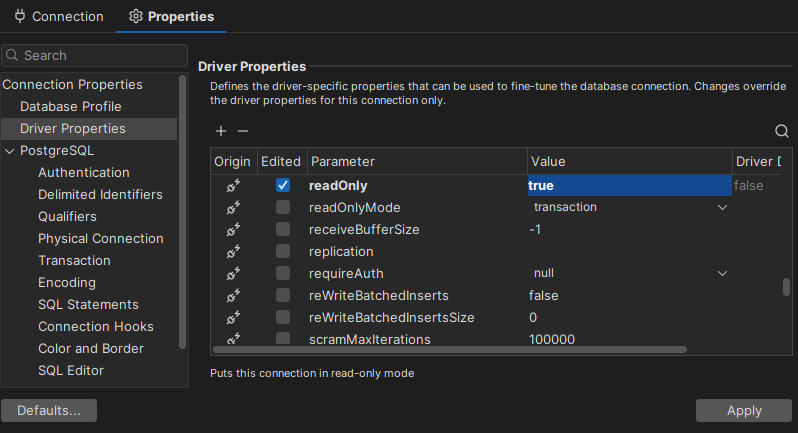
Some drivers have their own property for read-only mode, like in this example. See the documentation of your driver.
Using a connection hook
You can also use a connection hook, an SQL statement that is run when you connect, to set the session to read-only mode. Which statement to use depends on the database.