Using a Single Physical Connection
By default, DbVisualizer uses several physical connections to the database. Each SQL Commander tab has its own connection. Operations that change data, such as saving grid edits or importing data, use their own connections. Most read-only operations, such as browsing the Databases tab, share one connection.
This is normally the most efficient way to work, but sometimes you need to use a single shared physical connection for all operations, for example when:
- The database allows only one session per account.
- A pending transaction in SQL Commander locks a table that you then edit in the Data tab.
- You use one-time passwords, so every new physical connection asks for a new password.
The downside is that you can run fewer things in parallel.
Using MFA, 2FA and browser-based authentication
A single shared physical connection is especially useful for connections that use MFA, 2FA, tokens or browser-based authentication. Otherwise, you have to authenticate each time DbVisualizer opens a new physical connection to the server.
Turning on a single shared physical connection
To use a single shared physical connection:
- Open the Object View tab for the connection, and select its Properties tab.
- Select the Physical Connection category.
- Select Use a Single Shared Physical Connection. It is off by default.
Changing data
Running a script in SQL Commander, running an action, saving edits in a grid and importing data are operations that may change data. Using a single shared physical connection, only one of them can run at a time. If you start one while another is running, the Single Connection is Busy dialog tells you that the connection is in use, and the new operation isn't started. Start it again when the other one has finished.
Handling transactions
If auto commit is off, a commit or rollback in one part of DbVisualizer affects the changes made in all other parts. For example, if you run UPDATE statements in SQL Commander, and then edit a table in its Data tab and commit, the UPDATE statements are also committed. To make this clear, the controls for transactions are shown in a separate Single Physical Connections window.
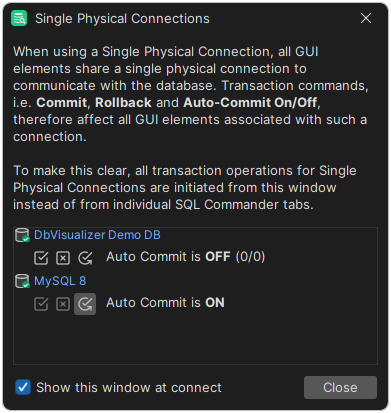
The window opens when you connect, unless you clear Show this window at connect in it. You can also open it with the icon in the status bar, or with Help → Single Physical Connections. In the window, you can turn auto commit on or off, and commit or roll back a pending transaction.
With auto commit off:
- After an action or an import has changed data, you are asked whether to Commit, Rollback or Continue with Uncommitted.
- Before you save edits in a grid or import data, you are asked whether to turn on auto commit, since many changes in one transaction can fill up the redo logs of the database. Select Enable Auto Commit and Continue or Continue with Auto Commit OFF.