Using DbVisualizer Variables
A DbVisualizer variable stands for a value that you enter when you execute the SQL. It can have a default value, a data type and options, and it can be used anywhere in a statement. Variables are useful when you run the same SQL again and again with different values.
Variables are only handled when SQL Commander → SQL Commander Options → Parameterized SQL is selected.
Writing a variable
The simplest variable has only a name:
${FullName}$
The full syntax is:
${name||value||type||options}$
For example, ${FullName||Andersson||String||where pk}$.
| Part | Default | Description |
|---|---|---|
name | Required. The name shown when DbVisualizer asks for the value. If several variables in a script have the same name, you are asked once, and the value is used for all of them. | |
value | null | The default value. |
type | Literal | The data type: String, Boolean, Integer, Float, Long, Double, BigDecimal, Date, Time, Timestamp, BinaryData or TextData. Without a type, the value is put in the statement as text. See Literals and bound values. |
options | Options separated by spaces, see below. |
Options
| Option | Description |
|---|---|
pk | The variable is part of the primary key. A symbol shows this when you enter the value. |
where | The variable is part of the WHERE clause. A green symbol shows this when you enter the value. |
noshow | Don't ask for the value. The variable must have a value, unless it is an output variable (dir=out). |
nobind | Put the value in the statement as text, even if the variable has a type. |
dir=in, dir=out, dir=inout | The direction of a parameter in the @call command, ignored elsewhere. A variable for the return value of a function must be dir=out, and a variable for a procedure parameter must have the same direction as the parameter. The default is in. |
scope=post | Needed for variables that stand for columns, when you export BLOB or CLOB values to separate files named after column values. |
choices=[...] | A list of allowed values, shown as a drop-down list, for example choices=['A','B','C']. |
format=[...] | The format of a Date, Time or Timestamp value, instead of the format in Tool Properties, for example format=[yyyy-MM-dd_HH-mm]. |
Entering the values
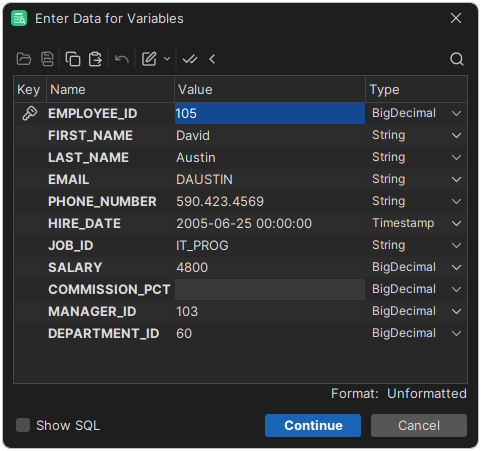
When you execute SQL with variables, a window lists the variables with fields for their values. Enter the values, and click Continue.
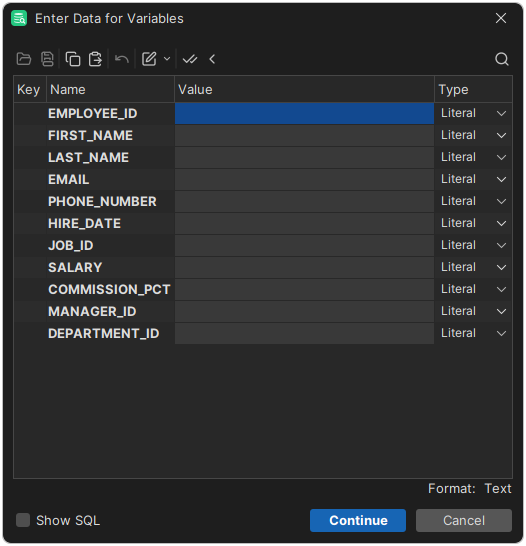
The window works like the Form Data Editor: you can sort, filter, copy, paste and edit values in an editor. Two buttons in the toolbar fill in the values for you:
- Set Default Values uses the default values of the variables. Variables without a default value get (null).
- Set Previously Used Values uses the values from the last time you executed the SQL, matched by name.
To see the statement with the values filled in, select Show SQL.
Literals and bound values
A variable is replaced in one of two ways:
- As a literal: the value is put in the statement as text. This is how variables without a type work, so they can be used anywhere, also for table and column names. A text value then needs quotes around the variable, such as
'${FIRST_NAME}$'. - As a bound value: the variable is replaced by a parameter marker, and the value is bound to it, like a parameter marker. This happens when the variable has a type and no
nobindoption. Bound values are more reliable, but can only be used where the database allows parameter markers, usually for column values.
${Name||rolle||String}$          -- bound
${Name||rolle}$                  -- literal
${Name||rolle||String||nobind}$  -- literal
To use a typed variable as a literal for one execution, click its Type when you enter the values, and select Literal.
Using the current date and time
For a Date, Time or Timestamp variable, you can use now as the value, also when you enter the values. It is replaced by the current date or time, in the format set in the Data Formats category in Tools → Tool Properties:
${myDate||now||Date}$
${myTime||now||Time}$
${myStamp||now||Timestamp}$
To use another format, add the format option. For example, this inserts the current time as text, without asking:
${stamp||now||Timestamp||format=[yyyy-MM-dd_HH-mm] nobind noshow}$
Predefined variables
These variables are filled in by DbVisualizer, and you aren't asked for their values. They can be used anywhere in the SQL.
| Variable | Value |
|---|---|
${dbvis-date}$, ${dbvis-time}$, ${dbvis-timestamp}$ | The current date, time or timestamp, in the format set in Data Formats. To use another format, add it as an option, for example ${dbvis-date||||||format=[yyyyMMdd]}$. |
${dbvis-connection}$ | The name of the connection. |
${dbvis-database-type}$ | The database type of the connection. |
${dbvis-pwd}$ | The current directory, for example as set by @cd. |
${dbvis-resultset-name}$ | The name set by @set resultset name for the next result. See Using Client-Side Commands. |
${system.clipboard}$ | The text on the clipboard. |
${dbvis-exec-time}$, ${dbvis-fetch-time}$ | The execution and fetch time in seconds, for example 2.018. Only for a monitor of a query, when Allowed Row Count is more than 0. |
Java properties and environment variables
To use the value of a Java system property, put java. before its name. To use an environment variable of the operating system, put env. before its name:
@echo ${java.user.home}$;
@echo ${env.USER}$;
Some Java property names start with java themselves, so the variable is, for example, ${java.java.io.tmpdir}$. To see the Java properties, select Help → About and open the Java Properties tab.
This is useful for file paths, for example to export to your Bookmarks folder without writing the full path:
@export set filename="${java.dbvis.prefsdir}$/Bookmarks/myscript.sql" Format="SQL" AppendFile="false";
Changing the variable delimiters
To change the ${, }$ and || characters that mark a variable and its parts, use the General / Variables category in Tools → Tool Properties.
Examples
Asking for all values of a row
The variables in this statement only have names. Since they have no type, the values are put in the statement as text, so you must enter text values with quotes.
INSERT INTO EMPLOYEES
    (EMPLOYEE_ID, FIRST_NAME, LAST_NAME, EMAIL, PHONE_NUMBER, HIRE_DATE,
     JOB_ID, SALARY, COMMISSION_PCT, MANAGER_ID, DEPARTMENT_ID)
VALUES
    (${EMPLOYEE_ID}$, ${FIRST_NAME}$, ${LAST_NAME}$, ${EMAIL}$, ${PHONE_NUMBER}$,
     ${HIRE_DATE}$, ${JOB_ID}$, ${SALARY}$, ${COMMISSION_PCT}$, ${MANAGER_ID}$,
     ${DEPARTMENT_ID}$);
Copying a row with default values and types
When you right-click a row in the Data tab and select Script to SQL Commander → INSERT COPY INTO TABLE, DbVisualizer writes a statement with a variable for each column. The variables have the values of the row as defaults, and the types of the columns:
INSERT INTO EMPLOYEES
    (EMPLOYEE_ID, FIRST_NAME, LAST_NAME, EMAIL, PHONE_NUMBER, HIRE_DATE,
     JOB_ID, SALARY, COMMISSION_PCT, MANAGER_ID, DEPARTMENT_ID)
VALUES
    (${EMPLOYEE_ID||105||BigDecimal||pk ds=7 dt=NUMERIC}$,
     ${FIRST_NAME||David||String||nullable ds=20 dt=VARCHAR}$,
     ${LAST_NAME||Austin||String||ds=25 dt=VARCHAR}$,
     ${EMAIL||DAUSTIN||String||ds=25 dt=VARCHAR}$,
     ${PHONE_NUMBER||590.423.4569||String||nullable ds=20 dt=VARCHAR}$,
     ${HIRE_DATE||2005-06-25 00:00:00||Timestamp||ds=7 dt=TIMESTAMP}$,
     ${JOB_ID||IT_PROG||String||ds=10 dt=VARCHAR}$,
     ${SALARY||4800||BigDecimal||nullable ds=10 dt=NUMERIC}$,
     ${COMMISSION_PCT||(null)||BigDecimal||nullable ds=4 dt=NUMERIC}$,
     ${MANAGER_ID||103||BigDecimal||nullable ds=7 dt=NUMERIC}$,
     ${DEPARTMENT_ID||60||BigDecimal||nullable ds=5 dt=NUMERIC}$);