Printing
You can print charts and graphs, such as the graphs in the References and Navigator tabs. Right-click the chart or graph and select Print → Print, or Print → Print Preview to see what the printout will look like first.
Setting the page orientation and paper size
To set the page orientation, such as portrait or landscape, and the paper size, select File → Printer Setup before you print. On some platforms, the print dialog also has these options, but DbVisualizer may ignore them, so use Printer Setup instead.
Printing a chart
When you print a chart, the print dialog of your operating system is shown, where you choose the printer and the pages to print. The chart is scaled to the size of the paper.
Printing a graph
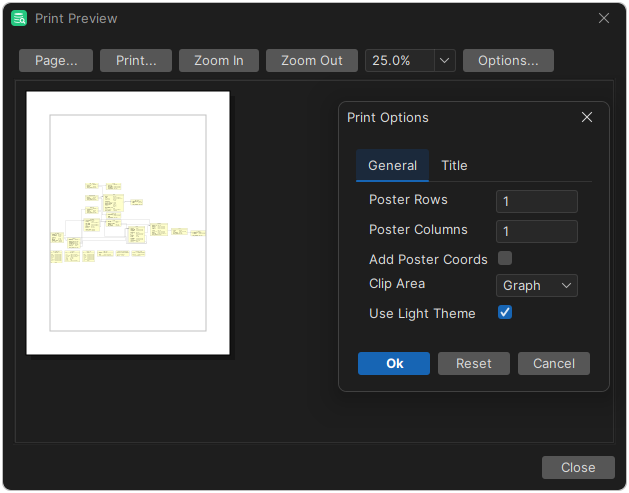
When you print a graph, DbVisualizer first shows a dialog where you choose:
- How many pages, in rows and columns, the graph is split into.
- Whether to print the graph as shown on the screen, or the complete graph.
- Use Light Theme, if you use a dark theme, to print on a white background.
When you click OK, the print dialog of your operating system is shown, where you choose the printer.
Printing a grid
You can't print most grids directly. Instead, right-click the grid and select Open in Associated Program → Open in Web Browser, or Open Selection in Web Browser for the selected cells, and print from the web browser.