Managing licenses
A license unlocks DbVisualizer Pro for one person. People get a license when an owner or admin assigns them a seat on one of the organization's subscriptions. You do this on the Users page, which has two parts: the Users and seats summary at the top and the list of people below it.
Users and seats
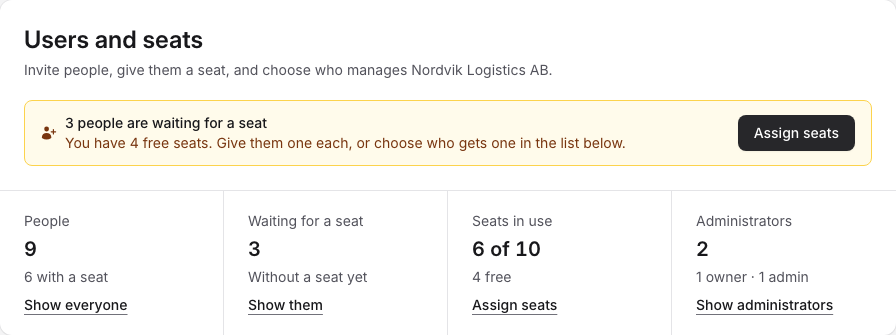
The Users and seats summary tells you what needs doing and gives the numbers at a glance.
When something needs your attention, a notice at the top says so, with a button to act on it:
- N people are waiting for a seat, when you have free seats. Assign seats gives them seats (see Assigning seats to several people).
- N people are waiting for a seat, and every seat is in use, with Add seats to buy more, or a button for an open order that brings more seats (for example Pay now).
- N more people hold a seat than you have, with Add seats.
Below the notice, four tiles show the numbers. Click a tile to show those people in the list below.
- People: everyone in your organization, and how many of them have a seat. Show everyone lists them all.
- Waiting for a seat: people without a seat who have been invited or have signed in, and people whose license has expired. Show them lists them.
- Seats in use: how many of your seats are given out, and how many are free. Assign seats gives the free seats to the people waiting. When there is nobody to give a seat to, or no seat free, it says Add seats and takes you to your subscription. An organization that buys through a reseller sees Buy through a reseller instead, and a subscription that is free of charge shows Contact sales.
- Administrators: how many owners and admins you have. Show administrators opens the Admins tab.
If DbVis has turned on usage data for your organization, a Show usage data switch appears under the tiles. With it on, the list gets a Last seen column with the date each person last used DbVisualizer, and a Usage section shows how DbVisualizer is used across your organization. This data comes from people signing in to DbVisualizer.
The users list
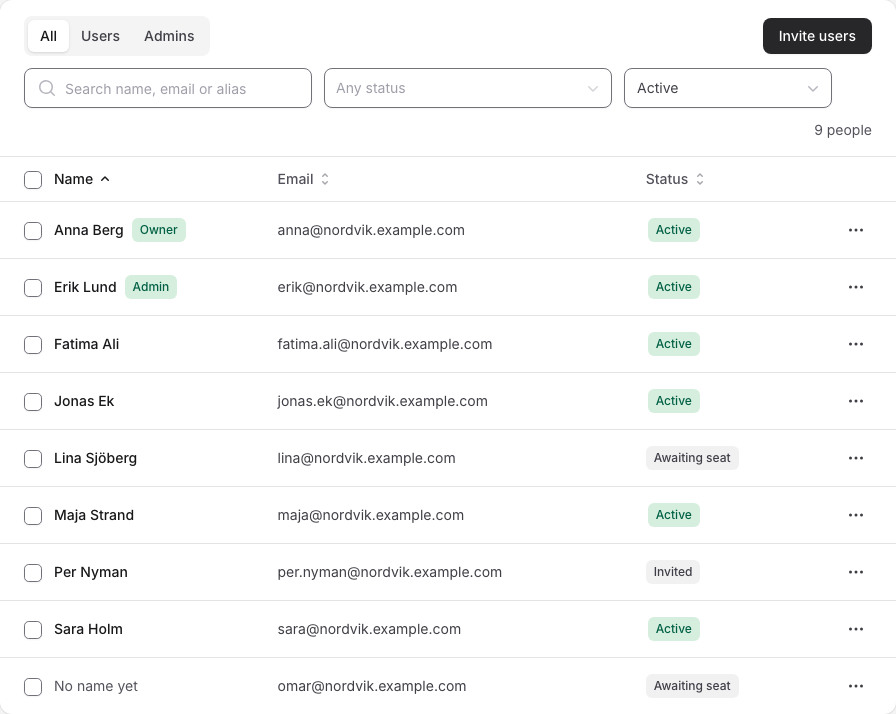
Below the summary is the list of people in your organization:
- All, Users and Admins switch between everyone, the people who are not owners or admins (plus owners and admins who hold a seat), and the owners and admins.
- Search name, email or alias finds a person.
- Any status filters on one or more statuses.
- Active, Archived or Active and archived chooses whether people removed from the organization are listed. The list starts on Active.
- Click a column heading (Name, Email, Status, Last seen) to sort by it. Rows per page sets how many people are shown at a time.
The ··· button at the end of a row opens the actions for that person. The menu shows only the ones that apply: View activity, Assign seat, Rename, Make admin, Remove admin, Make owner, Resend invitation, Download license, Take back seat, Cancel assignment, Rejoin subscription, Revoke license and Remove from organization.
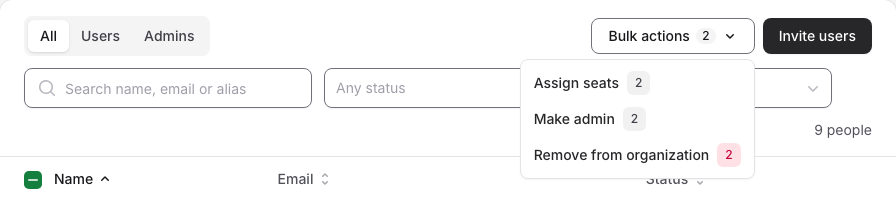
To act on several people at once, tick the box in front of their names. A Bulk actions button appears, with the number of people each action applies to: Assign seats, Make admin, Remove admin, Make owner (when one admin is selected) and Remove from organization.
Assigning a seat
- Go to Users in the left sidebar.
- Find the person. People without a seat have the status Awaiting seat, Invited, Uninvited or Uses expired license; Show them on the Waiting for a seat tile lists them.
- Open the
···menu at the end of their row and choose Assign seat. - In Assign a seat, choose the Subscription the seat comes from. Each subscription shows how long it is valid and how many seats are available.
- Click Assign seat.
The person can now start DbVisualizer and sign in with their email to use the license. They get an email about their seat; someone who has not been invited yet gets the invitation and the seat in one email. See Using a license in DbVisualizer for the next steps.
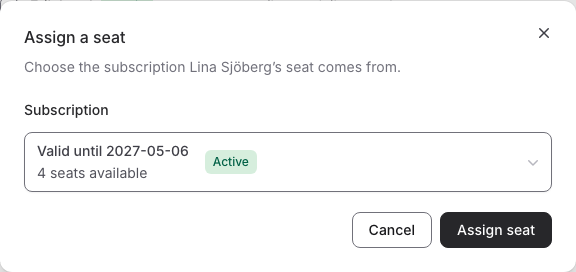
Assign seat also appears for someone who only has a perpetual license, so you can give them a seat that includes newer versions.
Missing user?
A person must already be in your organization before you can assign them a seat. See Adding users to your organization if someone is missing from the list. You can also give people a seat while you invite them.
Giving yourself a seat
Owners and admins use DbVisualizer Pro with a seat too. Choose Assign seat in the ··· menu on your own row. Once you hold a seat, License appears in your sidebar.
Assigning seats to several people
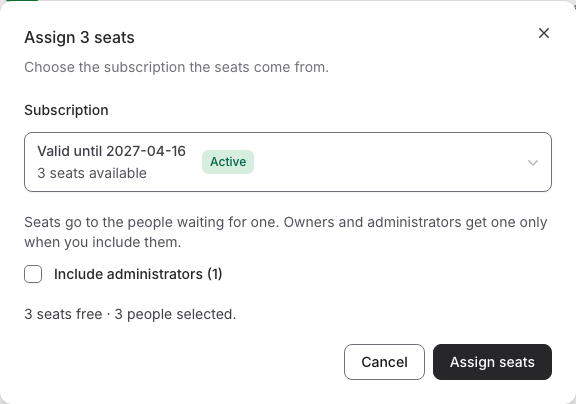
To give a seat to everyone who is waiting for one, click Assign seats in the notice or on the Seats in use tile. To give seats to the people you choose, tick them in the list and pick Bulk actions > Assign seats. Then:
- Choose the Subscription the seats come from.
- When owners or admins are waiting too, tick Include owners or Include administrators to give them a seat as well. Otherwise the seats go to the other people waiting.
- Check the line that shows how many seats are free and how many people are selected. If there are not enough seats, pick a subscription with more room or select fewer people.
- Click Assign seats. A progress dialog shows while the seats are given: keep the window open.
No seats left?
When every seat is in use, buy more with Add seats on the Seats in use tile. See Buying a subscription.
License statuses
The status on the Users page
The Status column tells you whether each person can use DbVisualizer Pro:
| Status | Meaning |
|---|---|
| Active | Holds a seat with a license that works. This is shown as soon as the seat is given, whether or not the person has used it yet: click the status to see more. |
| On old version | Holds a seat with a license that works, but uses an older DbVisualizer version than the newest release. |
| Uses expired license | Their license has expired, so DbVisualizer no longer accepts it. They are waiting for a seat. |
| Awaiting seat | Has signed in but has no seat. |
| Invited | Has been invited but has not signed in yet, and has no seat. |
| Uninvited | Belongs to the organization but has not been sent an invitation, and has no seat. Resend invitation in the ··· menu sends one. |
A person's licenses
Click a person's status to open Licenses for followed by their name. It lists each of their licenses with its own status, the Activation, Expires and Upgrades dates, and the Subscription it comes from when you have more than one. The buttons on each license depend on its status:
| License status | Meaning | Buttons |
|---|---|---|
| Processing | The license key is being prepared. The person can already sign in to DbVisualizer; the file can be downloaded once the key is ready. | None |
| Assigned | The seat is given, but the person has not downloaded or used the license yet. | Download, Cancel assignment |
| Downloaded | The license file has been downloaded, but DbVisualizer has not used it yet. | Download, Take back seat |
| Active | The license is in use in DbVisualizer. | Download, Take back seat |
| Unassigned | The seat was taken back. The license works until the subscription renews. | Rejoin subscription, Revoke license |
| Perpetual | Its upgrades have ended. It keeps working with the versions released until then. | Revoke license |
| Expired | The license no longer works. | None |
| Revoked | The license was revoked and no longer works. | None |
| Replaced | A newer license has taken its place. | None |
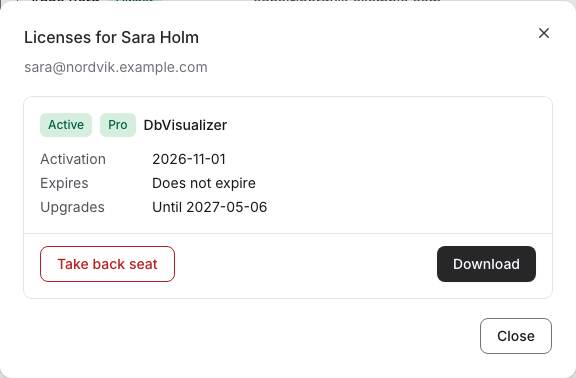
To download a license file for someone, see Download the license file manually. To take a seat back or revoke a license, see Unassigning and reassigning licenses.
A person's activity
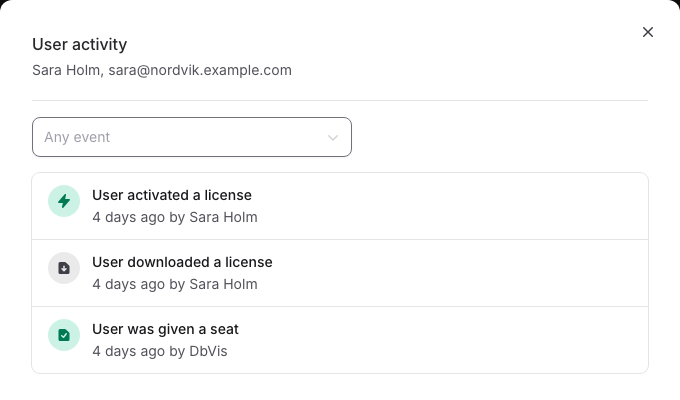
Choose View activity in the ··· menu to see what has happened to a person in your organization, newest first: for example User was given a seat, User downloaded a license and User activated a license, with when it happened and who did it. Any event filters the list on one kind of event.