intro
Upgrading MySQL is never an easy task, especially when you need to do so using software you perhaps haven’t used much. Here’s how to upgrade MySQL in WHM!

For many, upgrading software is a big task. With the task sometimes being as enormous as it is, some of us neglect upgrading altogether, then pay the price in terms of data breaches hitting our infrastructure. Thankfully, upgrading our databases, and especially if we’re running MySQL or its counterparts is pretty easy.
Let’s see how to upgrade MySQL in WHM!
How to Upgrade MySQL in WHM?
In this guided section, you will see the steps on how to upgrade MySQL in WHM!
Step #1: Log in to WHM
Before asking yourself the question “How to upgrade MySQL in WHM?”, first make sure you have WHM (WebHost Manager) access to your VPS. You can check this by navigating to the IP of your server and adding 2087 as the port (as 2087 represents WHM’s default port).
Your URL will look like so:
                    1
                    https://YOUR-SERVER-IP:2087
If WHM is installed on your VPS, you should see a WHM log in panel:
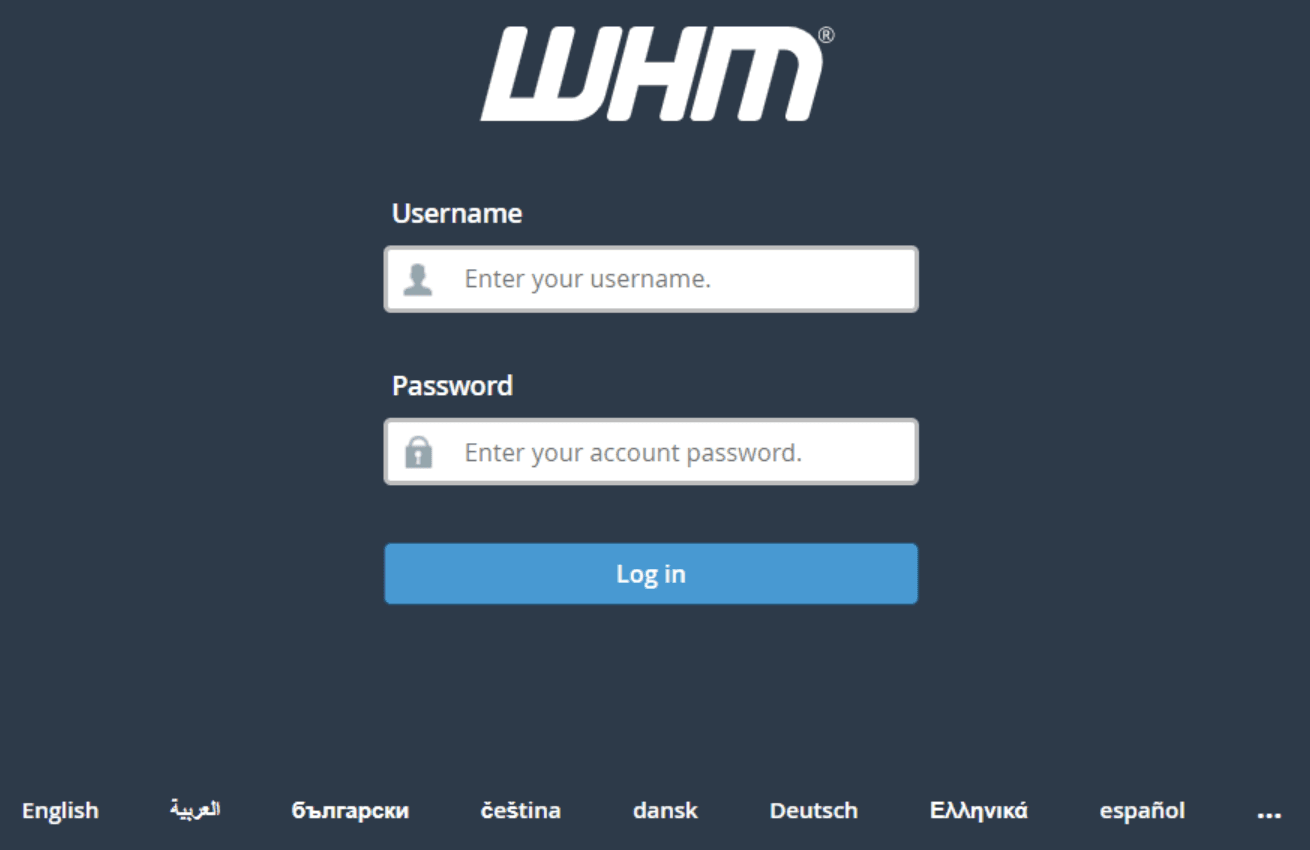
If you don’t see the screen, try adding /whm or the port 2087 to the end of the URL of your website.
If the login screen appears, log in using the credentials of your VPS.
Note: the username will almost always will be root and the password is the password you have defined.
Step #2: Upgrade MySQL within WHM
As far as upgrading MySQL goes, WHM does have a capability to perform MySQL or MariaDB upgrades.
If you’re searching for an answer how to upgrade MySQL in WHM, the answer can be found by following the steps below:

3a. Select the version of MySQL/MariaDB you want to upgrade or re-install. The contents of your MySQL/MariaDB configuration file (my.cnf) will be validated and the contents will be transferred to the version of your database. Make sure every option is intact exactly how you want it to be.
3b. WHM will provide you with two options to choose from in terms of how you want to complete your database upgrade: whether you want to upgrade your MariaDB or MySQL instances automatically (for WHM to do all of the work for you) or whether you want an “Interactive Upgrade” (WHM will walk you through all of the steps as the upgrade progresses.)
WHM also has a utility called “MySQL Upgrade Checker“ that can help you check whether your MySQL upgrade has been completed correctly. To check whether your MySQL upgrade is suitable for your database:
Beyond MySQL Upgrades in WHM
Upgrading MySQL databases in WHM is quite simple, but at the same time, it’s far from the only thing you need to worry about. If you have been building your application for a while, you likely already noticed that as time goes by, you face all kinds of issues from uptime to monitoring SQL queries.
That’s why regardless if you choose to upgrade your MySQL/MariaDB instances or not, you need a reliable SQL client to support you.
DbVisualizer is one of such options, as it will help you with:
Conclusion
The answer to the question “how to upgrade MySQL in WHM?” is quite simple and straightforward as WHM as a tool is very easy to navigate and grasp. While you do have to run a VPS to get access to WHM itself, upgrading MySQL or MariaDB through it isn’t a flight to Mars.
At the same time, keep in mind that upgrading your database won’t fix the issues inside the database: as upgrading your database simply copies the configuration file you already have to a new version of your DBMS, if you had issues before, these issues are likely to persist.
Some issues, however, can be squashed with SQL clients and appliances such as DbVisualizer. Give DbVisualizer a spin for free for 21 days, check the documentation or reach out to us on X if you have questions about the tool, and until next time!
FAQ
How to upgrade MySQL in WHM?
Upgrading MySQL or MariaDB instances in WHM is quite simple. All you have to do is navigate to WHM by navigating to the IP of your server and adding the port 2087, find the “Upgrade Database Version” option, then follow the applicable steps.
How to upgrade MySQL if I do not run WHM?
If you don’t run WHM, upgrading MySQL or MariaDB in WHM is obviously out of the question. What you need to do then is to take a backup of your data (you have been taking them for a while, right?), stop MySQL, wget the tarball from the official MySQL repository, and upgrade your MySQL server by issuing a command specific to your Linux installation: for CentOS, sudo yum upgrade mysql-community-server will do. Afterwards, don’t forget to restart MySQL by running sudo service mysqld stop|start.
Can DbVisualizer help with MySQL upgrades?
Unfortunately, as important as MySQL upgrades are, DbVisualizer is an SQL client, meaning that it cannot perform one-click upgrades of your MySQL instances. The primary function of DbVisualizer is managing and interacting with database management systems and upgrading them is out of the question. Why not try DbVisualizer for free for 21 days to try everything it has to offer for yourself?