Database Profile Utilities
The Database Profile category in the connection properties has a list of database profiles. Right-click the list to show commands that are useful when you develop a database profile.
Most commands work on the profile that the connection currently uses, so connect to the database first.
Analyze database profile
Analyze Database Profile checks the loaded database profile and reports:
| Check |
|---|
GroupNode and DataNode elements with no matching ObjectView (by type attribute) |
ObjectView elements with no matching GroupNode or DataNode (by type attribute) |
ActionGroup elements with no matching GroupNode or DataNode (by type attribute) |
DataView elements in the same ObjectView with the same label attribute |
Elements with no matching icon (by type or icon attribute) |
GroupNode and DataNode elements with more than one variable in label (use label1 for the additional ones) |
DataNode elements with variables in label, label1, icon, warnstate or errorstate that are not prefixed with the command id |
Show all type and icon attributes
Show All Type and Icon Attributes lists all icon names (logical names) used by the type and icon attributes in the loaded profile. The names are shown in lowercase, with the icon.db. prefix used in the icon definitions. This is the start of the output for the MySQL profile:
These are all "type" and "icon" references in the profile:
icon.db.add
icon.db.catalog
icon.db.catalogs
icon.db.charset
icon.db.collation
icon.db.column
icon.db.columns
...
Show available icons
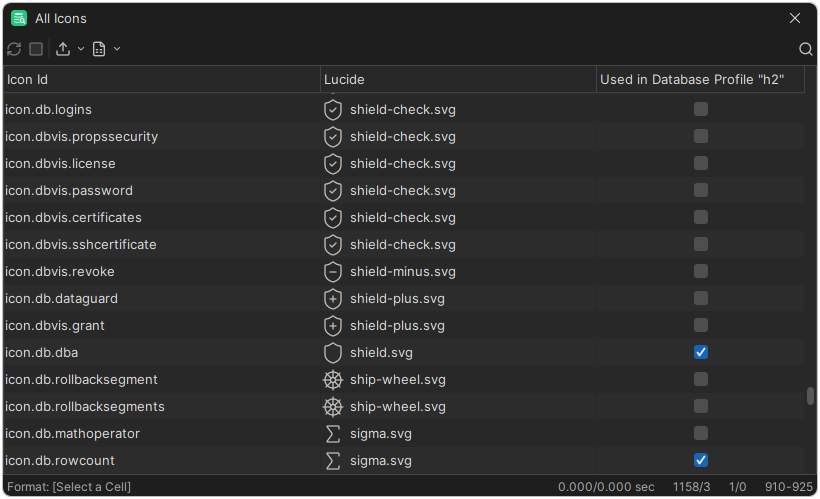
Show Available Icons opens a window with all available icons, their names and icon files, and whether the loaded database profile uses them.
Export merged profile
Export Merged Profile and Open in Editor saves the loaded profile to a file and opens it. If the profile extends other profiles, the file contains the complete merged and processed profile.
Open selected profile in editor
Open Selected Profile in Editor opens the XML file of the selected profile in the default editor or viewer of your system.
Configure search path
Configure Search Path opens Tool Properties → General → Database Connection → Database Profile, where you set the folders that DbVisualizer searches for database profiles.
Reload database profiles list
Reload Database Profiles List reloads the list of database profiles, for example after you have added or renamed a profile file.