Getting a Pro License
When you buy DbVisualizer Pro, you receive the license as a dbvis.license file. Install it to enable the Pro features.
If your organization requires you to log in to DbVisualizer, you don't need to install a license yourself. When you log in, DbVisualizer installs the license provided by your organization. See Starting DbVisualizer.
Installing a license key file
- Save the
dbvis.licensefile from the email. - In DbVisualizer, select Help → License Key.
- Select License Key File, and enter the path to the file, or click the button next to the field to find it. You can also drag the file from your mail application to the field.
- Click Install License Key.
- Restart DbVisualizer when you are asked to.
After the restart, the window title shows DbVisualizer Pro.
Installing a license key string
In some cases, for example if your mail server blocks the license file, you receive the license as a key string instead. To install it:
- Copy the license key string.
- In DbVisualizer, select Help → License Key.
- Select License Key String, and paste the key string in the field.
- Click Install License Key.
- Restart DbVisualizer when you are asked to.
License file location
The license is stored in the dbvis.license file in the .dbvis folder in your home folder:
| Operating system | Path |
|---|---|
| Windows | C:\Users\<user>\.dbvis\dbvis.license |
| Linux | /home/<user>/.dbvis/dbvis.license |
| macOS | /Users/<user>/.dbvis/dbvis.license |
To uninstall the license, delete the file.
Starting a free trial
The DbVisualizer Pro edition has more features than the Free edition. To see if it suits your needs, you can start a free trial, also called an evaluation:
- Request an evaluation license in one of the ways described below.
- If you aren't logged in, sign up or log in in the browser window that opens. The evaluation is then activated for the email address of your account.
When you are asked to, click Restart.
If you start DbVisualizer using one of the bundled scripts rather than the launcher, restart DbVisualizer yourself after the activation.
You can request an evaluation license in three ways.
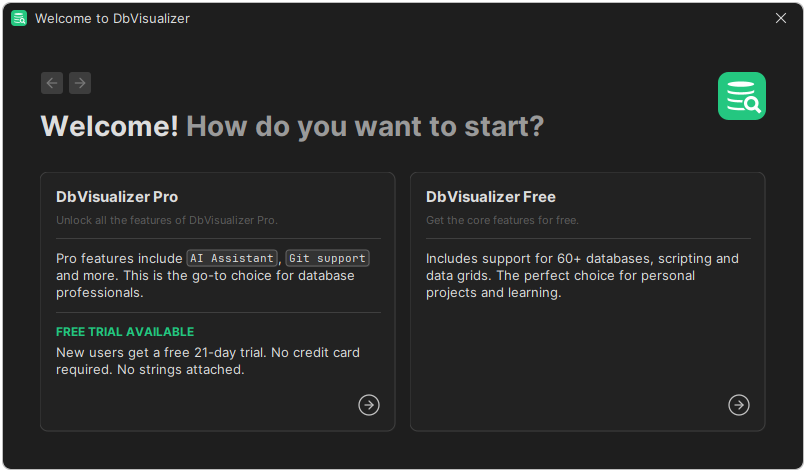
When DbVisualizer starts for the first time
When you are asked how you want to start, choose DbVisualizer Pro, and then Free trial. See Starting DbVisualizer.
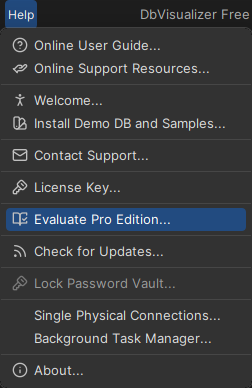
From the Help menu
Select Help → Evaluate Pro Edition, and click Evaluate in the dialog, or Sign Up if you aren't logged in.
From the welcome panel
In the welcome panel, click Start Free Trial.