Editing a Procedure or Function
Only in DbVisualizer Pro
This feature is only available in the DbVisualizer Pro edition.
Each procedure, function and package has a code editor, which is a tab in its Object View tab, such as Procedure Editor or Function Editor. To edit the code, double-click the object in the Databases tab, and select the code editor tab.
Edit the code, and click Save Edits in the toolbar to save and compile it. For some objects, the only way to save is to drop the object and create it again, and DbVisualizer asks you to confirm this first. Dropping an object may also drop objects that refer to it. The toolbar also has buttons to execute the object, and to open and save the code as a file.
For some databases, Status shows whether the object is valid, based on the last compilation. For Oracle, the icon of an invalid object in the Databases tab also has a red mark.
Finding errors
If the compilation fails, the errors are underlined in the code editor. Point to an error to see the message. The markers in the right margin show where the errors are; click a marker to go to the error. If the database doesn't report where an error is, the error is only shown in the Log tab. For more, see Locating SQL Errors.
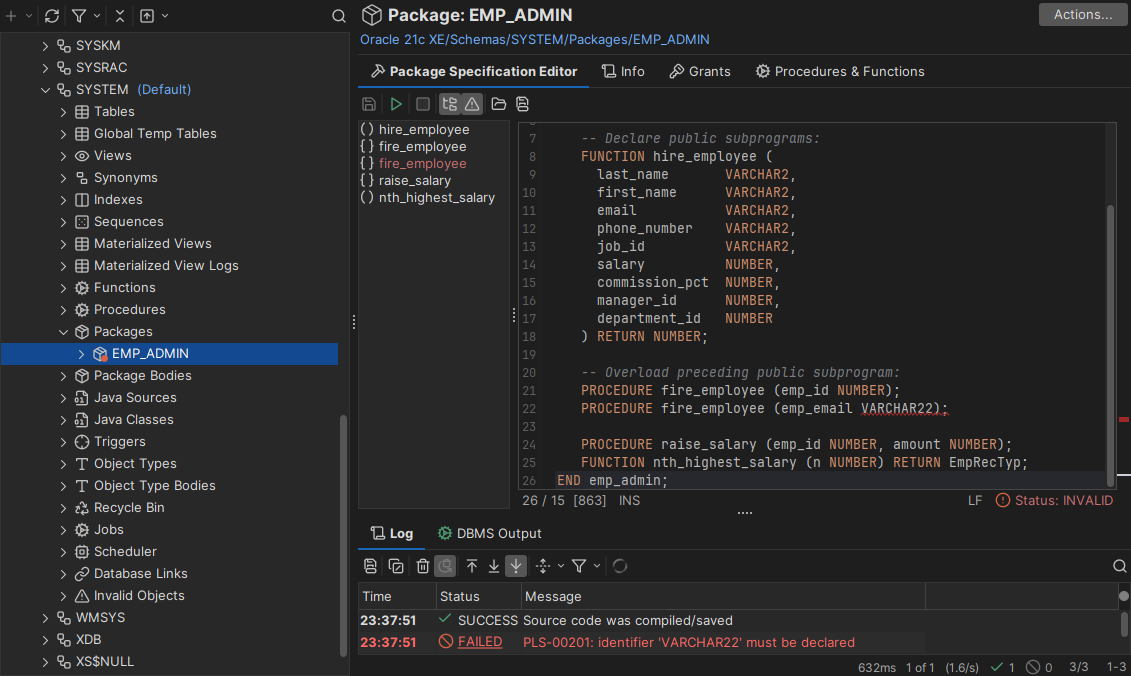
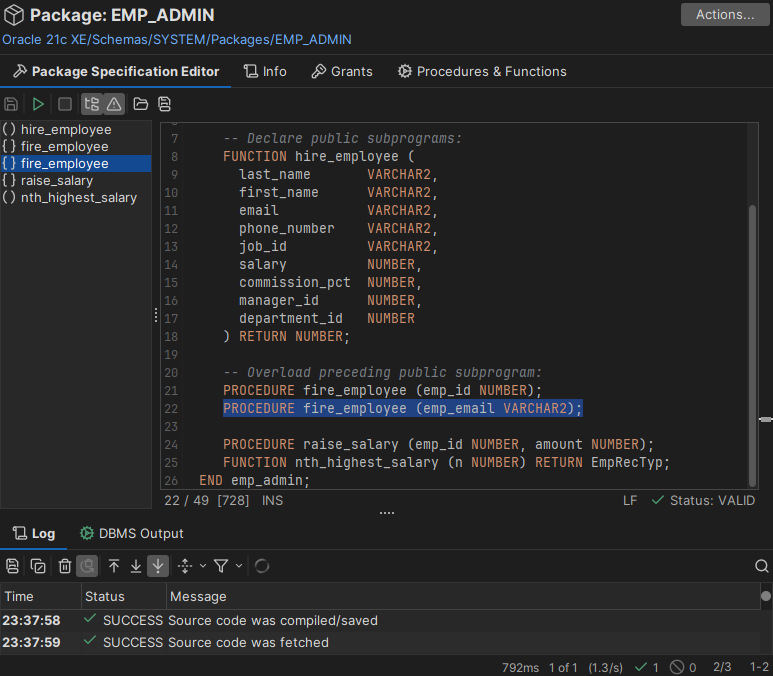
Editing a package
In Oracle and MariaDB, the specification and the body of a package are separate nodes, under Packages and Package Bodies, and each has its own code editor: Package Specification Editor and Package Body Editor.
To move around in a long package, click Show Navigator in the toolbar. It shows a list of the procedures and functions in the package; click one to go to it. In Oracle, the Procedures & Functions tab of a package also lists them.