Contacting Support
To contact us, select Help → Contact Support in DbVisualizer. The request includes information about your installation, so that we don't have to ask for it.
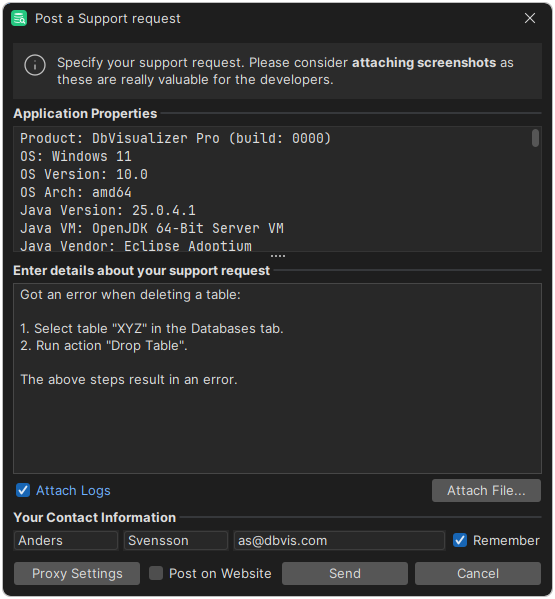
Reporting a problem
Describe step by step what you did before the problem happened. Screenshots or a screen recording help a lot: drop the files on the form, or click Attach File. Keep Attach Logs selected. To collect more detailed logs, see Sending Logs to Support.
Sending suggestions and feedback
We want to hear your ideas for new features and improvements, and what you think of DbVisualizer. Send them using Help → Contact Support as well. We read everything you send.
When DbVisualizer shows an error
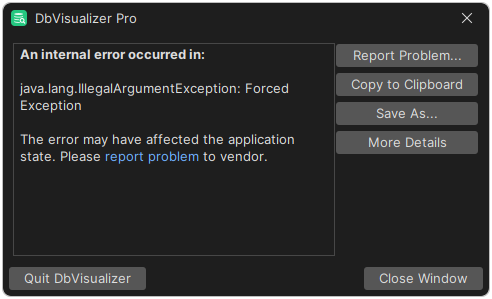
When DbVisualizer runs into an unexpected error, it shows an error dialog. Click Report Problem to open the support form with the details of the error.
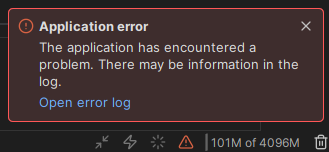
When an error is written to the log, a red icon is shown in the status bar. Click it to see the error in the Debug Window.
Contacting support from the website
DbVisualizer sends the support form directly to support. If that fails, for example because your network doesn't allow it, select Post on Website in the form before you send it. The content of the form is then copied to the clipboard, and the contact form on the website opens in your web browser. Paste it into the website form, and attach any files there.
If DbVisualizer doesn't start, use the contact form on the website directly, and attach the files in the .dbvis/logs folder in your home directory.