Customizing the SQL Editor
You can change how the editor in SQL Commander looks and behaves: the font and colors, what the Tab key inserts, the keyboard shortcuts, and more. You can also edit using Vim commands. Most of the settings are in Tools → Tool Properties.
Changing the font
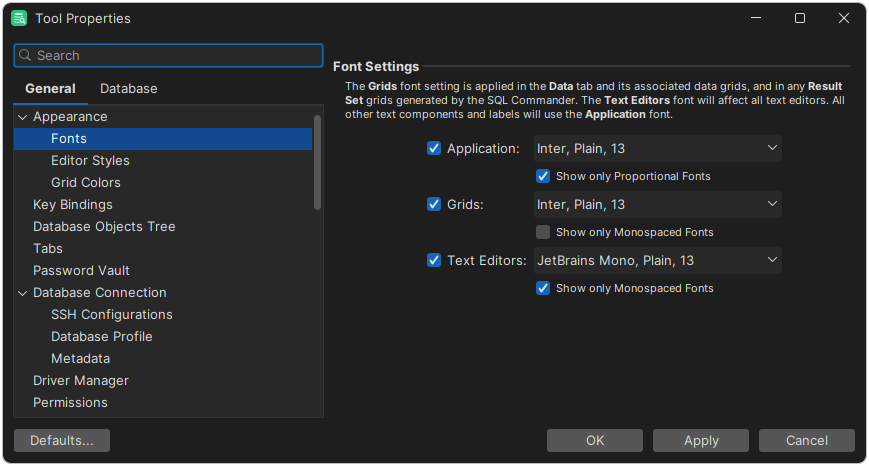
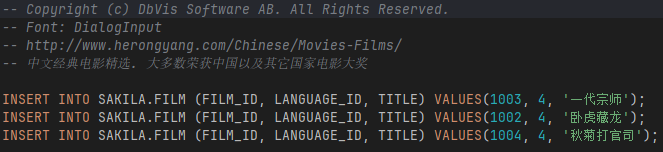
The editor uses the Text Editors font in the Appearance / Fonts category. A monospaced font is recommended. To show characters such as Chinese or Japanese, choose a font that has them. See Fonts and Using International Characters.
Zooming in the editor
To change the font size in one editor tab, hold down the modifier key set in the SQL Commander / Editor category, and use the mouse wheel or scroll on the trackpad. This is useful, for example, when you share your screen. Each tab has its own size, and the size isn't kept when you restart DbVisualizer.
Changing the colors
The editor shows keywords, identifiers, quoted text, comments and other parts of a script in different colors and font styles. For example, in the default light theme, keywords are blue and quoted text is green. To change the colors and styles, use the General / Appearance / Editor Styles category.
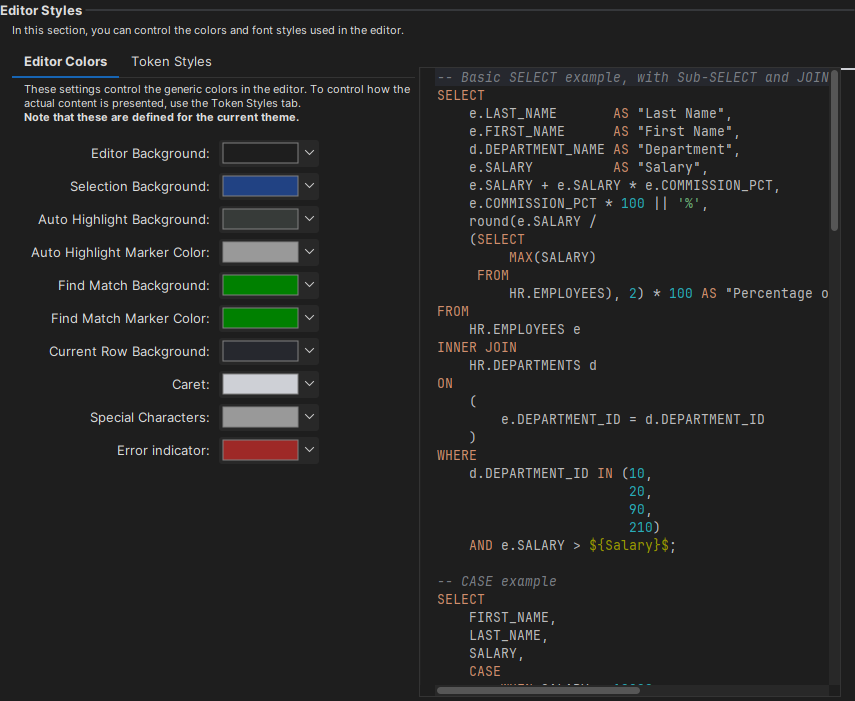
Editor Colors has the colors of the editor itself, such as the background, the selection, the caret and the highlighted line.
Token Styles has the colors and font styles of the parts of a script. Select the syntax to change in the Syntax list: SQL, JSON, XML, HTML or Generic. A syntax uses the Generic styles unless you change them, and HTML uses the XML styles. The tooltip shows where a style comes from. A style that you have changed is shown as a link; click it to go back to the default. The token styles are saved for each theme.
Showing special characters
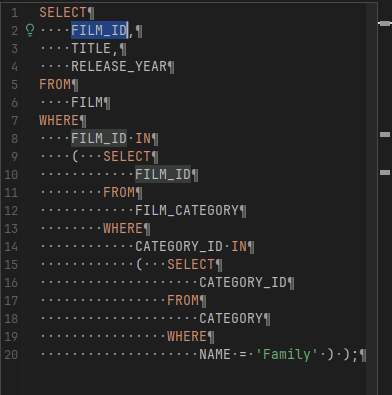
To show spaces, tabs, line breaks and other characters that are normally invisible, click in the editor and select Edit → Show Special Characters.
Showing a column guide
The column guide is a thin vertical line at a column that you choose, to help you keep lines short. It works best with a monospaced font. To turn it on and choose the column, use the General / Appearance / Editor Styles category in Tools → Tool Properties.
Changing what the Tab key inserts
By default, Tab inserts eight spaces. To insert a tab character instead, or another number of spaces, use Tab Size and Expand Tab to Whitespace in the General / SQL Commander / Editor category.
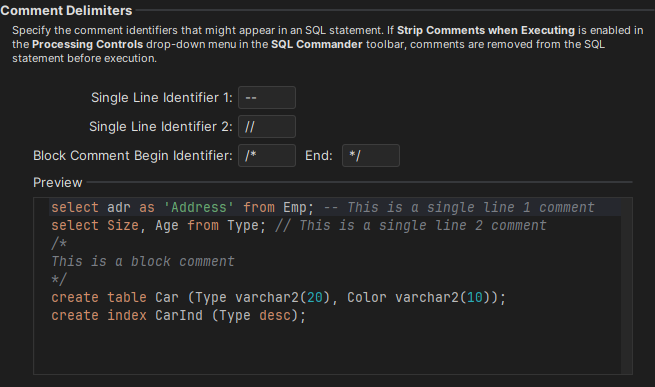
Setting the comment delimiters
The editor finds the comments in a script using the delimiters set in the General / SQL Commander / Comments category.
Changing keyboard shortcuts
To change the keyboard shortcuts of the editor, use the Key Bindings category. The Editor Commands node has the editor actions, and the Main Menu / Edit node has the actions in the Edit menu and the right-click menu of the editor. See Changing Keyboard Shortcuts.
Using Vim mode
The editor has a basic Vim mode, with a subset of the navigation and editing commands of Vim. To turn it on, select Enable Vim Mode in the SQL Commander / Editor category in Tools → Tool Properties. The current mode (NORMAL, INSERT, VISUAL or VISUAL LINE) is shown in the status bar.
The Vim mode supports:
- Modes: Normal, Insert, and Visual (character-wise and line-wise). A non-Vim selection (Select All, shift-arrows, mouse drag) is adopted into Visual mode.
- Navigation: all motions accept a numeric count, and the arrow keys, Home/End, and Page Up/Down work as expected.
- Character, word/WORD, and line motions (
h j k l,w b e ge,gg,G) - Screen motions (
H M L) and scrolling (Ctrl+F/B/D/U,zz/zt/zb) - Jump-to-match (
%) and in-line find (f F t T,;,,)
- Character, word/WORD, and line motions (
- Operators and text objects
- Operators
d,y,c,>,<composed with any motion - Text objects such as
iw/aw, quote and bracket pairs (i",a(,i{, …), and paragraphs (ip/ap)
- Operators
- Editing
x,D,C,Y,s,S,r,~,J, and paste (p/P)- Insert transitions (
i a I A o O,c{motion})
- Search:
/,?,n,N,*,#, integrated with the editor's find toolbar. - Undo, redo, and repeat:
u,Ctrl+R, and the repeat command (.), including text typed during an insert session.
These aren't supported:
- Visual block mode
- Marks
- Macros
- Named registers
- Ex commands
.vimrcconfiguration