Opening and Saving Scripts
A script is a file with SQL statements that you edit and run in an SQL Commander tab. DbVisualizer keeps track of unsaved changes in the script, and of changes that other programs make to the file. For the file dialog itself, see Opening and Saving Files.
Opening a script
To open a script, do one of these:
- Select File → Open, or click Open in the main toolbar.
- Select a recently opened script in File → Open Recent. To change how many scripts are listed, set Recent Paths Limit in the General / Files category in Tools → Tool Properties.
- Drag the file from your file browser to the main toolbar.
- Double-click the script in the Files tab. Your bookmarks and monitors are also scripts in the Files tab, and you open and save them like other scripts.
- Use Quick File Open to find the script by name. See Finding Tabs and Scripts by Name.
The script opens in a new SQL Commander tab. If it is already open, its tab is shown.
If you drag a file to the editor instead of the toolbar, its content is inserted at the caret.
Saving a script
To save a script, select File → Save or File → Save As, or use the buttons in the main toolbar.
An asterisk (*) after the file name in the status bar of the editor shows that the script has unsaved changes. When you close the tab, you are asked whether to save them. You are also asked before unsaved changes are replaced, for example when you load an earlier script from the SQL history.
Finding the file of a script
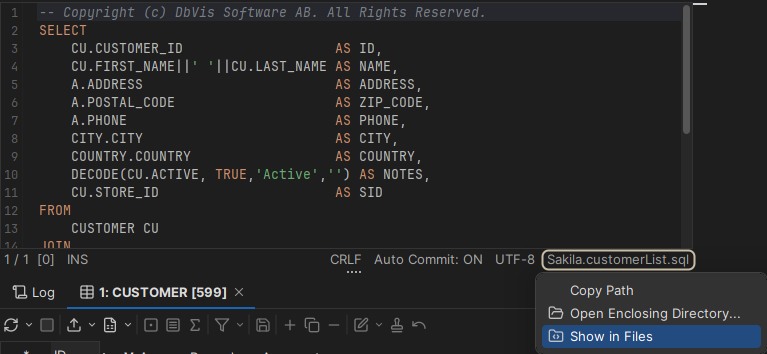
The file name is shown in the status bar of the editor, and the full path in the window title. Click the file name to:
- Copy the path of the file (Copy Path).
- Open the folder of the file in your file browser (Open Enclosing Directory).
- Select the file in the Files tab (Show in Files).
Choosing the line breaks
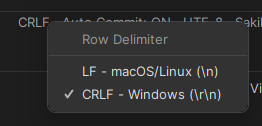
When you open a file, its line breaks are detected and used when you save it. A new script uses the line breaks set in the General / Files category in Tools → Tool Properties. Text that you paste or drop in the editor doesn't change the line breaks of the script.
To use other line breaks when you save the script, click the file format in the status bar of the editor, and select LF (macOS and Linux) or CRLF (Windows).
When another program changes the file
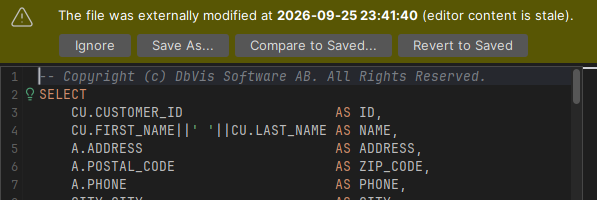
If another program changes an open script, for example another editor or a version control tool, a warning is shown at the top of the editor, with options to handle it:
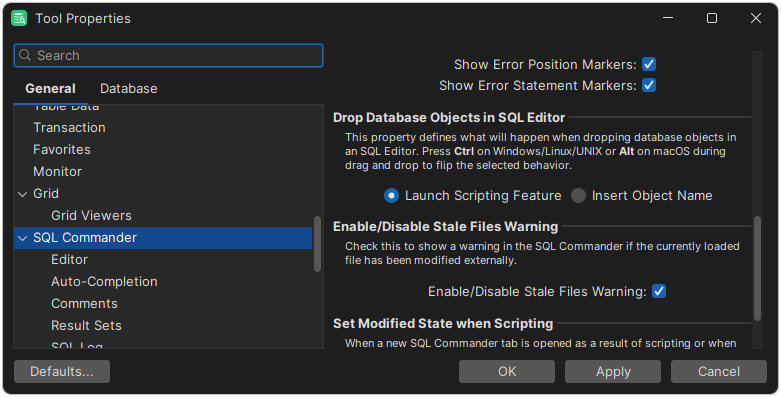
To turn off the warning, clear Enable/Disable Stale Files Warning in the General / SQL Commander category in Tools → Tool Properties:
You are always warned if you try to save a script whose file has been changed by another program.