Setting Max Rows and Max Chars
To save memory, DbVisualizer limits how much of a query result or table it shows. Max Rows limits the number of rows, and Max Chars limits the length of the text values shown. Max Rows is set separately for SQL Commander and for the Data tab of tables.
When a limit is reached, a notification is shown below the grid. To stop it from appearing, clear Automatically Show Grid Warnings in the General / Grid category in Tools → Tool Properties.
Before you show more rows, consider whether you need them all:
- Get only the rows you need, with a
WHEREclause in the query, or a where filter in the Data tab. - To get all rows of a table in a file, export the table.
Showing more rows in a result
By default, a result in SQL Commander shows at most 20,000 rows. When a result has more rows, this is shown below it:
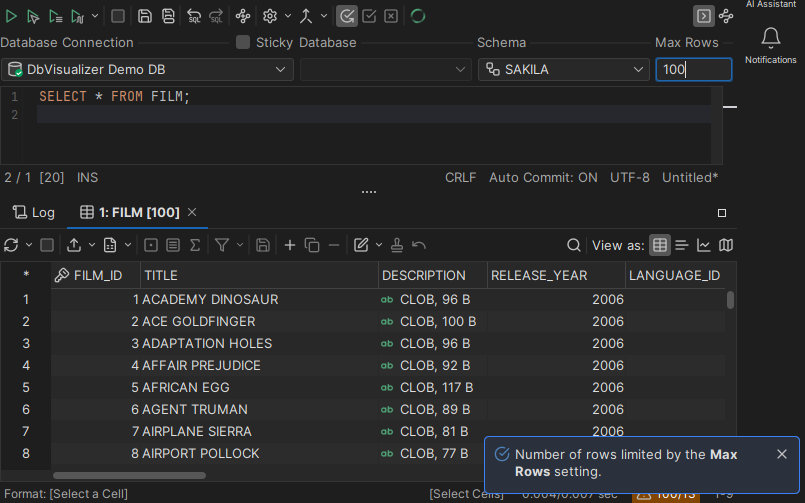
To show more rows, change Max Rows in the SQL Commander toolbar. To show all rows, enter 0 or -1. In a script, you can also use @set maxrows, see Using Client-Side Commands.

Showing more rows in the Data tab
By default, the Data tab of a table shows at most 20,000 rows. When a table has more rows, this is shown below the grid:
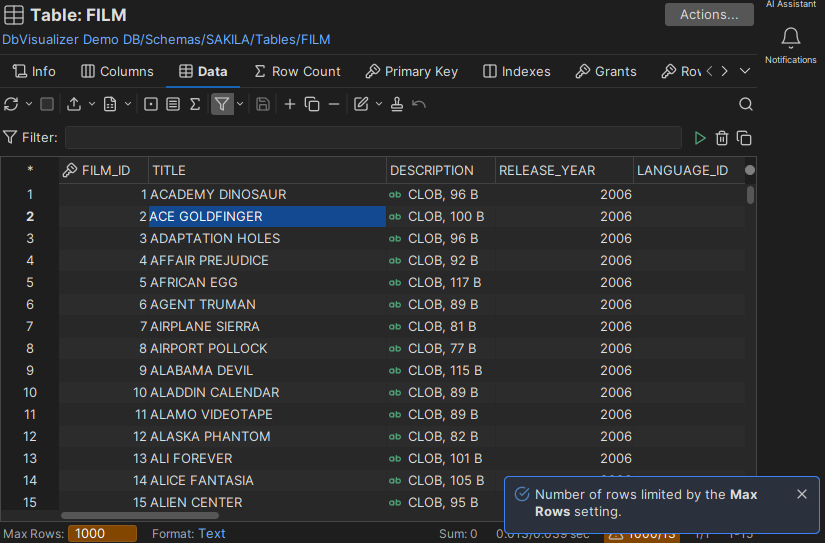
To show more rows, change Max Rows in the status bar of the grid. The new value applies to the Data tab of all tables. To show all rows, enter 0 or -1.
If there is no Max Rows limit, all rows are loaded when you open the Data tab. For a very large table, this can use a lot of memory. To load fewer rows when the tab first opens, select Limit the Number of Rows in the Data Tab at First Display under Max Rows at First Display, in the General / Table Data category in Tools → Tool Properties, and set the Row Count. It is off by default. To load more rows, up to Max Rows, click Reload in the toolbar.
Showing longer text values
By default, text values are cut off after 1,000 characters. When that happens, this is shown below the grid:
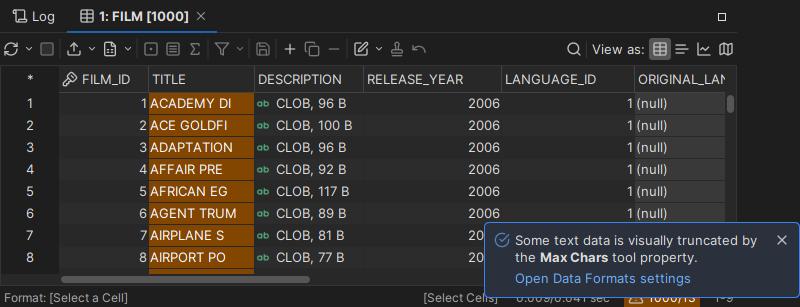
To change the limit, click Open Data Formats settings in the notification, or use the General / Data Formats category in Tools → Tool Properties.
To see the whole text of a single value, double-click it to open it in the value viewer.