Viewing a Result Set
When you execute a query in SQL Commander, the result is shown in a result set tab below the editor. You can view it as a grid, as text, as a chart or as a map. To switch, use the buttons at the upper right of the result set toolbar.
To choose the default view, use Default Display Mode in the General / SQL Commander / Result Sets category in Tools → Tool Properties. There, you can also choose whether to show empty results, and which tab to show after an execution.
Viewing as a grid
The grid works like the Data tab of a table: you can sort, filter, search and copy the data. See Viewing Table Data. If the query selects from a single table, you can also edit the result.
Viewing as text
Only in DbVisualizer Pro
This feature is only available in the DbVisualizer Pro edition.
The text view shows the result as plain text in columns. Each column is as wide as its longest value or its name.
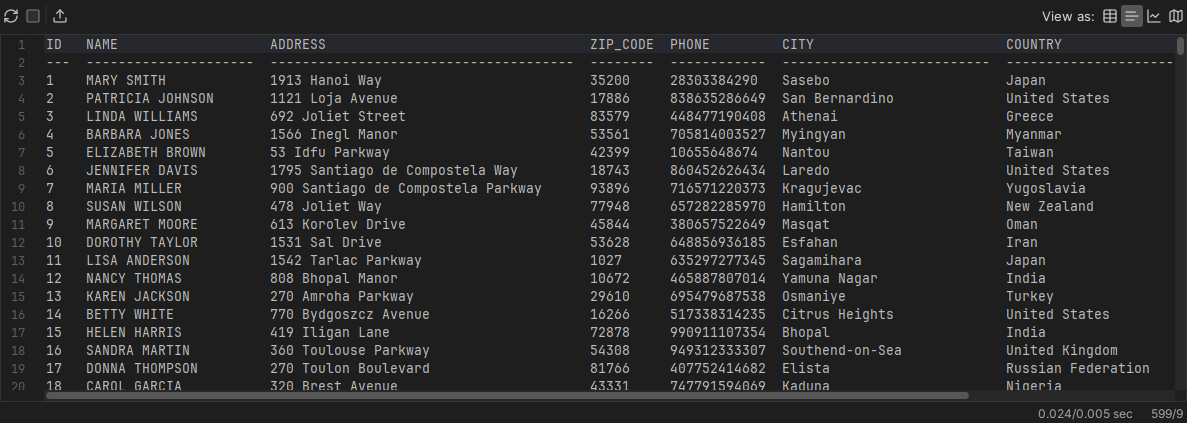
Merging results
To combine the text of several results into one, right-click a result set tab header and select Merge Result Sets. In the dialog, select the results to merge, and set how to merge them.
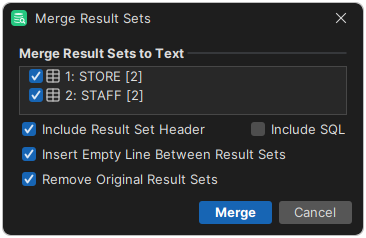
To merge the results after each execution, select Auto Merge after Execution in the Merge Result Sets menu in the SQL Commander toolbar. To set how to merge, select Configure Merging in the same menu.
Viewing as a chart
Only in DbVisualizer Pro
This feature is only available in the DbVisualizer Pro edition.
To show the result as a chart, use the chart button in the result set toolbar. See Using the Chart View.
Viewing as a map
Only in DbVisualizer Pro
This feature is only available in the DbVisualizer Pro edition.
To show a result with geographic data on a map, click Map in the result set toolbar, or right-click the result and select Show As → Map. See Using the Map View.
Exporting a result
To export a result to a file, the clipboard or SQL Commander, see Exporting a Grid. In a script, you can also use the @export command.
In DbVisualizer Pro, you can also open a result directly in your spreadsheet application, such as Excel, or in your web browser; see Opening a grid in a spreadsheet or browser.
Comparing results
Only in DbVisualizer Pro
This feature is only available in the DbVisualizer Pro edition.
You can compare a result with another result or with the data of a table:
- Open the other result, or the Data tab of the table.
- In one of them, right-click and select Compare, and select the other one.
See Comparing Data.