intro
Let’s learn how to work with SQL Server full-text search by first covering the main concepts and then walking through some examples.

Every day, databases around the world accumulate terabytes of textual data, making effective search capabilities more important than ever. Developers know that multiple search methods exist, and full-text search is a core one. SQL Server full-text search opens the door to “fuzzy matching” and goes beyond simple matches, considering also linguistic context, word forms, proximity, and more.
In this complete tutorial, you will explore full-text search in SQL Server, learning how it works, how to implement it, and how to use it in real-world examples.
Master the art of advanced text searching in SQL Server!
What Is SQL Server Full-Text Search Functionality?
SQL Server full-text search is a feature that enables advanced textual searches on character-based columns in a table. Full-text queries operate on words and phrases based on language rules, allowing searches to go beyond exact matches.
In detail, a full-text index can include one or more columns of types such as char, varchar, nchar, nvarchar, text, ntext, xml, image, or varbinary(max). Each indexed column can use a specific language to support accurate linguistic searches.
Common Types of Full-Text Search Queries
Once a full-text index is in place, you can perform searches using different query types:
The types of full-text search capabilities will vary from database to database. In the case of SQL Server, the above full-text queries can detect multiple forms of a word or phrase and return documents that contain at least one match, also considering conditions like term proximity or weighted relevance.
SQL Server Full-Text Search: Predicates and Functions
In simple terms, SQL Server full-text queries are built around two T-SQL predicates (CONTAINS and FREETEXT) and two functions (CONTAINSTABLE and FREETEXTTABLE):
| Feature | Type | Generally Used In | Purpose | Ideal When |
|---|---|---|---|---|
CONTAINS | Predicate | WHERE clause | Find exact words or phrases | You need precise control over which terms are matched and how they are related within the text. |
FREETEXT | Predicate | WHERE clause | Match meaning rather than exact wording | Users want flexible, natural-language-style searches without worrying about exact wording. Works best for intent-based or concept-based searches. |
CONTAINSTABLE | Function | FROM clause | Return matching rows with relevance ranking | You want ranked results that can be joined with other table columns for detailed reporting. |
FREETEXTTABLE | Function | FROM clause | Return rows matching meaning with ranking | You need broad, concept-based searches that return prioritized results. |
Time to learn more about them!
CONTAINS
The CONTAINS predicate is used to find exact words or phrases in a column. It supports precise matching, proximity searches, and logical operators like AND, OR, and NOT. Unlike the LIKE predicate, it can efficiently query large volumes of unstructured text using a full-text index. It also supports optional arguments for thesaurus lookups and inflectional forms.
Example: Assume you want to find products whose name includes both “Trail” and “Mountain”:
                    1
                    SELECT Name, ListPrice


                    2
                    FROM Production.Product


                    3
                    WHERE CONTAINS(Name, 'Trail AND Mountain');
This query returns only rows where the terms “Trail” and “Mountain” are present.
FREETEXT
The FREETEXT predicate searches for the meaning of the specified words, phrases, or sentences rather than an exact match. It breaks down the input into tokens and matches any inflectional forms or synonyms based on the full-text index.
Example: Consider you want to find documents related to the “safety precautions” expressions:
                    1
                    SELECT Title


                    2
                    FROM Production.Document


                    3
                    WHERE FREETEXT(Document, 'safety precautions');
The query returns all documents containing words or phrases with a similar meaning to “safety precautions”, such as “precautionary measures” or “safety steps.”
CONTAINSTABLE
CONTAINSTABLE is a rowset-valued function that works like a table in a FROM clause. It returns rows from a base table that match a CONTAINS query and includes a relevance ranking via the RANK column for each row. That special generated column has values from 0 to 1000, indicating how well each row matches the full-text search criteria. Higher values represent more relevant matches, allowing you to sort results by how well they match the search terms.
Note: CONTAINSTABLE supports Boolean operators, proximity, and weighted terms.
Example:
Suppose you need to find products whose descriptions contain “aluminum” near “light” with relevance ranking above 2:
                    1
                    SELECT P.ProductDescriptionID, P.Description, FT.RANK


                    2
                    FROM Production.ProductDescription AS P


                    3
                    INNER JOIN CONTAINSTABLE(Production.ProductDescription, Description,


                    4
                                             'aluminum NEAR light') AS FT


                    5
                    ON P.ProductDescriptionID = FT.[KEY]


                    6
                    WHERE FT.RANK > 2


                    7
                    ORDER BY FT.RANK DESC;
Explanation: “with relevance ranking above 2” means retrieving only rows with a rank higher than 2 are returned, indicating they match the full-text search criteria reasonably well. Higher RANK values signify more relevant matches.
FREETEXTTABLE
FREETEXTTABLE is similar to CONTAINSTABLE but works with the FREETEXT concept. It returns a table of rows that match the meaning of the input text, along with a relevance rank (RANK) and the unique key (KEY) of each row. Keep in mind that you can join the results with the base table to retrieve additional columns or sort by rank.
Example: You want to find product descriptions related to “lightweight bike” and rank them:
                    1
                    SELECT P.ProductDescriptionID, P.Description, FT.RANK


                    2
                    FROM Production.ProductDescription AS P


                    3
                    INNER JOIN FREETEXTTABLE(Production.ProductDescription, Description,


                    4
                                             'lightweight bike') AS FT


                    5
                    ON P.ProductDescriptionID = FT.[KEY]


                    6
                    ORDER BY FT.RANK DESC;
This query returns rows with terms related to “lightweight bike,” even if the exact words are not present, and ranks them by relevance.
How to Perform Full-Text Search in SQL Server: Getting Started
In this section, you will learn how to enable full-text search on a SQL Server instance by creating the necessary full-text index on a Products table.
Note: The following two sections will be supported by DbVisualizer, a top-rated, multi-database client with full support for SQL Server. Any other database client that works with SQL Server will do.
Prerequisites
Before proceeding, ensure that the Full-Text Search component is installed on your SQL Server instance through the following query:
                    1
                    SELECT SERVERPROPERTY('IsFullTextInstalled') AS FullTextInstalled;

The result needs to be 1, as you can verify by executing the query in DbVisualizer or any other SQL Server database client.
If the query returns 0, it means the Full-Text Search component is not installed, and full-text queries will not work. In this case, you need to add it by rerunning the SQL Server installer and selecting Full-Text Search.
Step #1: Create a Full-Text Catalog
Assume your database contains the following Products table:
                    1
                    CREATE TABLE Products (


                    2
                        ProductID INT IDENTITY PRIMARY KEY,


                    3
                        Name NVARCHAR(255),


                    4
                        Description NVARCHAR(MAX)


                    5
                    );
You can verify this in DbVisualizer by selecting the “DDL” tab for the table:

In particular, this table stores two sample products:

In the next chapter, you will run SQL Server full-text queries on this table and its two products.
To be able to do so, the first step is to add a full-text catalog with:
                    1
                    CREATE FULLTEXT CATALOG ProductsCatalog AS DEFAULT;
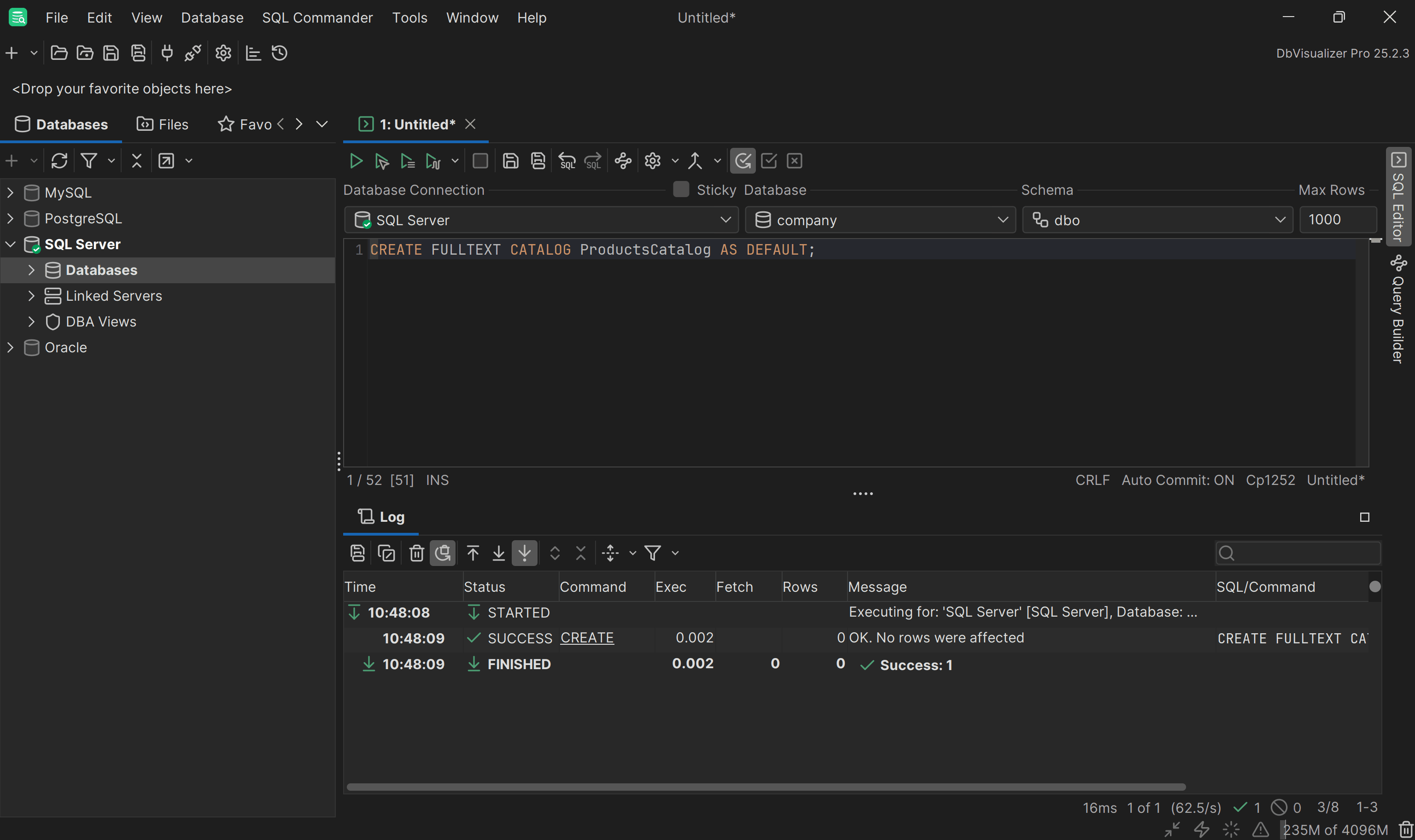
In SQL Server, a full-text catalog is a storage container for full-text indexes. It provides the infrastructure to store and manage full-text index data, which is required to perform full-text search queries.
Note: Full-text catalogs cannot be created in the master, tempdb, or model databases in SQL Server. They must be created in a user database, not a system database.
Step #2: Create a Full-Text Index
Add a SQL Server full-text index on the Description column of the Products table:
                    1
                    CREATE FULLTEXT INDEX ON Products(Description)


                    2
                        KEY INDEX <YOUR_PRIMARY_KEY_Products_INDEX>


                    3
                        ON ProductsCatalog


                    4
                        WITH CHANGE_TRACKING AUTO;
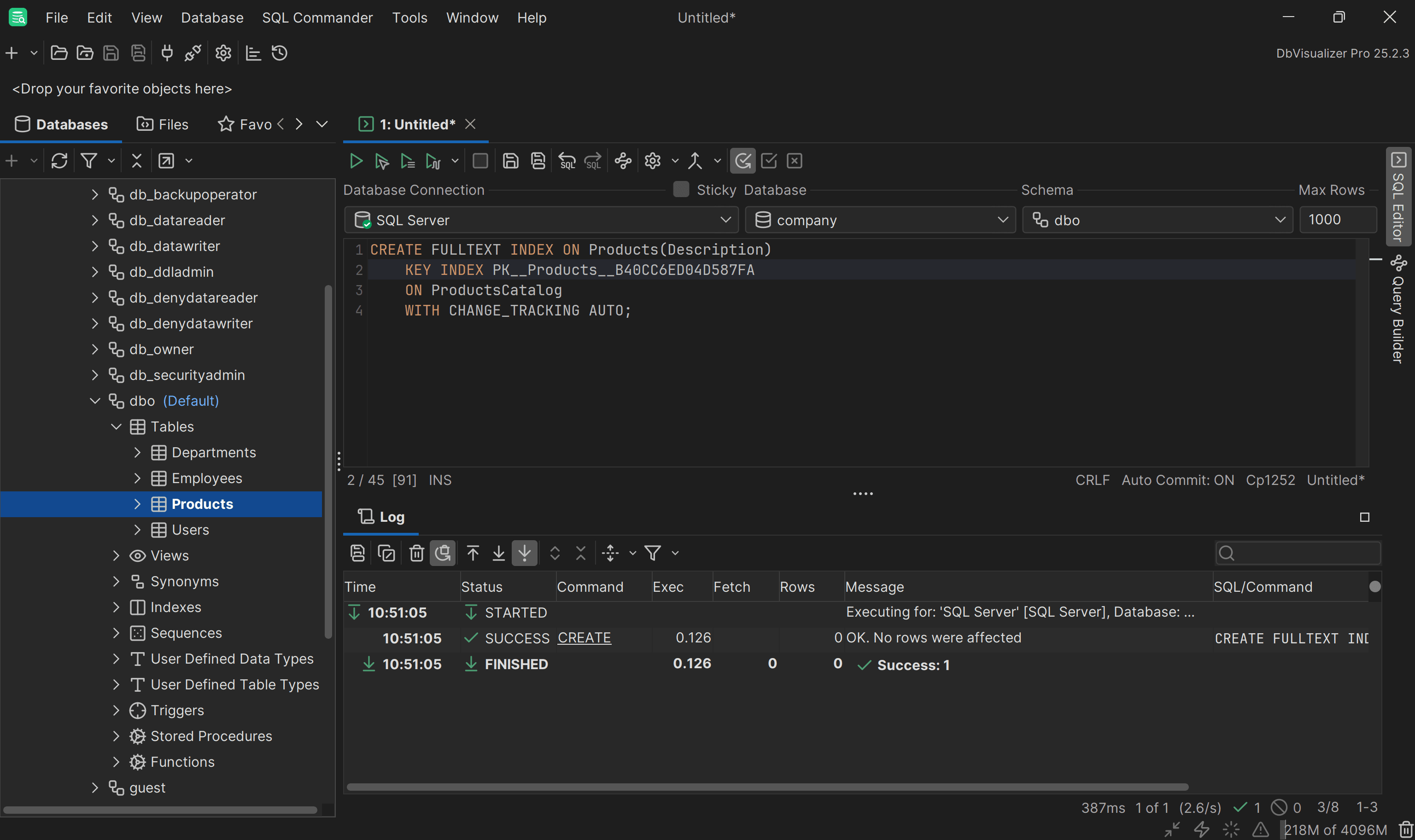
This creates a full-text index on the Description column, using the table’s primary key (replace <YOUR_PRIMARY_KEY_Products_INDEX>with the primary key index name) and storing the index in the ProductsCatalog full-text catalog. The CHANGE_TRACKING AUTO option ensures the index stays up-to-date automatically as the table data changes.
Great! You now have everything required to perform full-text searches on the text content of the Description column.
Complete Examples
In this chapter, you will test full-text search queries using examples for CONTAINS, FREETEXT, CONTAINSTABLE, and FREETEXTTABLE. We will use the Products table from the example above.
Remember that the product with ID = 1 is called “Cotton T-Shirt” and has this description:
                    1
                    Experience comfort every day with this versatile cotton t-shirt. Lightweight, soft, and breathable. Perfect for casual wear.
Instead, the product with ID = 2 is called “Classic Sneakers” and has this description:
                    1
                    These timeless sneakers combine style and comfort. Lightweight design suitable for sports and casual outings.
Let’s see some SQL Server full-text search examples!
Proximity Search Example
Suppose you want to find products where specific words appear close to each other. You can achieve this using CONTAINS.
For example, to find products where "cotton" is near "lightweight," you can write:
                    1
                    SELECT Name, Description


                    2
                    FROM Products


                    3
                    WHERE **CONTAINS(Description, 'cotton NEAR lightweight');**
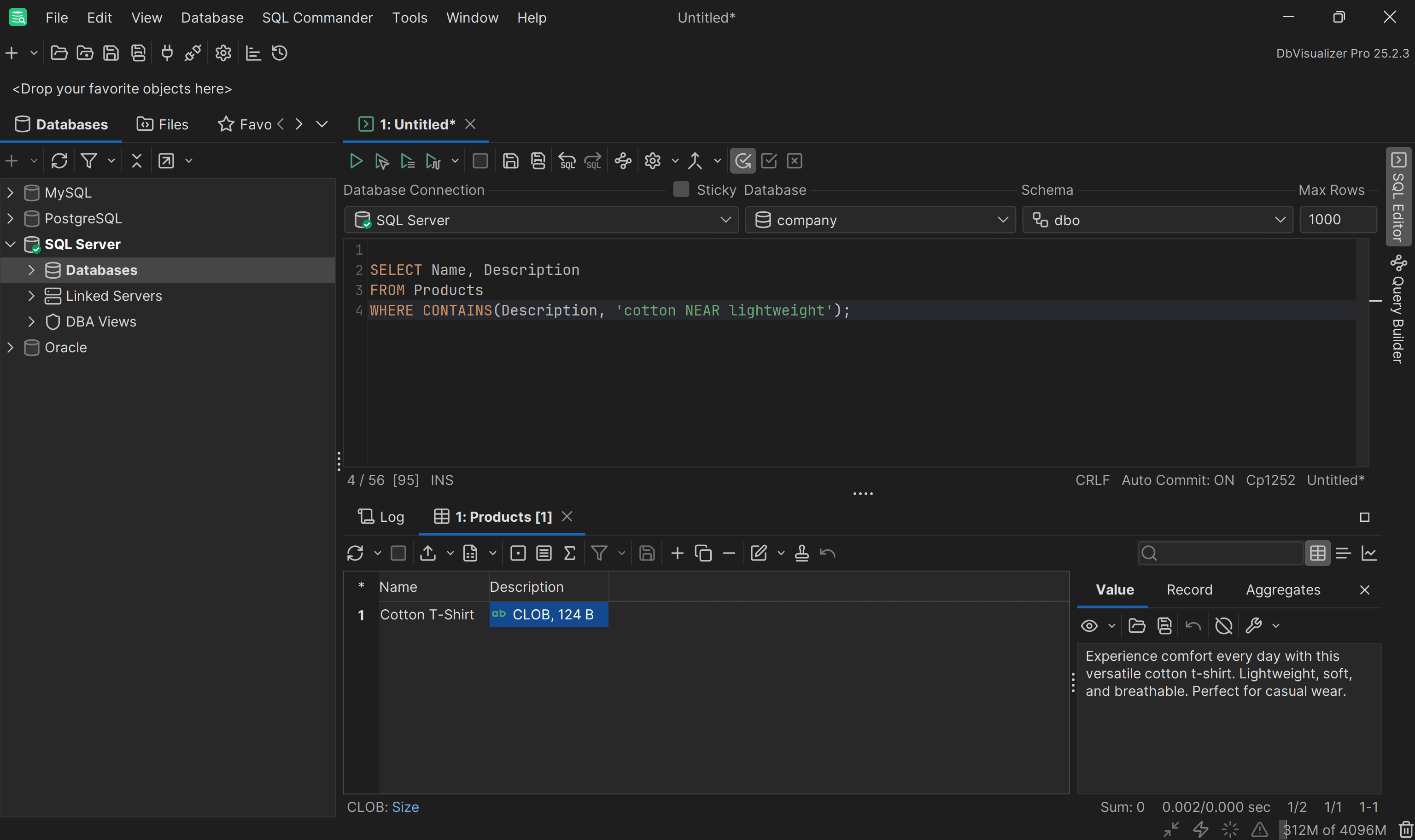
As you can see, only the “Cotton T-Shirt” product (ID = 1) is returned. That is because its description contains both “cotton” and “lightweight” close together.
Meaning-Based Search Example
Consider the scenario where you want to find products whose descriptions contain something related to the “cozy shirt” expression. You can achieve that goal with FREETEXT as follows:
                    1
                    SELECT Name, Description


                    2
                    FROM Products


                    3
                    WHERE FREETEXT(Description, 'cozy shirt');

This query returns products whose descriptions include terms similar to “cozy shirt,” such as “casual wear” in the description of a product like “Cotton T-Shirt.”
Ranked Exact Matches Example
Assume you want to find products whose descriptions contain the words “lightweight” and “casual” close to each other, and you also want to rank the results by relevance. This is a common scenario when you want to prioritize products that match a search query more closely.
Achieve that with a CONTAINSTABLE full-text search query:
                    1
                    SELECT P.ProductID, P.Name, P.Description, FT.RANK


                    2
                    FROM Products AS P


                    3
                    INNER JOIN **CONTAINSTABLE(Products, Description, 'lightweight NEAR casual') AS FT


                    4
                        ON P.ProductID = FT.[KEY]


                    5
                    WHERE FT.RANK > 5


                    6
                    ORDER BY FT.RANK DESC;**

Even though both descriptions contain “lightweight” and “casual,” the “Classic Sneakers” product has the two words closer together in the text. Full-text search with the NEAR operator considers proximity, so the “Classic Sneakers” description gets a higher RANK and is selected, while the “Cotton T-Shirt” is ignored.
Ranked Meaning-Based Matches Examples
Suppose you want to find products whose descriptions are related in meaning to “casual wear,” while not necessarily containing the exact words. This is useful when you want to match the intent or concept rather than the literal text.
You can achieve that with a FREETEXTTABLE query:
                    1
                    SELECT P.ProductID, P.Name, P.Description, FT.RANK


                    2
                    FROM Products AS P


                    3
                    INNER JOIN **FREETEXTTABLE(Products, Description, 'casual wear') AS FT**


                    4
                        ON P.ProductID = FT.[KEY]


                    5
                    ORDER BY FT.RANK DESC;

Even though both products reference casual activities, the “Cotton T-Shirt” description matches the concept more closely. As a result, it gets a higher RANK and appears first, while the “Classic Sneakers” description is still included but with a lower relevance score.
Et voilà! You are now a full-text search master in SQL Server.
Conclusion
In this blog post, you learned how SQL Server's full-text search enhances the accuracy of text retrieval queries by using tokenization, inflectional forms, and proximity-based matching. With these techniques, you are now ready to write advanced full-text search queries.
To take full advantage of these capabilities, you need a powerful visual database client. DbVisualizer provides exactly that!
It supports all SQL Server full-text functions and predicates and offers advanced query editing and optimization tools for multiple DBMSs. Enhance your full-text search experience by downloading DbVisualizer for free today.
FAQ
Why isn’t full-text search working on my SQL Server instance?
Remember that Full-Text Search is an optional component of SQL Server. If you did not select it during installation, you need to run the SQL Server Setup again and make sure to add the Full-Text Search component to your instance.
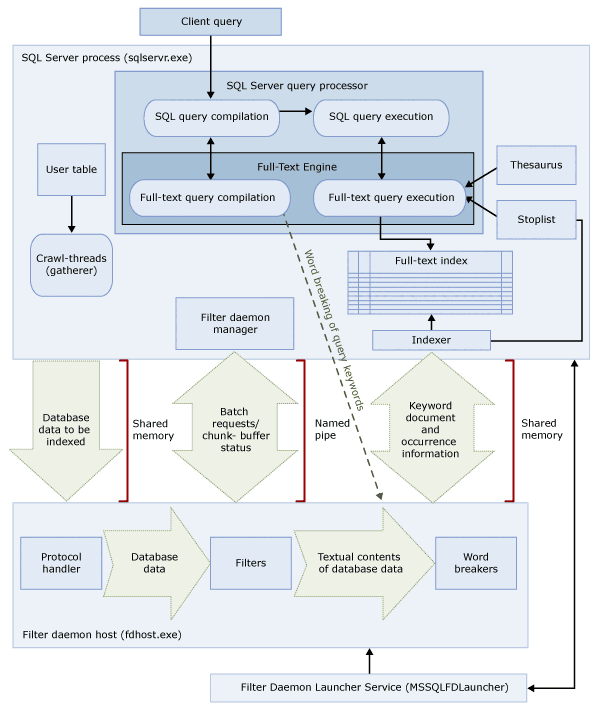
What are the main processes in the full-text search architecture in SQL Server?
The full-text search architecture in SQL Server relies on two main processes:
Together, these two processes enable secure and efficient full-text search in SQL Server, powering the following architecture:
What are the main components involved in SQL Server full-text search?
SQL Server utilizes the following components for full-text search:
| Component | Description |
|---|---|
| User tables | Hold the data that will be full-text indexed. |
| Full-text gatherer | Works alongside full-text crawl threads, responsible for scheduling and driving the population of full-text indexes, as well as monitoring full-text catalogs. |
| Thesaurus files | Contain synonyms for search terms. |
| Stoplist objects | Include common words that are ignored during searches to improve relevance. |
| SQL Server query processor | Compiles and executes SQL queries. If a query includes a full-text search, it is sent to the Full-Text Engine during both compilation and execution, with results matched against the full-text index. |
| Full-Text Engine | Fully integrated with the query processor, it compiles and executes full-text queries and may utilize thesaurus and stoplist inputs during execution. |
| Index writer (indexer) | Builds the structure that stores indexed tokens. |
| Filter daemon manager | Monitors the status of the Full-Text Engine filter daemon host. |
What is the difference between full-text search queries and the LIKE predicate in SQL Server?
Full-text search queries in SQL Server are built to efficiently search large volumes of unstructured text, offering features like inflectional forms, thesaurus matching, and relevance ranking. In contrast, the SQL LIKE predicate only matches simple character patterns and cannot process formatted binary data. Performance-wise, LIKE becomes very slow when scanning millions of rows, often taking minutes. Instead, full-text search relies on specialized indexes to return results in seconds or less. Learn more about these two mechanisms in the official docs.
Is a full-text index required to perform a full-text search in SQL Server?
Yes, a full-text index is required to make a full-text search in SQL Server. Unlike a standard index, which is used for querying based on value comparisons, a full-text index tokenizes text data and stores information about the words and their location within the text. This specialized structure is essential for the efficient and flexible pattern-matching capabilities of full-text search.
Where can I learn more about the Full-Text Search functionality in SQL Server?
For more information on how full-text search works in SQL Server, refer to these official guides: