


intro
Welcome to DbVisualizer 26.3. This version lets you compare and synchronize database structures, copy tables between connections, and use the AI service of your choice. It also brings Touch ID and Windows Hello for saved passwords, import of Oracle SQL Developer connections, support for Couchbase, a new SQL formatter, and more. Let’s take a closer look.
Copy table
Copy tables between connections
Copying a table, including its data, to another database connection is now just a few clicks away. Choose Copy Table from the right-click menu of a table, select the target connection, database and schema, and click Copy. The source and target can be different types of databases, and the data types are converted to the closest match in the target database.
Copying tables is supported for PostgreSQL, MySQL, Oracle, SQL Server, Db2 and H2. To copy tables in a script, use the new @copy table client-side command.
Schema diff
Compare and synchronize schemas
You can now compare the structure of two schemas, databases or tables, see exactly what differs, and generate a script that brings one side in line with the other. The two sides can be different types of databases.
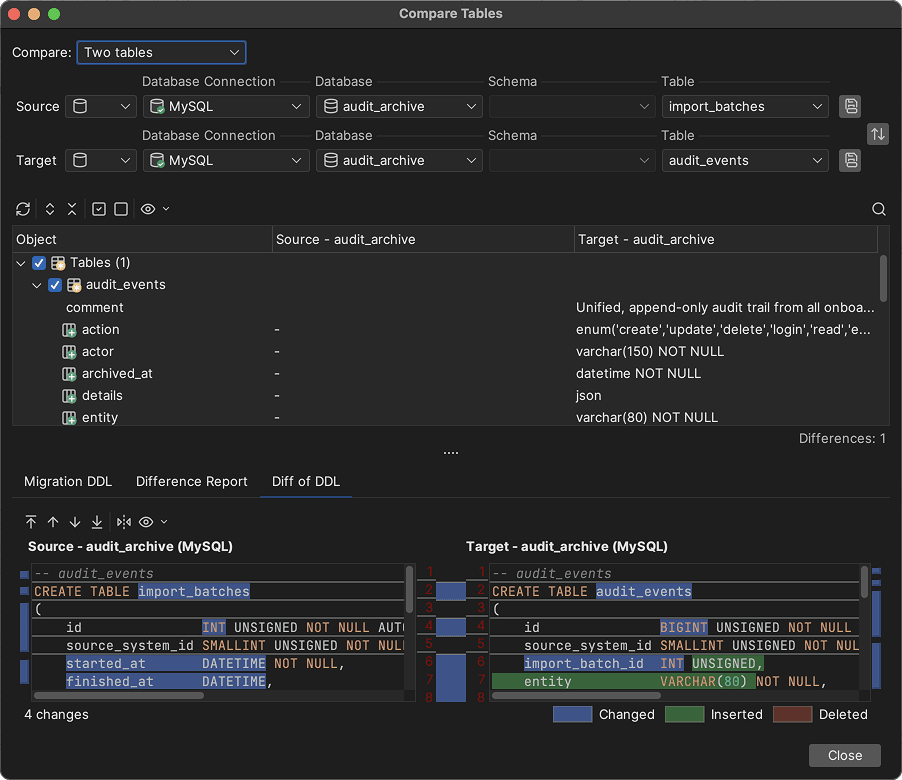
Select two nodes in the Databases tab and choose Compare Schemas from the right-click menu. The differences are listed in a tree, where you choose the objects to include. The result is shown as a migration script, a difference report, or the DDL of both sides next to each other. Open the migration script in SQL Commander to review and run it, or save it to a file.
Compare with a snapshot
Save the structure of a schema as a snapshot file, and compare a database with it later, for example to see what changed after an upgrade. Snapshots also let you compare databases that can’t be reached at the same time.
Automate with client-side commands
The new @compare schema and @snapshot schema client-side commands let you run a schema comparison as part of a script. Combined with the command-line interface, this makes it easy to check regularly that your environments stay in sync.
SECURITY
Unlock saved passwords with Touch ID or Windows Hello
Saved passwords can now be protected with Touch ID on macOS or Windows Hello on Windows. Instead of typing a master password, you unlock the password vault with a fingerprint or face recognition.
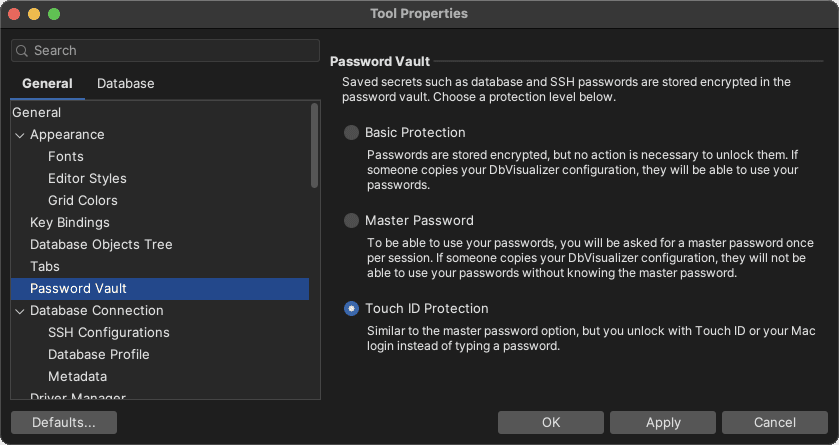
When you turn it on, you get a recovery code to store somewhere safe. Use it to unlock the vault when Touch ID or Windows Hello can’t be used, for example after copying your settings to another computer.
AI
Use the AI service of your choice
In addition to the built-in AI connection, the AI Assistant can now work with the AI service that suits you and your organization: your own OpenAI or Anthropic account, a local model, or your organization’s AI service. With a custom AI connection, DbVisualizer connects directly to the service. You don’t need to log in to DbVisualizer, and any usage costs are between you and the provider.
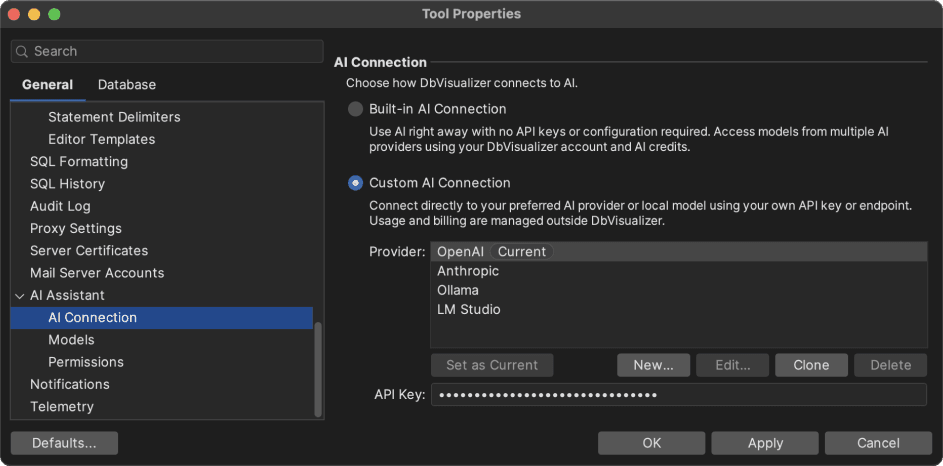
Your own OpenAI or Anthropic account
If you already have an API key from OpenAI or Anthropic, enter it in Tool Properties and choose the model to use.
Local models
Run a local model in Ollama or LM Studio, and your questions are answered on your own computer. Nothing leaves it.
Your organization’s AI service
Connect to your organization’s AI gateway, or any other service that supports the OpenAI or Anthropic API. Administrators can also set up the providers and models for all users.
Import connections
Import connections from Oracle SQL Developer
Moving from Oracle SQL Developer? Export your connections from SQL Developer and import them with File → Import Connections. The connection settings, folders, advanced properties and SSH tunnels are imported, and so are the passwords, if you encrypted them with a key. Before you import, a preview shows what happens with each connection.
Database-specific improvements
Improved database support
Support for Couchbase
This release adds support for Couchbase. Browse buckets, scopes and collections in the Databases tab, run SQL++ queries in SQL Commander, and explore nested documents in the result grid.
Improved MariaDB support
MariaDB support now covers system-versioned tables and the VECTOR data type, and handles the JSON, UUID, INET4 and INET6 data types better.
Latest driver for QuestDB
QuestDB connections can now use the latest PostgreSQL driver.
AND MORE
And more improvements across the board
New SQL formatter
This release introduces a revamped SQL formatter that is faster and better at handling database-specific syntax. The formatting settings have been reorganized. As before, the live sample in Tool Properties shows the effect of each option, and you can use different settings for each connection or database type. The legacy formatter is still available in the settings, for compatibility with earlier versions.
Organize your AI chats
The chat history in the AI Assistant panel can now be searched, and chats can be renamed, pinned and deleted.
Lock a driver version
If you need to stay on a specific version of a database driver, you can now lock it in the Driver Manager. DbVisualizer then stops offering updates for that driver, while you keep getting update notifications for the others.
The Favorites toolbar is back
The Favorites toolbar gives you one-click access to your favorite objects and scripts again. Show it with View → Show Favorites Toolbar.
Stricter validation of client-side commands
Client-side commands now report unknown parameters and invalid parameter values as errors, so a misspelled parameter no longer goes unnoticed. Scripts with such mistakes that ran before will now fail, so you may need to correct them.
Security and driver updates
As part of our ongoing security maintenance, this release includes the latest security upgrades for the Java runtime, third-party dependencies and template drivers.
And that’s not all…
There are a total of 45 improvements and fixes that you can read about in the release notes.
OTHER RELEASES