intro
In this blog, we dig deep into the features of DbVisualizer not supported by a popular SQL companion for relational databases: phpMyAdmin.

Today, we’re looking into DbVisualizer from a different light - we’re looking at features supported by DbVisualizer that are not supported by a popular tool to manage database management systems - phpMyAdmin.
Preface
Have you used this?

That’s the most recent version of phpMyAdmin. Log in to the tool and you will unleash a world of opportunities:

Most of you know what those opportunities pertain to. phpMyAdmin helps us with many things including the management of databases, tables, and the data within, it allows us to run custom SQL queries directly from its interface (see the SQL tab?), and it also allows us to add, modify, or delete any users pertaining to our databases and back them up or restore them if we so desire.
Its major downside that it’s almost exclusively centered towards MySQL, hence the “My” in the name. Let’s be fair, it supports MariaDB too. Still, besides its well-known features, it has downsides unique to it too, and that’s a big part of the reason why many developers avoid phpMyAdmin and choose SQL clients like DbVisualizer to begin with!
Top 10 Features in DbVisualizer Not Supported by PMA
phpMyAdmin (or PMA for short) is a great tool, but it’s not without it’s downsides. I’ll start from its SQL interface. At first glance, it’s not bad at all:

phpMyAdmin is able to mark parts of SQL queries (state-altering statements like SELECT, UPDATE, DELETE and the like are marked in purple), recognize comments, incomplete queries are underlined and marked by “X”s next to the line they appear on, and some parts of SQL queries can be completed automatically as phpMyAdmin also recognizes parts of some statements like shown in the image above. Add formatting and foreign key checks into the mix, and you’re dealing with a fine companion, but when comparing with actual SQL clients that do their work, it pales in comparison.
SQL Editor
And that’s where we come towards the first feature of DbVisualizer not supported by phpMyAdmin. The feature has to do with its SQL editor:

SQL editor has always been a big part of DbVisualizer. With features like transaction and SQL history, SQL formatting, AI assistant, and even role-based control (we can select what queries can be executed and what queries need to be denied execution), it’s no wonder the tool is so popular.
A standalone SQL editor may be standard for many DBAs. Here, DbVisualizer doesn’t walk alone!
Query Visualizer
Remember the name of DbVisualizer? It’s not there without a reason. DbVisualizer also comes with a powerful query visualization capability:
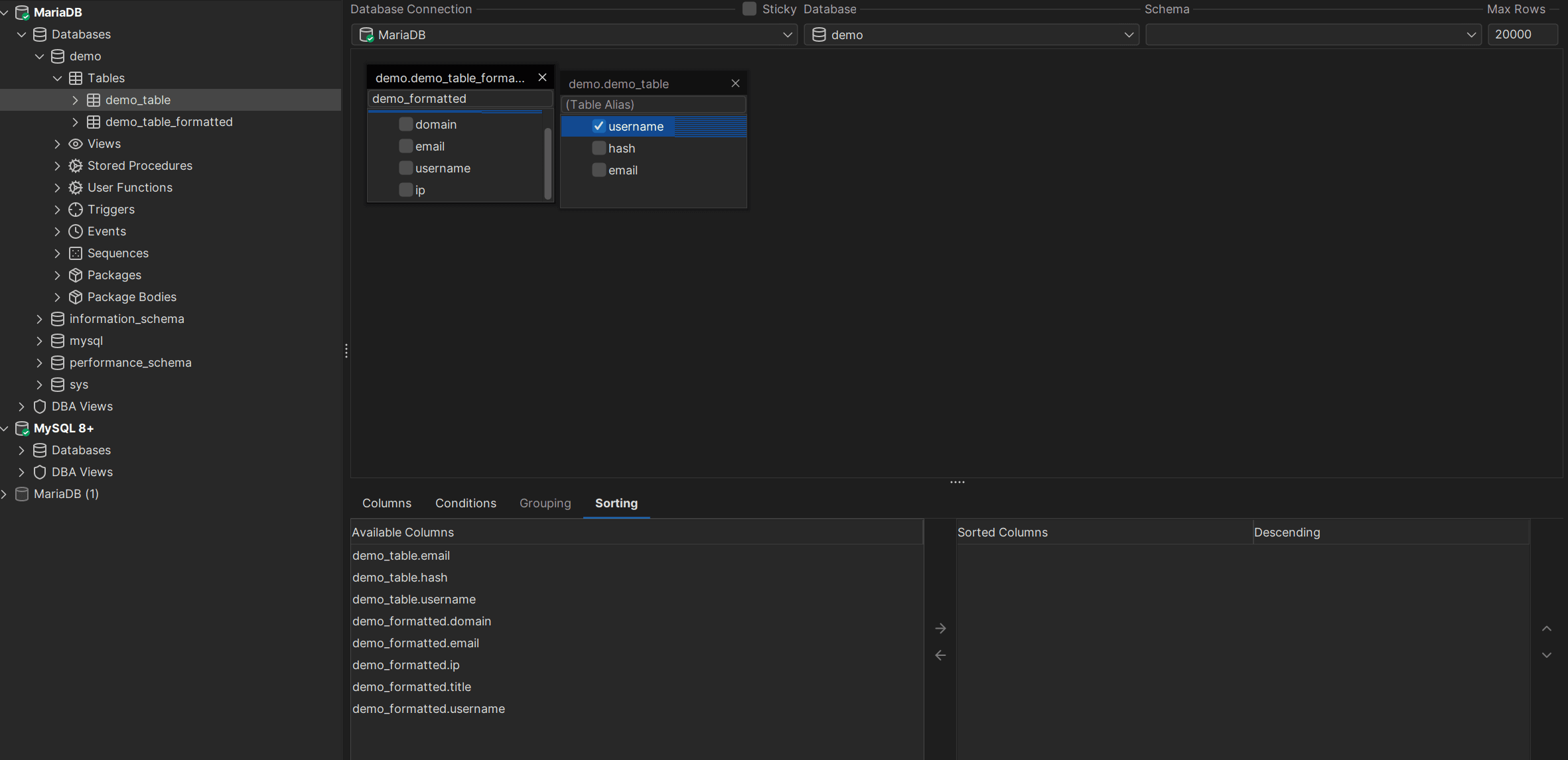
This feature is not exactly called “query visualization”, but rather, a query builder.
The concept of this is that you select the databases you work with, then drag tables into DbVisualizer, make do with available options related to columns, conditions, grouping, and sorting, and DbVisualizer will help you build a query that exactly matches your wishes. This feature may not be a necessity for many, but having such things at hand is always nice because some of us might indeed understand databases better in a visual fashion than through SQL queries.
Cross-Platform Support for 60+ Data Endpoints
Another thing DbVisualizer is famous for that’s not found in phpMyAdmin would be support for multiple database management systems. phpMyAdmin supports only MySQL and MariaDB, while DbVisualizer provides support for more than 60 database endpoints including Snowflake, ClickHouse, and many more. Head over to the left side of DbVisualizer, click on the plus (”+”) sign to add a database, and select your database from the list:

Another thing to note is that DbVisualizer runs on Windows, Mac, as well as on Unix systems. That means that no matter what operating system you find yourself running, DbVisualizer can deal with all challenges!
ER Diagrams with Rich Data Import/Export Capabilities
Another thing DbVisualizer offers that phpMyAdmin does not is the ability to craft entity relationship (ER) diagrams straight within the tool itself. In other words, DbVisualizer is perfectly able to help you better understand how the tables within your databases interact with one another in a visual way if you head over to the “References” tab when exploring your database:

Ability to Edit Your Data as a Spreadsheet
Another thing DbVisualizer is famous for is allowing developers to edit their data as a spreadsheet. Expand any table in DbVisualizer, access its data, and get ready to edit that with an in-line experience:

That’s a simplified data management and editing experience you don’t get with phpMyAdmin.
Exploring Your Tables
phpMyAdmin is not only a SQL client. It also has a powerful data exploration capability where it shows what databases have what tables inside of them.

Double-click your table under a database and you will be taken to a window allowing you to explore everything within it from columns and data to DDL queries.
Version Control Integration
Newer versions of DbVisualizer also come with Git integration.
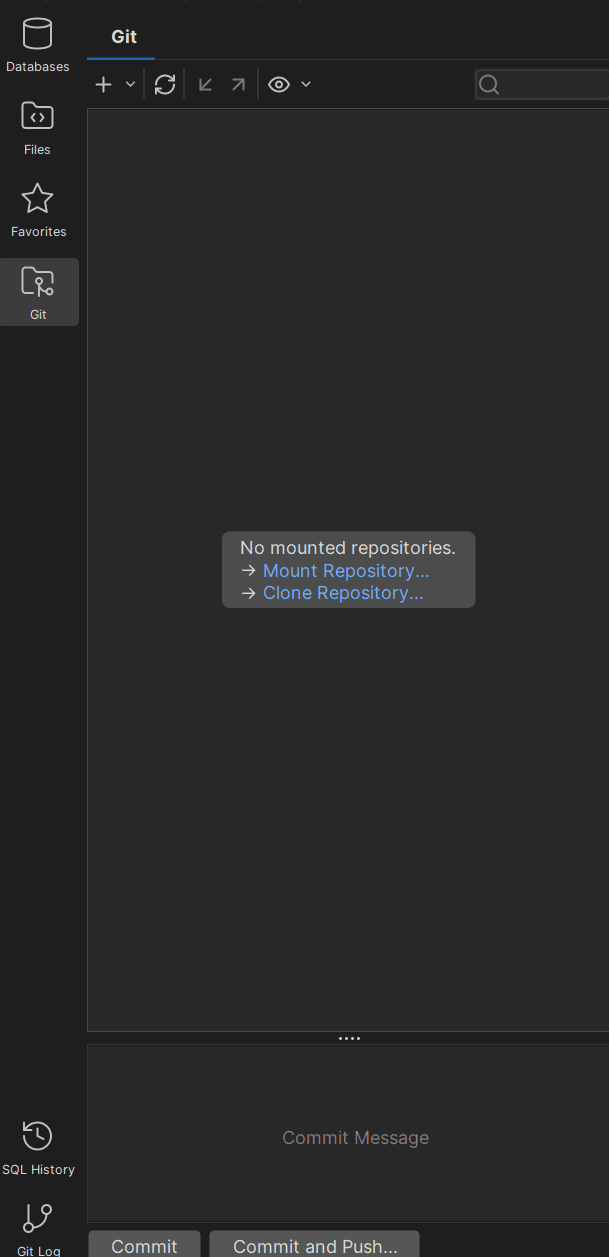
You will find the option on the left-hand side, right next to all of your databases and tables within them. While this feature is only available in the DbVisualizer Pro edition, it does allow you to mount and clone repositories as well as work with them inside DbVisualizer.
SSH Support
These days, security is paramount. And, while seemingly everyone would agree to this, phpMyAdmin doesn’t provide support for logging in besides “vanilla” authentication options unique to itself; DbVisualizer, on the other hand, comes with full-fledged SSH support that will satisfy even the most paranoid security professionals. Head over to “Properties”, then “SSH Configurations under Database Connection” and see for yourself:

AI DBA Assistant
Last but not least, we have DbVisualizer’s AI capabilities. The AI chat can be configured to automatically provide context (your database structure) to DbVisualizer upon request.
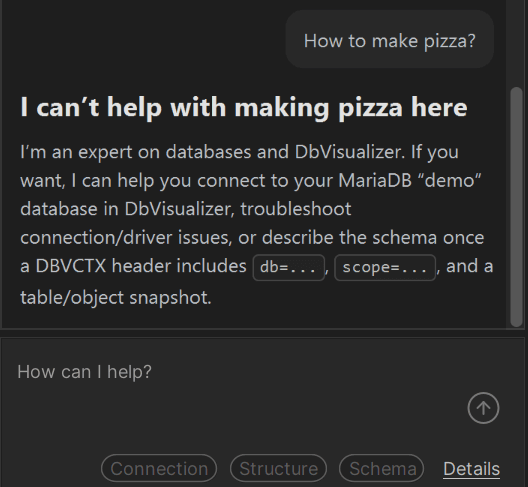
DbVisualizer’s AI works much like ChatGPT does, just that it’s only focused on your databases. Don’t know what you’re having problems with? Ask AI, it should assist you.
Connection and Environment Management
Last but not least, DbVisualizer allows for decent connection and endpoint management in the sense that phpMyAdmin is usually tied to one database server and DbVisualizer comes with a lot of JDBC connectors allowing us not only to connect to multiple data sources but also to group connection environments (for example, into development, test, and production or similar groups), then manage them as we go.
Summary
phpMyAdmin is a well-known tool, however, it has downsides unique to itself. One of the primary of such downsides is that phpMyAdmin only offers support for MySQL and MariaDB, while SQL clients like DbVisualizer and others come with a variety of other features making life easier for developers and DBAs alike. Such features include cross-platform support for more than 60 data endpoints, powerful SQL client capabilities, SSH and others, and, these days, integrated support for AI. Test all DbVisualizer features thanks to a 21-day free trial!
FAQ
Is DbVisualizer better than phpMyAdmin?
In many aspects, DbVisualizer is a better choice than phpMyAdmin simply because it supports more data sources than phpMyAdmin does, includes advanced support for features available in phpMyAdmin (SQL editor, intelligent autocomplete, and others), as well as has loads of features unique to itself.
Does DbVisualizer support AI?
Yes, the most recent version of DbVisualizer (25.3 at the time of writing) supports Artificial Intelligence. The AI chatbot within DbVisualizer works similarly to ChatGPT.
What are some of the most popular features within DbVisualizer?
Some of the most popular features within DbVisualizer include support for a variety of data sources including Snowflake, ClickHouse, MySQL, and others, support for a visualized query builder (hence the name of the tool), SSH support, and integrated support for AI.